Running LLM Models locally with Docker

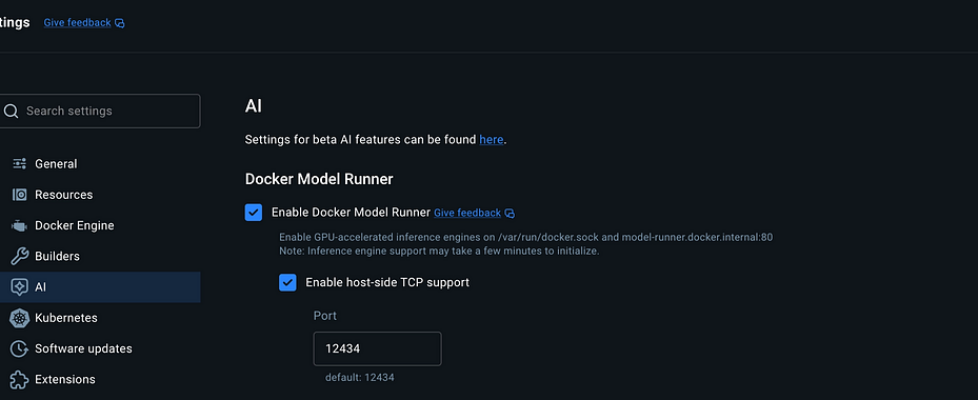
Author(s): Kushal Banda Originally published on Towards AI. If you’ve been building AI applications recently, you’re likely familiar with the friction of managing API keys, tracking usage costs, and relying on cloud endpoints like OpenAI or Anthropic. But what if you could spin up Large Language Models (LLMs) locally with the exact same workflow you use for your databases and web apps? Enter Docker Model Runner (DMR). Just as Docker revolutionized how we pull, manage, and run application containers, it is now bringing that exact same simplicity to AI models. In this guide, we will explore how you can use Docker to pull LLMs, chat with them in your terminal, and seamlessly integrate them into your existing Node.js applications as a drop-in replacement for OpenAI APIs. Enable Docker Model Runner and host-side TCP support (OpenAI Compatable APIs) Docker Why Run Models Locally? Before we dive into the “how,” let’s quickly address the “why.” Running models locally on your own hardware offers several massive benefits: Zero Cost: No need to constantly load API credits just to test your application logic. Privacy: Your prompts and data never leave your local machine. Offline Development: Code from planes, trains, or anywhere without an internet connection. With Docker’s new capabilities, getting a model up and running is now as easy as pulling a PostgreSQL image. Step 1: Enabling Docker Model Runner To get started, you need to have Docker Desktop installed on your machine. Once installed, we need to flip a couple of switches to enable the AI features. Open Docker Desktop and navigate to Settings. Look for the AI tab on the sidebar. Check the box for Enable Docker Model Runner. Check the box for Enable host-side TCP support. Note: Enabling the TCP support is crucial. This exposes a local REST API on port 12434 which we will use later to connect our code to the model. Step 2: Pulling and Running Models via CLI Docker has introduced a new command namespace: docker model. If you know how to use standard Docker commands, you already know how to manage LLMs. You can browse available models on Docker Hub’s Model Repository. For this tutorial, let’s use a lightweight model like Gemma 3 (around 571MB), which runs smoothly even without a massive GPU. Open your terminal and pull the model: docker model pull ai/gemma3-qat ai/gemma3-qat Once downloaded, you can view your available local models using: docker model list To start interacting with the model immediately, simply run: docker model run gemma3-qat Boom! You are now in an interactive chat environment directly in your terminal. You can say “Hi” or ask it math questions, and it will respond entirely locally. Terminal Step 3: The Magic of OpenAI Compatible APIs Chatting in the terminal is cool, but as developers, we want to integrate these models into our code. This is where Docker Model Runner truly shines. Instead of forcing you to learn a completely new SDK to talk to your local models, Docker exposes an OpenAI-compatible REST API. This means the Docker runner expects the exact same JSON request body as OpenAI and returns the exact same response structure. If you have an existing application built with the openai npm package, you can point it to your local Docker model without rewriting your application logic! Node.js Integration Example Let’s set up a quick Node.js playground to see this in action. Initialize a new project and install the official OpenAI SDK: mkdir docker-AIcd docker-AIpnpm initpnpm install openai (Make sure to add “type”: “module” to your package.json to use ES modules). Now, create an index.js file. Notice how we use the standard OpenAI SDK, but we override the baseURL to point to Docker’s local TCP port (http://localhost:12434/v1): import OpenAI from ‘openai’;// 1. Initialize the client// Point the baseURL to the Docker Model Runner portconst client = new OpenAI({ baseURL: ‘<http://localhost:12434/v1>’, apiKey: ‘local-docker’, // API key is not validated locally, any string works});async function runLocalModel() { try { // 2. Use the exact same standard OpenAI syntax const response = await client.chat.completions.create({ model: ‘gemma3-qat:270M-F16’, // Use your local docker model name here messages: [ { role: ‘user’, content: ‘Write a python code to search a node in a binary tree?’ } ], }); console.log(“Response:”, response.choices[0].message.content); } catch (error) { console.error(“Error connecting to local model:”, error); }}runLocalModel(); When you run this script (node index.js), the request is routed to your locally running Docker model instead of OpenAI’s servers. Conclusion Docker has successfully merged the worlds of containerization and AI development. By treating AI models as pull-able, runnable artifacts that expose industry-standard APIs, Docker Model Runner acts as the perfect bridge for developers wanting to experiment locally without opening their wallets. While you might still deploy to production using hosted endpoints (like OpenAI or Gemini) for heavy lifting, building and testing locally with Docker is an absolute game-changer. Give it a try on your machine today! Resources Docker Model Runner Docker Hub Models Docker – ai/gemma3-qat 🌐 Connect For more insights on AI, and LLM systems follow me on: LinkedIn Medium GitHub Join thousands of data leaders on the AI newsletter. Join over 80,000 subscribers and keep up to date with the latest developments in AI. From research to projects and ideas. If you are building an AI startup, an AI-related product, or a service, we invite you to consider becoming a sponsor. Published via Towards AI
