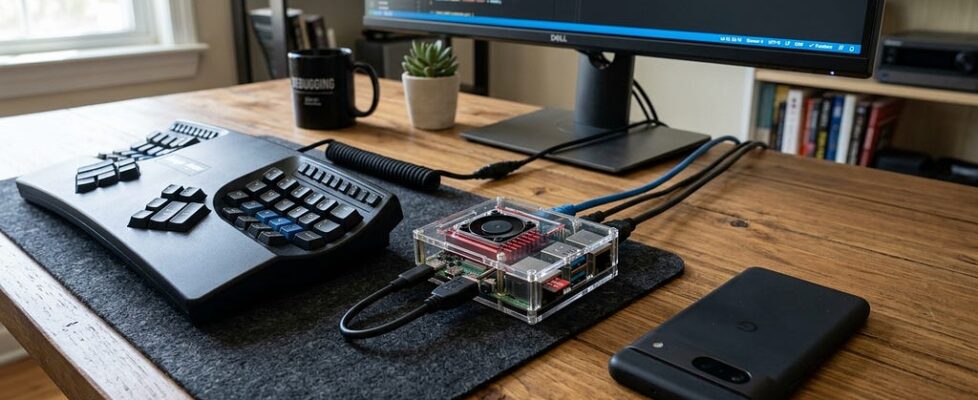
How to Build Your Own Private, Offline AI on a Raspberry Pi

You can put a working AI assistant on an 80-dollar Raspberry Pi, run it entirely offline, and never send a single word to anyone else’s servers. It won’t be as smart as the frontier models, and to be clear upfront, you are running a pre-trained model rather than training one yourself, a Pi cannot train a language model. But for a private, always-on, zero-cost assistant that lives on your desk and answers to nobody but you, this is one of the most satisfying projects you can build in an afternoon. Here is exactly how, step by step.
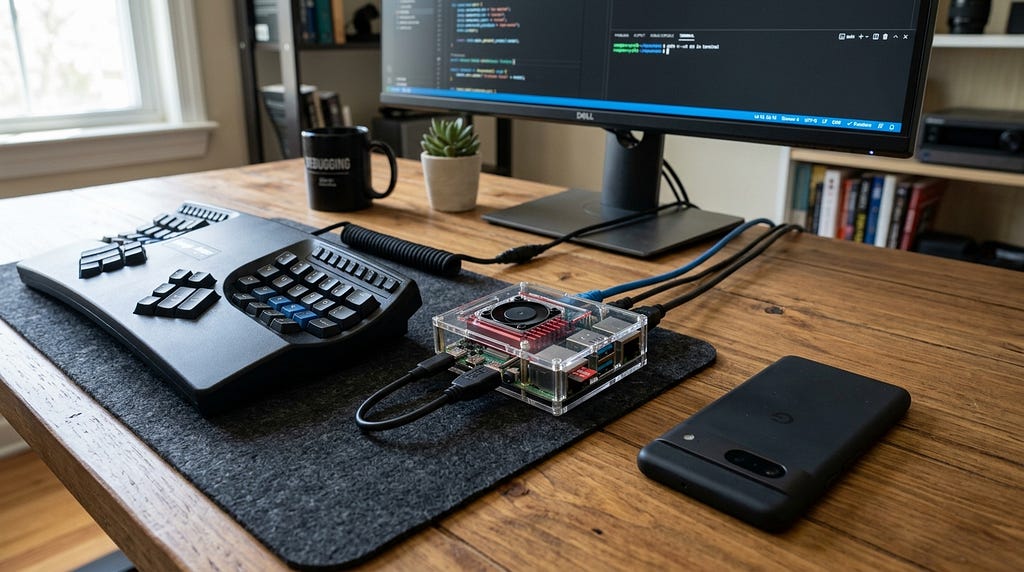
There’s something genuinely delightful about a language model running on a computer the size of a credit card, with no internet connection, no account, and no monthly bill. Two years ago this was a party trick that produced gibberish at a painful crawl. In 2026, on a Raspberry Pi 5, it’s a real, useful tool, private, offline, and entirely yours. This guide walks through the whole build, the hardware you need, the software that makes it work, which models to actually run, and the honest performance you can expect.
One thing to be clear about before you start, because it saves disappointment. You’re going to run a model that someone else already trained, downloaded onto your Pi, and served locally. You’re not training your own model from scratch, that takes vastly more memory and compute than any Pi has, and anyone promising otherwise is misleading you. What you’re building is your own private deployment of a capable open model, running on hardware you own, answering only to you. That’s the realistic and genuinely worthwhile version of “your own AI.”
What you actually get, and what you don’t
Set expectations correctly and this project is a joy. Get them wrong and it’s frustrating.
What you get is a private, offline assistant that handles everyday language tasks well, short questions and answers, summarizing text, drafting simple messages, light code help, keyword extraction, and acting as the brain for home-automation projects. It runs with no internet connection, so nothing you type ever leaves the device, and it costs nothing to run beyond the electricity, which for a Pi is trivial.
What you don’t get is a frontier model. The models that fit on a Pi are small, in the 1 to 4 billion parameter range, which means they’re noticeably less capable than the giant cloud models. They will occasionally be wrong, they will handle complex reasoning less reliably, and they’re not going to replace a frontier assistant for hard work. The right mental model is a capable, private, offline helper for light tasks, not a genius in a box. Hold that expectation and you’ll be delighted rather than let down.
The hardware you need
The build rests on a few specific pieces, and getting them right is the difference between a smooth experience and a frustrating one.
The core is a Raspberry Pi 5. Get the 8GB version at minimum, and if you can, get the 16GB version that shipped in late 2025. The reason is simple, more memory lets you run slightly larger and more capable models, and it gives you room for other things running at the same time. If you only want a small chat assistant, 8GB is enough. If you want to run a model alongside other services, or use longer context windows, the 16GB is the better buy.
Active cooling isn’t optional, it’s essential. Running a language model pushes all four CPU cores to 100 percent continuously, and without active cooling the Pi overheats and throttles itself back to half speed within about 90 seconds. The official Raspberry Pi active cooler is inexpensive and does the job. Skip it and your performance halves.
A proper power supply matters more than people expect. Use the official 27-watt USB-C power adapter. Cheaper 18-watt bricks can’t supply enough current during peak inference, and the Pi will brown out and reboot in the middle of generating a response. This is one of the most common causes of a setup that seems broken but is just underpowered.
Finally, storage. An NVMe SSD connected through an M.2 HAT is strongly recommended over a microSD card. It loads models several times faster, and critically, it protects you from a real hazard, if you ever run a model too large for your memory, the Pi will swap to disk, and heavy swapping to a microSD card will physically wear it out and corrupt it quickly. An SSD handles that far more safely. At minimum, use a good-quality microSD card and avoid running oversized models.
The software, one command to a running model
The software side is refreshingly simple, and this is where the project has gotten dramatically easier in the last two years.
The tool you want is Ollama, an open-source program that downloads and runs local models with almost no setup. It handles the model management, exposes a clean interface, and runs entirely on your device. Installing it on a Pi is a single command. Open a terminal and run the official install script.
curl -fsSL https://ollama.com/install.sh | sh
The script detects that you are on an ARM processor automatically, downloads the correct version, sets it up as a background service, and starts it. That’s the entire installation. There’s no account to create, no key to paste, nothing to configure to get started.
Once it is installed, pulling and running a model is also a single command. To download and start chatting with a small, fast model, you run one line and it downloads the model the first time, then drops you into a chat prompt.
ollama run gemma3:1b
That’s it. You now have a language model running locally on your Pi, in a terminal, with no internet connection required once the model is downloaded. You can type a question and watch it answer, entirely offline, entirely private.
If you want a nicer interface than the terminal, Ollama exposes a standard local API, and free front-ends like Open WebUI connect to it without any modification, giving you a clean chat window in your browser. And if you want the Pi to act as a private AI server for your other devices, you can set it to listen on your local network so your laptop or phone can talk to it, all still staying inside your own walls.
Which models to actually run
This is the most important choice you will make, because the model determines both the speed and the quality of your experience. Based on extensive community benchmarking on Pi 5 hardware, here are the ones worth your time.
For the best speed, Gemma 3 1B from Google is the standout. It’s tiny, around 0.8GB, and runs at roughly 18 to 22 tokens per second on a Pi 5, which feels genuinely responsive, comparable to reading speed. It’s the model to start with, both because it confirms your setup works and because for many light tasks it is perfectly adequate. If a newer edge-optimized Gemma variant is available when you set up, it is worth trying as well, since these small Google models have been the efficiency leaders on Pi hardware.
For the best balance of quality and speed, look at the 3 to 4 billion parameter models. Qwen3 4B is frequently cited as the most satisfying model that fits comfortably on an 8GB Pi, running around 5 to 7 tokens per second while producing noticeably better output than the 1B models. Llama 3.2 3B is another strong, well-rounded choice in this range. These are slower than the 1B models but still usable for anything that is not real-time, and the jump in answer quality is significant.
For the smartest output you can squeeze onto the Pi, Phi-4 Mini and similar 3.8B models from Microsoft give you the strongest reasoning and code help, at the cost of dropping to around 4 to 7 tokens per second. This is the tier where you trade speed for capability, and it’s the practical ceiling of what a Pi runs well.
The hard rule to remember is to stay at or below roughly 4 billion parameters. Models of 7 billion parameters and up technically load on an 8GB Pi, but they force heavy swapping, drop to 1 to 2 tokens per second, and take tens of seconds to minutes to answer. They’re not usable for anything interactive, and they risk wearing out your storage. The sweet spot is small models that fit comfortably in memory.
A few settings that meaningfully help
Two quick optimizations are worth knowing, because they noticeably improve the experience and most beginners miss them.
First, Ollama defaults to a context window of 4096 tokens regardless of the model, which can limit longer conversations. If you want to use longer prompts or documents, set the context length explicitly by setting the environment variable OLLAMA_CONTEXT_LENGTH to a larger value like 8192 before starting the service. Match it to what your model supports and what your memory can hold.
Second, if you are comfortable with a little more tinkering, the Pi 5’s default clock speed can be pushed from 2.4GHz to around 2.8 to 3.0GHz with the active cooler installed, which typically yields a 15 to 25 percent improvement in tokens per second. This is optional, and you should only do it with active cooling in place, but it’s a meaningful free speed boost if you want it.
There is also a hardware accelerator option worth mentioning for anyone building a permanent setup. An official AI accelerator add-on board became available in early 2026 that can speed up inference several times over compared to the CPU alone. For occasional use, the plain CPU is fine. For an always-on home AI server you plan to lean on, the accelerator is worth considering.
Putting it together into something useful
Once you have a model running, the fun part is turning it into something you actually use. Because Ollama exposes a standard local API, your Pi becomes a private AI endpoint that any of your own applications can call, all offline.
A few projects people build on this foundation, a private home-automation assistant that answers questions and controls devices without any cloud service, an always-on note summarizer that processes your text locally, a private question-answering system over your own documents, or simply a private chat assistant on your network that your whole household can use without any data leaving the house. The common thread is privacy and ownership, the intelligence lives on a device you control, and nothing you ask it ever travels anywhere.
The reason this is worth doing, beyond the fun of it, is that it gives you something the cloud services structurally cannot, a genuinely private AI that you own outright. No subscription, no rate limits, no terms of service that change next year, no data leaving your home. It’s not as smart as the giants, and it never will be. But it’s entirely yours, and for a growing number of light, private tasks, that tradeoff is well worth making.
The honest summary
Building your own offline AI on a Raspberry Pi in 2026 is a real, practical project, not a novelty. Get a Pi 5 with at least 8GB, add an active cooler and a proper 27-watt power supply, install Ollama with a single command, and start with Gemma 3 1B for speed or a 4B model like Qwen3 for quality. Stay at or below 4 billion parameters, and set your expectations for a capable private helper rather than a frontier genius.
What you end up with is genuinely yours in a way no cloud service can match, a private, offline, zero-cost assistant on hardware that fits in your palm, answering only to you. You’re not training a model, you’re running your own copy of a good one, on your own terms, disconnected from everyone else’s servers. In an era where almost every AI interaction is metered, logged, and sent somewhere, there’s something quietly powerful about one that simply sits on your desk and belongs to you.
If you build one, drop a comment with your Pi model, the model you settled on, and what you use it for. The most useful setups tend to come from people sharing what actually worked on their own hardware.
How to Build Your Own Private, Offline AI on a Raspberry Pi was originally published in Towards AI on Medium, where people are continuing the conversation by highlighting and responding to this story.
