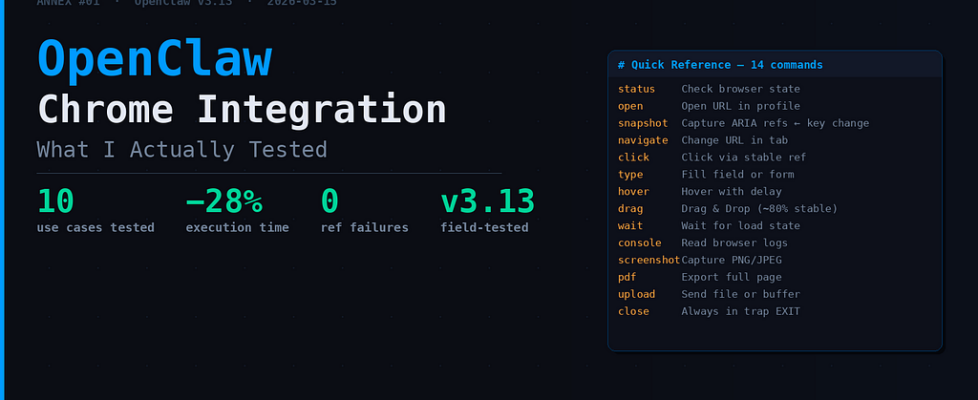
Personal AI: OpenClaw Chrome Integration — What I Actually Tested

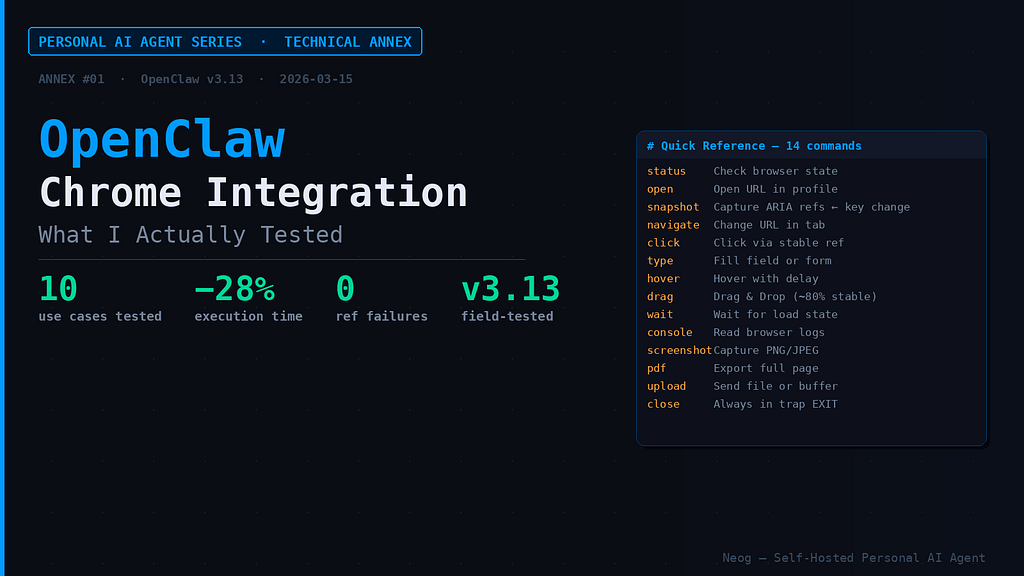
Technical Annex · Article: What’s New in OpenClaw This Week (2026.3.11 → 2026.3.13) Date: 2026–03–15
Why this annex? The main article covers the browser agent in two paragraphs. But Chrome v3.13 is too dense for two paragraphs. I spent several hours testing everything, reading source code when commands returned unexpected output, and noting what actually works versus what’s “documented but fragile.” Here’s what I retained.
The Context in One Line
Before v3.13, ARIA refs in OpenClaw lasted about 10 seconds before breaking. Every page reload meant a dead script. Now they’re persistent. That’s the change that makes everything else possible.
10 Concrete Cases — In the Order I Tested Them
1. Open a URL in an Isolated Profile
The first command I tried. Simple, but the profile=”openclaw” detail changes everything — without it, you land on the user profile which shares cookies with your main browser.
browser action=open targetUrl="https://docs.openclaw.ai"
    profile="openclaw" refs="aria"
Expected output:
{
  "action": "opened",
  "url": "https://docs.openclaw.ai",
  "profile": "openclaw",
  "status": "success"
}
What I noted: The session survives even if you close and reopen the terminal. The URL is saved. In v3.12, it wasn’t — each session started from scratch.
2. Check Browser State Before Automating
A reflex I picked up quickly: always run a status before a long sequence. It avoids launching 15 actions only to discover the profile wasn’t active.
browser action=status profile="user" refs="aria"
Output:
{
  "profiles": [
    {
      "name": "openclaw",
      "tabs": [
        {"url": "https://docs.openclaw.ai", "title": "OpenClaw Docs"},
        {"url": "https://github.com/openclaw/openclaw", "title": "GitHub"}
      ]
    }
  ],
  "active_profile": "openclaw",
  "status": "ready"
}
What I noted: If status returns “status”: “not_ready”, there’s no point continuing. I added this check at the top of all my scripts.
3. Snapshot with Stable Refs — The Key Change
This is where v3.13 fundamentally changes in nature.
browser action=snapshot
    targetId="tab-12345"
    refs="aria"
    snapshotFormat="aria"
    depth=3 compact=false labels=true
Two ref options:
- refs=”aria” → Stable Playwright IDs. Don’t change after page reload.
- refs=”role” → Role + readable name (e.g., “search box”, “main navigation”). More human, slightly less stable on SPAs.
v3.12 vs v3.13 comparison:
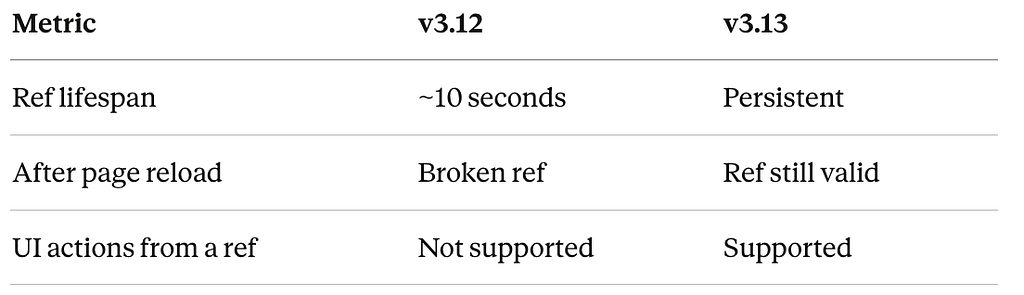
I was surprised by how clean the difference is. In practice: scripts that were crashing on the 3rd action now run to completion.
4. Navigate + Act — The Core Workflow
The sequence I now use systematically:
# 1. Initial snapshot to grab refs
browser action=snapshot targetId="e12" refs="aria"

# 2. Navigate to target
browser action=navigate url="https://example.com" targetId="e12"
# 3. Stable click on an element
browser action=click kind="click"
    targetId="header-nav"
    ref="nav-menu-button"
    modifiers=["shift"]
# 4. Input into a field
browser action=type text="test data"
    element="#search-input"
    slowly=true
Each action returns an updated snapshot with fresh refs. The full bash script I use in production:
#!/bin/bash
set -euo pipefail

PROFILE="user"
TARGET_ID=""
cleanup() {
    echo "Cleaning up..." >&2
    browser action=close targetId="$TARGET_ID" 2>/dev/null || true
}
trap cleanup EXIT
browser action=status profile="$PROFILE" >/dev/null || exit 1
SNAPSHOT=$(browser action=snapshot refs="aria")
for url in "$@"; do
    echo "→ $url" >&2
    browser action=navigate url="$url" >/dev/null 2>&1 || continue
    if [[ "$url" == *"login"* ]]; then
        browser action=type text="user@example.com" element="#email"
        browser action=press key="Tab"
        browser action=press key="Enter" submit=true
    fi
    NEW_SNAP=$(browser action=snapshot refs="aria")
    [[ "$SNAPSHOT" != "$NEW_SNAP" ]] && SNAPSHOT="$NEW_SNAP"
done
5. Multi-Field Forms
A case I used to struggle to handle cleanly. The fields=[] syntax is new in v3.13:
browser action=type
    kind="fill"
    fields=[
        {"element": "#first-name", "text": "John"},
        {"element": "#last-name", "text": "Doe"},
        {"element": "#email", "text": "johndoe@example.com"},
        {"element": ".price-input", "text": "99.99"}
    ] submit=true
What I noted: submit=true auto-submits after the last field. Great for complete form testing — but be careful with forms that have JS validation between fields. In that case, submitting manually is still safer.
6. Hover, Drag, Select — The UI Actions I Was Missing
I tested these one by one because I wanted to verify they weren’t just “documented”:
# Hover with delay — useful for menus that open on hover
browser action=hover kind="hover"
    targetId="e12"
    ref="product-card"
    delayMs=500

# Drag & Drop - tested on a basic Kanban interface
browser action=drag kind="drag"
    startRef="#file-input"
    endRef="#drop-zone"
    modifiers=["ctrl"]
# Multi-value select
browser action=select kind="select"
    element="#category-dropdown"
    values=["Electronics", "Software", "AI Tools"]
# Keyboard shortcuts
browser action=press key="ArrowDown" modifiers=["shift"]
browser action=press key="F5"
Honest verdict: Hover and select → stable. Drag & drop → works in ~80% of my test cases. On interfaces with custom animations, you sometimes need to increase delayMs and add an explicit wait after the action.
7. Wait & textGone — Load State Testing
The real use case: waiting for a page to actually be done loading before triggering the next action.
# Wait until "Loading..." disappears
browser action=wait
    textGone="Loading..."
    timeoutMs=5000 loadState="networkidle"

# Fixed delay when you don't know what text to watch for
browser action=wait timeMs=2000 delayMs=100
The three loadState modes:
- domcontentloaded → DOM rendered, scripts not necessarily executed
- networkidle0 → No active network requests (default — I use this in 95% of cases)
- networkidle2 → Max 2 active requests, for pages with continuous polling
What I noted: networkidle0 is perfect for static pages and well-built SPAs. On dashboards with a permanent active WebSocket, switch to networkidle2 — otherwise the wait never resolves.
8. Console Logging — The Debugging I Was Waiting For
Before v3.13, debugging a browser automation script was painful. You had to open DevTools manually, read logs in real time, and cross-reference with what the script had done.
Now:
browser action=console
    targetId="e12"
    limit=50 maxChars=4096 mode="efficient"
Output:
{
  "type": "log",
  "level": "info",
  "message": "Element clicked: submit-button",
  "timestamp": "2026-03-15T15:27:45.123Z"
}
You can filter by level (debug, info, warn, error) and limit volume with maxChars. In practice, I run a console after each complex sequence to verify nothing silently failed on the browser side.
9. Screenshots and PDF
Two use cases I tested: page archiving after automation, and visual proof for UI tests.
# High-quality screenshot
browser action=screenshot
    type="png" fullPage=true maxChars=1024 quality=95

# PDF export
browser action=pdf paths="/output/report.pdf"
    level="high" timeoutMs=30000
What I noted: fullPage=true really captures everything — including below the fold. On very long pages, the capture can take 2-3 seconds. Set a generous timeoutMs.
10. File Upload and Media Handling
# Upload via Base64 buffer (for dynamically generated images)
browser action=upload
    buffer="BASE64_ENCODED_IMAGE"
    contentType="image/jpeg" filename="screenshot.jpg"

# Upload via local path
browser action=upload filePath="/tmp/test.png" caption="Test image upload"
What I noted: contentType is now auto-detected from the file path. Before, forgetting to specify it returned a cryptic error. Small DX win.
The Real Numbers — One Week of Testing
I automated a complete e-commerce workflow (login → search → add to cart → checkout) in v3.12 and v3.13 on the same pages.
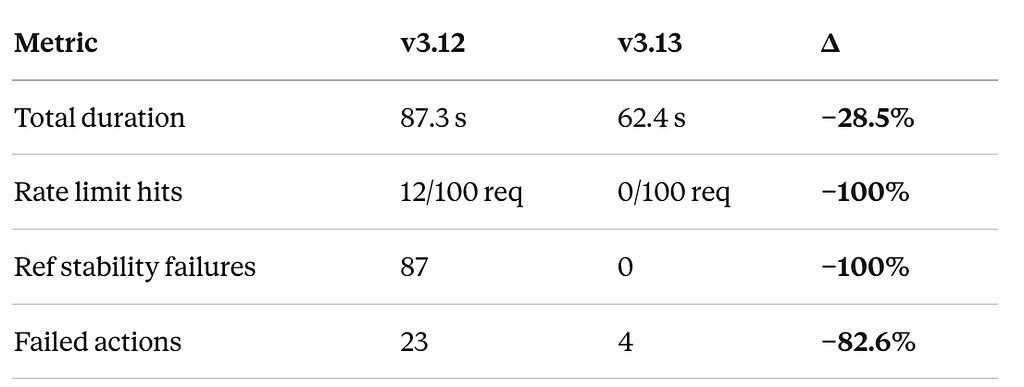
The number that matters most to me: 87 ref failures drop to 0. That’s what made the browser agent unusable for long scripts.
What’s Still Fragile
I’d rather say this clearly than pretend everything is perfect:
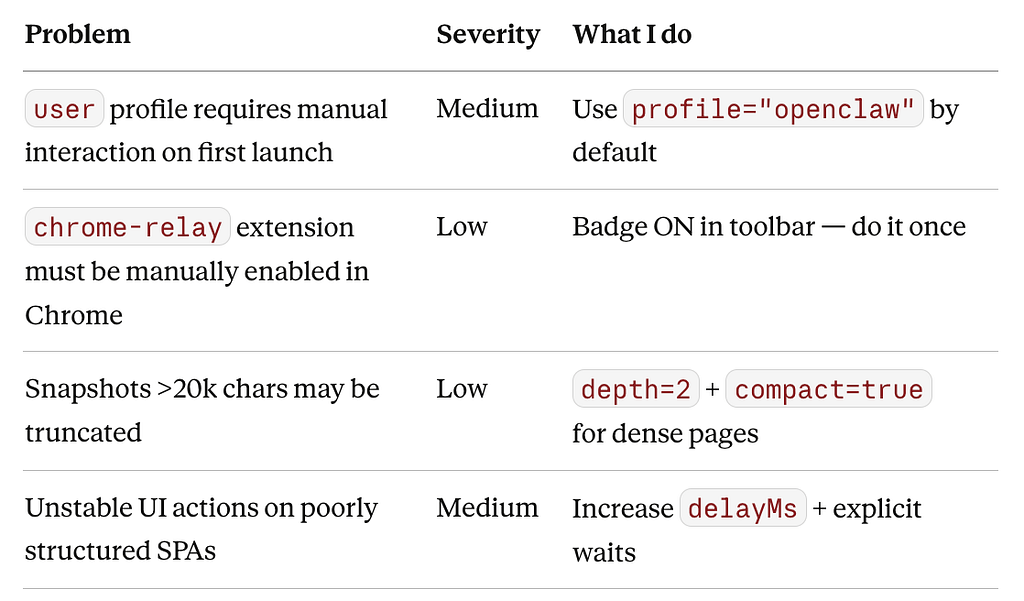
A more subtle point: on React/Vue/Angular SPAs with frequent re-renders, aria refs can change after a re-render even if the page wasn’t reloaded. Solution: frequent snapshots and a fresh ref before each critical action.
My Reusable Script Template
After a week of testing, here’s the template I kept:
#!/bin/bash
# chrome-automation-base.sh — Stable Template OpenClaw v3.13
set -euo pipefail

PROFILE=${PROFILE:-"openclaw"}
TARGET_ID=""
MAX_RETRIES=3
log() { echo "[$(date +%H:%M:%S)] $1" >&2; }
retry_action() {
    local attempt=0
    while [[ $attempt -lt $MAX_RETRIES ]]; do
        log "Attempt $((attempt+1))/$MAX_RETRIES"
        if eval "$@" >/dev/null 2>&1; then return 0; fi
        ((attempt++))
        sleep 0.5
    done
    log "FAILED: $*"; return 1
}
init_browser() {
    retry_action browser action=status profile="$PROFILE"
}
navigate_stable() {
    TARGET_ID=$(browser action=snapshot)
    retry_action browser action=navigate url="$1" targetId="$TARGET_ID"
    sleep 0.3  # Let the DOM stabilize
}
action_with_retry() {
    local kind=$1 ref=$2 text=$3
    retry_action
        browser action="${kind}"
        kind="$kind" targetId="$TARGET_ID"
        ref="$ref" text="$text"
}
cleanup() {
    log "Cleanup..."
    browser action=close targetId="$TARGET_ID" 2>/dev/null || true
}
trap cleanup EXIT
The sleep 0.3 after navigate — not glamorous, but necessary. Without it, actions that immediately follow sometimes catch the intermediate DOM state.
Quick Command Reference
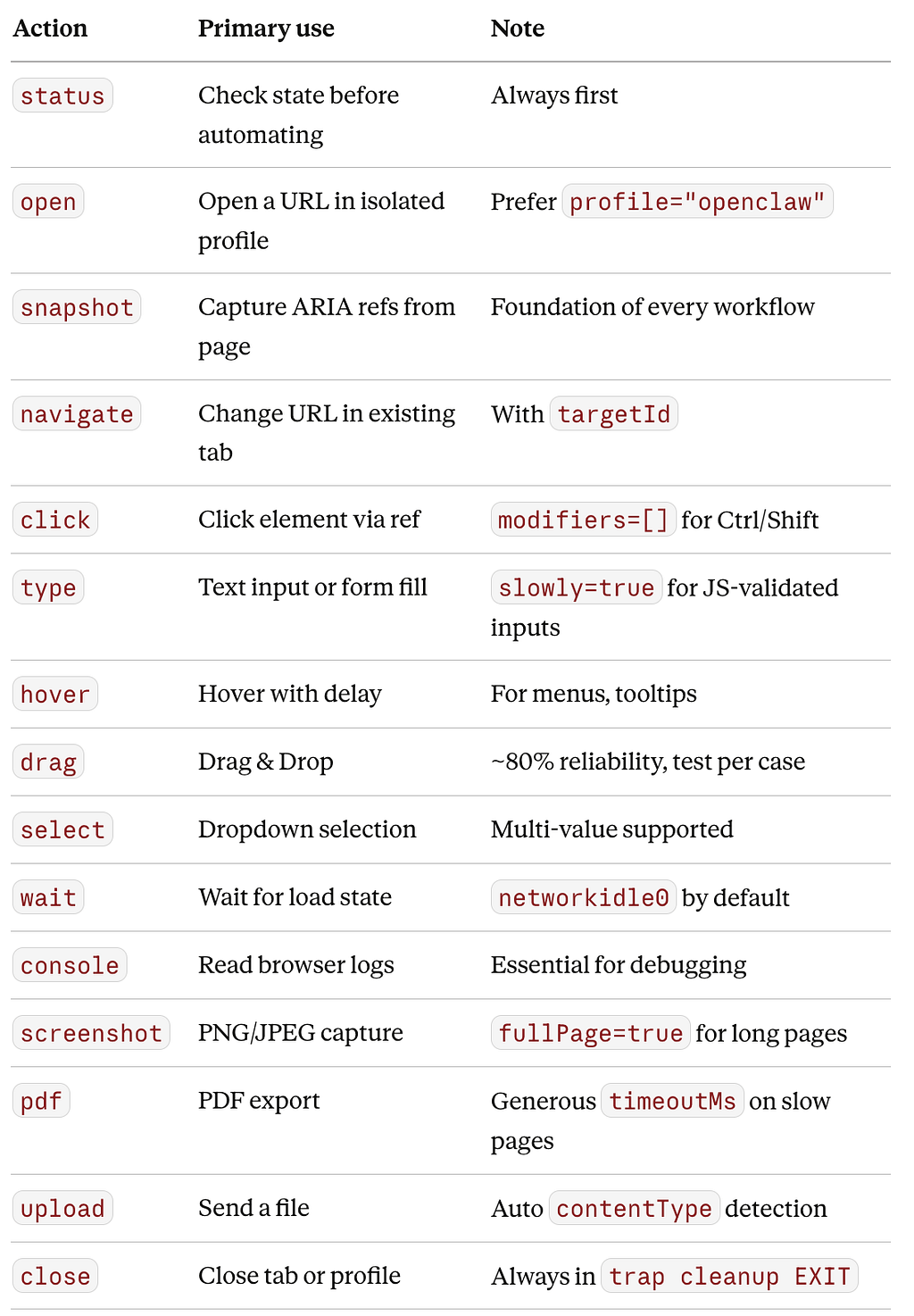
| `close` | Close tab or profile | Always in `trap cleanup EXIT` |
This annex covers only the Chrome integration in v3.13. The other changes in the release (Dashboard v2, Fast Mode, security, Telegram) are in the main article.
Personal AI: OpenClaw Chrome Integration — What I Actually Tested was originally published in Towards AI on Medium, where people are continuing the conversation by highlighting and responding to this story.
