OpenClaw Won’t Bite, A Zero-to-Hero Guide for People Who Hate Terminal

Your AI assistant isn’t a chatbot anymore. It’s a roommate. And it just learned where you keep your files. OpenClaw is not hard. It’s a Folder With Feelings.
What Even Is OpenClaw, Though?
Let me tell it straight.
OpenClaw is an open-source, self-hosted AI agent built by Peter Steinberger. It started life as “Clawdbot” in November 2025, got renamed to “Moltbot” after Anthropic raised an eyebrow about trademark stuff, then finally settled on “OpenClaw” a few days later. The lobster logo stuck around through every name change, because apparently crustaceans are the spirit animal of autonomous computing.
Here’s the part that matters: OpenClaw is NOT a new AI model. It doesn’t compete with Claude or GPT. It’s the software that gives those models hands. And eyes. And the ability to remember who you are between conversations.
Think of it this way. ChatGPT is a brain in a jar. You talk to it, it talks back, and then it forgets you exist the second you close the tab. OpenClaw takes that same brain and plugs it into your actual computer. Files. Terminal. Browser. Messaging apps. Cron jobs. Everything.
My neighbor’s kid summarized it better than any docs page: “So it’s like Siri, but it actually does stuff?”
Yes. Exactly that.
Why Should You Care?
Three words. It actually works.
Regular chatbots are like texting a really smart friend who has amnesia. Every conversation starts from zero. You have to re-explain your project, your preferences, your name. Exhausting.
OpenClaw flips that. It stores everything locally on your machine. Your conversations, your preferences, your ongoing projects. When you message it on Tuesday about a bug you mentioned on Friday, it remembers. When your server crashes at 3 AM, it can message you on Telegram before you even check your monitoring dashboard.
My laptop fan was screaming while I was writing this section, which is fitting because OpenClaw also takes up real estate on your actual hardware. It’s not in the cloud. It’s right here, on your disk, eating your RAM, reading your files, and occasionally doing things that make you say “wait, I didn’t ask you to do that.”
By February 2026, the project hit 200,000+ GitHub stars. It became one of the fastest-growing repositories in open source history. Companies in Silicon Valley and China started adapting it. Steinberger got hired by OpenAI. The whole thing moved to an open-source foundation.
And it all runs on Markdown files.
“This Is a Pet Lobster”
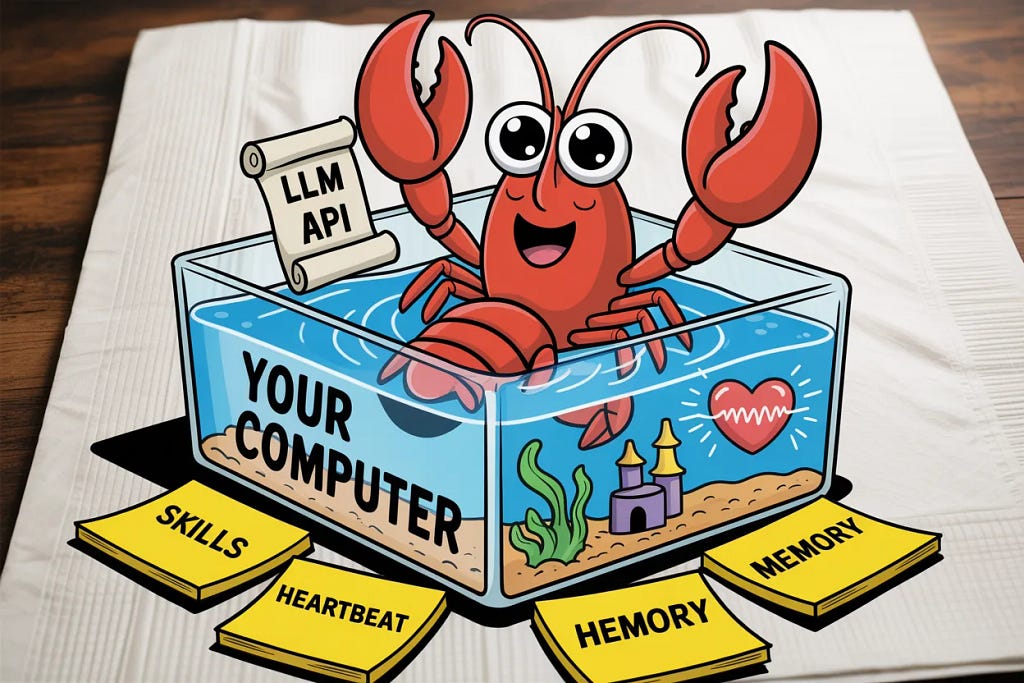
OK here’s the deal. Everyone talks about OpenClaw like it’s some terrifying autonomous system from a sci-fi movie. It’s not. It’s a pet lobster.
Stay with me.
A pet lobster needs a tank. That’s your computer (or a VPS). OpenClaw runs locally. It lives on your hardware.
A pet lobster needs food. That’s your LLM API key. OpenClaw doesn’t have its own brain. You feed it Claude, GPT, DeepSeek, or even a local model through Ollama. The smarter the model, the smarter the lobster.
A pet lobster needs rules. That’s SOUL.md. A plain text file where you write down how it should behave. “Be professional. Don’t delete files without asking. Send me morning briefings at 7:30 AM.” The lobster reads this file every single time it wakes up.
A pet lobster has memory. That’s the memory/ folder. Every day, it writes a diary entry. Every important fact goes into MEMORY.md. It remembers you. It remembers your projects. It remembers that you hate pie charts.
A pet lobster can learn tricks. Those are Skills. Markdown instruction files that teach your lobster how to do specific things: manage your Gmail, organize Obsidian notes, monitor server health, or post to social media.
A pet lobster has a heartbeat. Literally. OpenClaw has a heartbeat system. Every 30 minutes (configurable), it wakes up, checks HEARTBEAT.md, and decides if it needs to do something for you. Without being asked.
That’s it. That’s OpenClaw.
A lobster, in a tank, with rules, memory, tricks, and a heartbeat.
The Architecture (Don’t Run Away)
Here’s what actually happens under the hood when you send a message to your OpenClaw agent. I’m going to walk through it step by step, and I promise not a single step is scary.
DIAGRAM: OpenClaw Message Flow

Let me break it down in human words.
Step 1: You say something. Could be on Telegram. Could be on Discord. Could be the built-in web interface. Doesn’t matter. OpenClaw has adapters for WhatsApp, Telegram, Slack, Discord, Signal, iMessage, Microsoft Teams, Google Chat, and more. Each adapter translates your message into a standard format.
Step 2: The Gateway routes it. The Gateway is OpenClaw’s control plane. It runs on port 18789 by default. It figures out which agent should handle your message, loads the right session, and passes it along.
Step 3: The Agent Runtime wakes up. This is where the magic happens. The runtime reads your workspace files (AGENTS.md, SOUL.md, TOOLS.md), loads any relevant Skills, searches your memory for context from past conversations, and builds a massive system prompt. Then it ships all of that to your configured LLM.
Step 4: The LLM thinks. Claude, GPT, DeepSeek, whatever you chose. It reads all that context and generates a response. If it needs to DO something (run a command, open a browser, read a file), it requests a tool call.
Step 5: Tool execution. The runtime intercepts the tool call and actually executes it. Run a bash command? Done. Open a website with Chromium? Done. Write a file? Done. Optionally, this all runs inside a Docker sandbox so a rogue command can’t nuke your system.
Step 6: You get an answer. The response flows back through the Gateway, through the channel adapter, and lands in your messaging app.
The entire loop takes a couple of seconds. And you didn’t write a single line of code to make it happen.
I was eating cold leftover biryani when this architecture finally clicked for me. It’s not complicated. It’s just… layered. Like biryani.
Let’s Actually Install This Thing
Enough theory. My hands are itchy. Let’s build.
Prerequisites
You need three things:
- Node.js 22 or later. OpenClaw is written in TypeScript and distributed via npm.
- A computer running macOS, Linux, or Windows (with WSL2). If you’re on Windows, WSL2 is strongly recommended by the official docs.
- An LLM API key. Anthropic (Claude), OpenAI (GPT), or you can run local models via Ollama for free.
That’s it. No Kubernetes. No Docker (unless you want sandboxing later). No PhD.
Step 1: Install OpenClaw
Open your terminal. Take a breath. Type this:
# This installs OpenClaw globally on your system
# It's just an npm package. That's it. That's the tweet.
npm install -g openclaw@latest
If you get permissions errors on Mac/Linux:
# Fix npm global permissions (do this once, thank me later)
mkdir -p ~/.npm-global
npm config set prefix '~/.npm-global'
echo 'export PATH=~/.npm-global/bin:$PATH' >> ~/.bashrc
source ~/.bashrc
# NOW install
npm install -g openclaw@latest
Why this matters: You just put a lobster on your hard drive. It doesn’t do anything yet. It’s just sitting there, waiting.
Step 2: Run the Onboarding Wizard
# This is the single most important command in the entire OpenClaw universe
# It walks you through EVERYTHING
openclaw onboard --install-daemon
The wizard will ask you a series of questions. Here’s what to expect:
- Security warning. It’ll tell you the bot runs on your local machine and has real power. Read it. Accept it. Respect it.
- Quick Start vs Custom. Pick Quick Start for your first time.
- Model selection. Choose your AI provider. If you have an Anthropic API key, pick Claude. If you have OpenAI, pick that. Either works.
- Channel setup. Pick ONE messaging platform to start. I recommend Telegram because the setup is the simplest.
- Skills. You can skip this for now. We’ll add skills later.
- UI choice. Pick the Web UI (Control UI) for now. It’s easier to see what’s happening.
# After onboarding, check if the Gateway is running
openclaw gateway status
# If it's not running, start it
openclaw gateway start
# Open the dashboard in your browser
openclaw dashboard
# This opens http://127.0.0.1:18789/
Why this matters: The Gateway is now running as a background daemon on your machine. Your lobster is awake. It’s breathing. It has a heartbeat.

Step 3: Connect Telegram (Your First Channel)
Let’s give your lobster a phone line.
- Open Telegram. Search for @BotFather.
- Send /newbot.
- Give your bot a name (e.g., “MyLobster”).
- Give it a username ending in _bot (e.g., my_lobster_bot).
- BotFather gives you an API token. Copy it.
Now tell OpenClaw about your bot:
# You'll paste the token when prompted during onboard
# Or edit the config directly:
openclaw config
In the config file (~/.openclaw/openclaw.json), you’ll add something like:
{
  "channels": {
    "telegram": {
      "enabled": true,
      "token": "YOUR_BOT_TOKEN_FROM_BOTFATHER",
      "allowFrom": ["YOUR_TELEGRAM_USER_ID"]
    }
  }
}
The allowFrom field is critical. It whitelists your Telegram user ID so random people can’t message your bot and control your computer. You can find your user ID in Telegram settings.
# Restart the gateway to pick up the new config
openclaw gateway restart
Now open Telegram. Message your bot. Say “Hello.”
If it responds, congratulations. You just built a personal AI assistant that lives on your hardware, remembers you across sessions, and can execute commands on your machine.
My cat walked across my keyboard the first time this worked. Added “meow meow meow” to the conversation history. The bot tried to interpret it as an action item.
Why this matters: Your lobster now has a phone line. You can talk to it from anywhere, and it talks back through Telegram. Same applies for Discord, WhatsApp, Slack, or any other supported channel.
Understanding the Workspace (Where the Soul Lives)
This is the part that makes OpenClaw different from every other AI tool. The workspace.
When you ran openclaw onboard, it created a workspace directory. By default it’s at ~/.openclaw/workspace/. Let’s look inside:
# Let's peek into the lobster's brain
ls ~/.openclaw/workspace/
You’ll see something like:
~/.openclaw/workspace/
├── AGENTS.md          # Operating instructions. The "job description."
├── SOUL.md            # Personality. Voice. Values. The "character sheet."
├── USER.md            # Info about YOU. Your preferences.
├── TOOLS.md           # Which tools the agent can use.
├── HEARTBEAT.md       # What to check proactively.
├── MEMORY.md          # Long-term memory. Durable facts.
├── memory/            # Daily diary entries
│   ├── 2026-03-01.md
│   └── 2026-03-02.md
└── skills/            # Installed skills
    ├── weather/
    │   └── SKILL.md
    └── gmail/
        └── SKILL.md
Every single one of those is a plain text Markdown file. Let me explain them one by one.
DIAGRAM: OpenClaw Workspace File Hierarchy

                    ┌─────────────────────┐
                    │    WORKSPACE ROOT    │
                    │ ~/.openclaw/workspace│
                    └─────────┬───────────┘
                              │
        ┌─────────┬───────────┼───────────┬──────────┐
        │         │           │           │          │
   ┌────▼───┐ ┌───▼───┐ ┌────▼────┐ ┌────▼───┐ ┌───▼────┐
   │AGENTS  │ │SOUL   │ │ USER   │ │TOOLS  │ │HEART- │
   │.md     │ │.md    │ │ .md    │ │.md    │ │BEAT.md│
   │        │ │       │ │        │ │       │ │       │
   │"What   │ │"Who   │ │"Who is │ │"What  │ │"What  │
   │ to do" │ │ am I" │ │ my     │ │ can I │ │ to    │
   │        │ │       │ │ human" │ │ touch"│ │ check"│
   └────────┘ └───────┘ └────────┘ └───────┘ └───────┘
        │
        │         ┌────────────────────────────────┐
        │         │  memory/                       │
        ├────────►│  ├── MEMORY.md  (long-term)    │
        │         │  ├── 2026-03-01.md (daily)     │
        │         │  └── 2026-03-02.md (daily)     │
        │         └────────────────────────────────┘
        │
        │         ┌────────────────────────────────┐
        │         │  skills/                       │
        └────────►│  ├── weather/SKILL.md          │
                  │  ├── gmail/SKILL.md            │
                  │  └── github/SKILL.md           │
                  └────────────────────────────────┘
SOUL.md: The Personality File
This one’s my favorite. It defines WHO your agent is.
# Agent Soul
## Personality
- Professional but approachable
- Concise. Prefer bullet points over paragraphs
- Proactive in surfacing relevant information
## Core Values
- User privacy is paramount; never exfiltrate data
- Confirm before any action with financial impact
- Cite sources for all factual claims
- If a task fails, report the error; do not invent success
## Long-Term Instructions
- Morning briefings at 7:30 AM, max 5 bullet points
- When summarizing emails, highlight action items first
- Always check HEARTBEAT.md before responding to "what's next"
Every time your agent wakes up (every message, every heartbeat), it reads SOUL.md first. It reads itself into existence. Let that sink in for a second.
You can make your agent formal, casual, sarcastic, or extremely terse. One user’s SOUL.md just says: Terse. That’s it. One word. And the agent complies.
AGENTS.md: The Job Description
This is the primary instruction file. Think of it as the operating contract. Priorities, boundaries, workflows, quality bar. Keep stable rules here.
# Agent Configuration
## Priorities
1. Security first. Never run destructive commands without confirmation.
2. Accuracy over speed. Verify before reporting.
3. Context matters. Always check memory before answering.
## Workflow Rules
- For code reviews, check for security issues first, then style.
- For email drafts, match the recipient's formality level.
- When researching, use at least 3 sources before summarizing.
## Boundaries
- Never send emails without explicit approval.
- Never modify files outside the project directory.
- Never share conversation context with other users.
USER.md: The File About You
Your communication preferences, recurring constraints, known formatting preferences. It’s the personalization layer.
# User Profile
## Basic Info
- Name: Sarah
- Timezone: UTC+8
- Role: Senior Full-Stack Developer
## Preferences
- Communication style: Direct, concise, no fluff
- Preferred format: Markdown with code blocks
- Morning briefing time: 7:30 AM local
- Hates pie charts. Seriously. Never suggest one.
## Current Projects
- Project Tempest: React Native mobile app (high priority)
- Backend Migration: Moving from Express to Fastify
The agent uses this every session.
MEMORY.md and memory/ Folder: The Diary
Here’s something wild. OpenClaw doesn’t use a database. No PostgreSQL. No Redis. It writes Markdown diary entries.
memory/2026-03-02.md is today’s entry. It’s a running log of what happened during conversations, what the agent did, what it learned. At the end of a long conversation, a “memory flush” happens where important information gets promoted to MEMORY.md for long-term storage.
<!-- memory/2026-03-02.md (Daily Note) -->
## Daily Log - March 2, 2026
- User asked about quarterly report formatting: prefers tables over charts
- Deployed hotfix to staging server at 14:23 UTC
- User mentioned upcoming vacation March 15-22, no morning briefings needed
- Discovered linting error in auth module, filed GitHub issue #347
MEMORY.md is the small, curated, stable file. Durable facts that should survive daily noise.
<!-- MEMORY.md (Long-term memory) -->
## Core Facts
- User's name: Sarah
- Timezone: UTC+8
- Primary project: Project Tempest (React Native app)
- Preferred communication style: Direct, concise, no emojis
- Allergic to mushrooms (mentioned for restaurant recommendations)
- Vacation: March 15-22, 2026
You can edit these files yourself. With any text editor. At any time. And the changes take effect immediately on the next interaction.
My laptop screen had a smudge right over the word “mushrooms” when I first discovered this file. I thought it said “mustrooms” and spent ten minutes wondering what kind of food that was.
Why this matters: This is the single biggest design decision in OpenClaw. No database. No cloud storage. Everything is a file on your disk. Transparent. Editable. Version-controllable with Git. You can literally git blame your AI agent’s memory.
Tools vs. Skills: The Confusion Everyone Has
This trips up every beginner. Let me kill it right now.
Tools are organs. They determine whether OpenClaw CAN do something.
Skills are textbooks. They teach OpenClaw HOW to do something.
Here’s the analogy that finally made it click for me:
Your lobster (agent) has claws (tools). Claws can grip, pull, push. That’s what tools enable: reading files, writing files, executing shell commands, browsing the web, searching the internet.
But does your lobster know HOW to make a sandwich? No. For that, you need a recipe (skill). The recipe says: “Take bread, add filling, close bread.” The lobster follows the recipe using its claws.
DIAGRAM: Tools vs Skills — The Three Layers

┌─────────────────────────────────────────────────────────┐
│                   THE THREE LAYERS                       │
├─────────────────────────────────────────────────────────┤
│                                                         │
│  Layer 1: TOOLS (Can it?)          Layer 3: SKILLS      │
│  ┌──────────┐                      (How to?)            │
│  │ read     │ ←── read files       ┌──────────────┐     │
│  │ write    │ ←── write files      │ gmail skill  │     │
│  │ edit     │ ←── edit files       │ obsidian     │     │
│  │ exec     │ ←── run commands     │ github       │     │
│  │ browser  │ ←── browse web       │ weather      │     │
│  │ web_fetch│ ←── fetch pages      │ slack        │     │
│  │ ...      │                      │ ...          │     │
│  └──────────┘                      └──────────────┘     │
│       │                                  │              │
│       │      Layer 2: CONFIG             │              │
│       │      (Is it allowed?)            │              │
│       │      ┌──────────────────┐        │              │
│       └─────►│ tools.allow:     │◄───────┘              │
│              │   - read         │                       │
│              │   - write        │                       │
│              │   - exec         │                       │
│              └──────────────────┘                       │
│                                                         │
│  ALL THREE MUST ALIGN for something to actually work    │
└─────────────────────────────────────────────────────────┘
The 25 built-in tools are grouped into layers:
Layer 1: Foundation Tools (the essentials)
- read – read files (read-only, safe)
- write – write new files
- edit – modify existing files
- apply_patch – apply code patches
- exec – run ANY shell command (the powerful/dangerous one)
- web_search – search the internet
- web_fetch – read web pages
- browser – full browser automation via Chromium
Layer 2: Intelligence Tools (what makes it an agent)
- memory_search – semantic search across memory files
- memory_write – update memory
- sessions_spawn – spawn sub-sessions for parallel tasks
Layer 3: Skills (5,700+ on ClawHub)
A skill is literally just a folder with a SKILL.md file inside it.
skills/
└── weather/
    └── SKILL.md
And the SKILL.md looks like this:
---
name: weather
description: Get current weather information for any location
version: 1.0.0
---
# Weather Skill
When the user asks about the weather:
1. Use the web_fetch tool to query wttr.in/{location}?format=3
2. Parse the response
3. Present the information in a clean, readable format
4. Include temperature, conditions, and any weather warnings
That’s a skill. It’s a Markdown file with instructions. No compiled code. No API wrappers. Just written instructions that the LLM reads and follows.
For OpenClaw to actually execute a skill, three conditions must be met. Take “read your Gmail” as an example:
- Configuration: Did you allow OpenClaw to run commands? (Without exec, it can’t even launch a program.)
- Installation: Is the gog bridge tool installed on the machine? (Without it, OpenClaw knows what to do but can’t connect to Google.)
- Authorization: Did you log into your Google account and grant access? (Without authorization, Google won’t let it in.)
All three are required. Miss one and nothing happens.
I had a pen stuck behind my ear the entire time I was writing my first custom skill. Didn’t notice until my partner pointed it out three hours later. Classic.
Installing Skills: The Fun Part
# Install from ClawHub (the community skill registry)
clawhub install weather
clawhub install gmail
clawhub install github
# List what you've got
clawhub list
# List what's eligible to run in your environment
openclaw skills list --eligible
# Update all skills
clawhub update --all
# Uninstall a skill
clawhub uninstall weather
Skills can also be installed through the web dashboard. Go to http://127.0.0.1:18789/, navigate to the Skills section, search for what you want, click Install.

The Heartbeat: When Your Lobster Gets Proactive
This is the feature that separates OpenClaw from every other AI assistant and it freaks people out the first time they see it.
Most AI assistants wait for you to prompt them. OpenClaw doesn’t have to.
A cron job runs at whatever interval you configure (default: every 30 minutes). The agent wakes up, reads HEARTBEAT.md, runs a reasoning loop, and decides if it needs to tell you something.
No prompt required.
Here’s what HEARTBEAT.md might look like:
# Heartbeat Instructions
## Every 30 minutes:
- Check if any unread emails require urgent attention
- Monitor the staging server health endpoint
- Check if the Tempest project CI/CD pipeline has any failures
## Every morning at 7:30 AM:
- Compile a morning briefing with:
  - Top 3 unread emails
  - Today's calendar events
  - Any overnight CI/CD failures
  - Weather for the day
## Conditional alerts:
- If staging server returns non-200 status, alert immediately
- If any email from the CEO arrives, prioritize notification
- If GitHub PR has been open for >48 hours without review, nudge me
Your server goes down at 3 AM? The heartbeat catches it on the next cycle and messages you on Telegram: “Hey, staging returned a 503. Want me to look into it?”
A stock you’re monitoring drops 15%? “Your NVDA position dropped below your threshold. Here are the details.”
You didn’t ask for either of those. The lobster just… noticed.
The configuration lives in your main config file:
{
  "agents": {
    "defaults": {
      "heartbeat": {
        "every": "30m"
      }
    }
  }
}
You can adjust the interval, disable it entirely, or crank it up to check every 5 minutes if you’re monitoring something critical.
Each heartbeat cycle loads the agent’s current context, checks for conditions defined in the heartbeat instructions, and only sends a message if something actually needs attention. It’s not spamming you every 30 minutes. It’s checking every 30 minutes and speaking up when there’s a reason.
Why this matters: This is what turns OpenClaw from a chatbot into an actual assistant. Chatbots wait. Assistants act. The heartbeat is the difference between “a thing that answers questions” and “a thing that watches your back.”
Building a Custom Skill: Your First One, Step by Step
Let’s build something real. A skill that generates daily standup summaries from git commits.
# Step 1: Create the skill directory
# Nothing fancy here. Just a folder.
mkdir -p ~/.openclaw/workspace/skills/daily-standup
# Step 2: Write the SKILL.md
cat << 'EOF' > ~/.openclaw/workspace/skills/daily-standup/SKILL.md
---
name: daily-standup
description: Generate a daily standup summary from git commits
version: 1.0.0
requirements:
  - git
---
# Daily Standup Skill
## When to trigger
When the user asks for a standup update, daily summary,
or during morning briefing.
## Instructions
1. Ask the user which project directory to check
   (or use the default from USER.md if available)
2. Run `git log --oneline --since="yesterday"` in the
   project directory
3. Group commits by type:
   - feat: New features
   - fix: Bug fixes
   - refactor: Code improvements
   - docs: Documentation updates
   - chore: Maintenance tasks
4. Summarize each group in 1-2 sentences
5. Add any in-progress work from the last commit message
6. Format as a standup update:
   ## Standup - [Date]
   ### Yesterday
   - [grouped summaries]
   ### Today
   - [planned work based on open issues/PRs]
   ### Blockers
   - [any failing CI, unreviewed PRs, or dependency issues]
## Important
- Keep total length under 200 words
- Highlight any PRs awaiting review
- If no commits since yesterday, say so honestly
EOF
# Step 3: Restart the gateway to pick up the new skill
openclaw gateway restart
# Step 4: Verify the skill loaded
openclaw skills list --eligible
# You should see "daily-standup" in the output
Now message your bot: “Give me a standup update for the Tempest project.”
It reads the skill. Runs the git command. Formats the output. Sends it back. Five seconds.
Want to get fancier? OpenClaw can also generate skills for you. Just tell it: “Build me a skill that monitors my Hacker News karma and alerts me if a post I submitted hits the front page.” It’ll scaffold the entire SKILL.md with folder structure and helper scripts.
The auto-generated skills tend to be verbose and optimistic though. Always tighten them up before trusting them with important tasks. Make them ask questions instead of guessing. Make them stop when input is missing.
Why this matters: You didn’t write a git integration. You wrote a set of instructions in English. The AI figured out the rest. That’s the philosophy: don’t code the integration, describe it.
Multi-Model Support: Pick Your Brain
OpenClaw doesn’t care which LLM you use. Swap models anytime.
// ~/.openclaw/openclaw.json
{
  "providers": {
    "anthropic": {
      "apiKey": "sk-ant-your-key-here"
    },
    "openai": {
      "apiKey": "sk-your-key-here"
    },
    "ollama": {
      "apiBase": "http://localhost:11434/v1"
    }
  },
  "agents": {
    "defaults": {
      "model": "anthropic/claude-opus-4-5"
    }
  }
}
Want to run completely local with Ollama for maximum privacy?
# Install Ollama (one command)
curl -fsSL https://ollama.com/install.sh | sh
# Pull a model
ollama pull llama3
# Point OpenClaw at it in your config
# Use the ollama provider entry as shown above
The agent loop works the same regardless of which brain you plug in. Claude for complex reasoning. GPT for creative tasks. A cheaper model for routine heartbeat checks. Mix and match.
A word on cost: One user on Discord reported burning $200 in Claude API fees in a single week. Every heartbeat reloads all workspace files (4,000–10,000 tokens). Memory flushes in long conversations eat 10,000–25,000 tokens each. If you’re chatting frequently with heartbeats enabled, the tokens pile up fast.
Keep SOUL.md under 500 lines. Curate your memory files. Use cheaper models for heartbeat checks.
Security: Because Your Lobster Has Root Access
Let’s not sugarcoat this. OpenClaw has real power over your machine. If exec is enabled, it can run any shell command. That includes rm -rf ~. That includes installing packages. That includes reading any file you have access to.
One of OpenClaw’s own maintainers said on Discord: “If you can’t understand how to run a command line, this is far too dangerous of a project for you to use safely.”
Here are the non-negotiable security steps:
1. Never Run on Your Personal Machine (For Serious Use)
Use a VPS, a spare Mac Mini, or a virtual machine. If there’s a prompt injection or security breach, your personal data stays safe.
2. Bind the Gateway to Localhost
{
  "gateway": {
    "address": "127.0.0.1"
  }
}
The web dashboard on port 18789 grants FULL agent control. Never expose it to the public internet without authentication.
3. Enable Token Authentication
{
  "gateway": {
    "auth": {
      "mode": "token"
    }
  }
}
4. Use Explicit Consent for Dangerous Actions
{
  "tools": {
    "exec": {
      "ask": "on"
    }
  }
}
This makes your agent ask for permission before running shell commands.
5. Run the Doctor Regularly
# OpenClaw's built-in security and health checker
openclaw doctor --repair
6. Vet Third-Party Skills
There was a real CVE (CVE-2026–25253) that compromised the AI gateway. Cisco’s security team found third-party skills performing data exfiltration without user awareness. 14 malicious skills appeared on ClawHub in just three days.
Before installing any skill:
- Check who created it and look at the GitHub repo
- Read the SKILL.md file line by line
- Check what permissions it needs
- Use openclaw skills list –eligible to verify scope
Take security seriously. Treat ~/.openclaw/ like a password vault.

Deployment Options: Where to Put Your Lobster
You’ve got choices.
Option A: Your local machine (dev/testing only)
Fine for playing around. Not recommended for anything you rely on. Your laptop goes to sleep, your lobster goes to sleep.
Option B: A VPS (recommended for always-on)
DigitalOcean has a 1-Click Deploy for OpenClaw. Spin up a droplet, click deploy, and you’re running in minutes. They handle firewall rules, non-root user execution, and authenticated communication automatically.
# If deploying manually on a VPS:
# 1. Get a fresh Ubuntu 24.04 server
# 2. Install Node.js 22
curl -fsSL https://deb.nodesource.com/setup_22.x | sudo -E bash -
sudo apt install -y nodejs
# 3. If your VPS has less than 2GB RAM, add swap
sudo fallocate -l 4G /swapfile
sudo chmod 600 /swapfile
sudo mkswap /swapfile
sudo swapon /swapfile
# 4. Install OpenClaw
npm install -g openclaw@latest
# 5. Run onboarding
openclaw onboard --install-daemon
Option C: Docker
# Docker-based deployment for isolation
docker pull openclaw/openclaw:latest
docker run -d
  --name my-lobster
  -p 18789:18789
  -v ~/.openclaw:/root/.openclaw
  openclaw/openclaw:latest
Option D: Nix (for declarative config enthusiasts)
There’s a community-maintained Nix flake at openclaw/nix-openclaw. If you know Nix, you know why this matters.
For production, set up a systemd service so the Gateway survives reboots:
# Create a systemd service
sudo tee /etc/systemd/system/openclaw-gateway.service << 'EOF'
[Unit]
Description=OpenClaw Gateway
After=network.target
[Service]
Type=simple
User=ubuntu
WorkingDirectory=/home/ubuntu/.openclaw
ExecStart=/home/ubuntu/.npm-global/bin/openclaw gateway start --foreground
Restart=always
RestartSec=10
[Install]
WantedBy=multi-user.target
EOF
sudo systemctl enable openclaw-gateway
sudo systemctl start openclaw-gateway
Why this matters: OpenClaw is a daemon. It’s meant to run 24/7. Pick a home for it that matches how much you plan to rely on it.
The Secret
Here’s the one thing the official documentation buries because it’s almost embarrassingly simple:
OpenClaw’s entire intelligence comes from system prompt construction.
That’s it. There’s no fancy AI magic beyond what the LLM already provides. When you send a message, the Agent Runtime just… reads your files, packs them into a really good system prompt, and sends them to the LLM. The LLM does all the thinking.
The “autonomous behavior”? It’s a cron job that constructs a prompt and sends it.
The “persistent memory”? It’s Markdown files that get prepended to the prompt.
The “personality”? It’s a text file that gets injected at the top.
OpenClaw is, architecturally, a very well-organized prompt builder with a message router bolted on.
The difference between Claude Code’s CLAUDE.md and OpenClaw’s workspace? Claude Code’s file is an instruction set: it tells the agent what to do. OpenClaw’s full set is a cognitive system: it tells the agent who it is, what it remembers, and what it must read. Every startup, the agent proactively calls tools to reread its workspace files, essentially “relearning itself.” That’s the key to cross-session memory.
The Golden Rule: OpenClaw is only as smart as the prompt it constructs, and you control every file that goes into that prompt.
Edit SOUL.md, and you change WHO the agent is. Edit HEARTBEAT.md, and you change WHAT it watches for. Edit memory files, and you change WHAT it remembers. Every behavior you see is traceable to a file on your disk.
That’s not a limitation. It’s the feature.
Quick Reference: Every Command You’ll Actually Use
# Installation & Setup
npm install -g openclaw@latest          # Install globally
openclaw onboard --install-daemon       # First-time setup wizard
# Gateway Management
openclaw gateway start                  # Start the gateway
openclaw gateway stop                   # Stop the gateway
openclaw gateway restart                # Restart (after config changes)
openclaw gateway status                 # Check if it's running
# Dashboard & UI
openclaw dashboard                      # Open web UI in browser
# Default URL: http://127.0.0.1:18789/
# Skills Management
clawhub install <skill-name>            # Install from ClawHub
clawhub list                            # List installed skills
clawhub update --all                    # Update all skills
clawhub uninstall <skill-name>          # Remove a skill
openclaw skills list                    # Show all skills
openclaw skills list --eligible         # Show runnable skills
openclaw skills info <skill-name>       # Skill details
# Health & Diagnostics
openclaw doctor                         # Run diagnostics
openclaw doctor --repair                # Fix common issues
openclaw logs --follow                  # Watch live logs
# Configuration
openclaw config                         # Edit config file
openclaw update --channel stable        # Update OpenClaw
Print this out. Tape it to your monitor. You’ll thank me later. The sticky note next to my screen with these commands has fingerprints all over it by now.
Scars-Over-Theory Tips
- Start with ONE channel and ONE skill. Don’t connect Telegram AND Discord AND Slack AND Gmail AND your smart home on day one. You will lose your mind debugging which channel sent what.
- Always restrict exec. Set exec.ask: “on” in your config. The agent will ask before running shell commands. This saved me from a rogue pip install that tried to upgrade my entire Python environment.
- Read third-party skills before installing them. Cisco literally found malicious skills doing data exfiltration. Look at the SKILL.md. If it does anything you don’t understand, don’t install it.
- Use openclaw doctor after every config change. It catches broken paths, missing dependencies, and config errors. Run it like you floss: regularly and even when you don’t think you need it.
- Keep SOUL.md short and specific. Vague instructions like “be helpful” produce vague behavior. Specific instructions like “max 5 bullet points, confirm before any file deletion” produce specific behavior.
- Git-track your workspace. The entire ~/.openclaw/workspace/ directory is just files. Put it in a Git repo. Now you have version history for your AI’s personality, memory, and behavior. Roll back bad changes. Blame specific commits.
- The Web UI at port 18789 is your best friend. It shows sessions, memory, installed skills, and agent status. Use it before you dive into config files.
- If something breaks, check these three things first: Is the Gateway running? (openclaw gateway status) Is your API key valid? Is your channel token correct?
- Set up DM pairing for messaging channels. This ensures unknown senders receive a pairing code and can’t interact with your agent without your approval.
- Curate your memory regularly. Daily notes can get noisy. Prune old entries. Promote important facts to MEMORY.md. Think of it like cleaning your desk.
The feeling OpenClaw gives you isn’t “wow, AI is amazing.” It’s simpler than that.
It’s the freedom of not having to repeat yourself. Of not having to re-explain your project, your preferences, your name to a blank screen every morning. Of having something that actually remembers you. That works while you sleep. That does the boring stuff so you can do the interesting stuff.
It’s the freedom of having a tool that gets better the more you use it, because every conversation gets compressed into memory, and every memory makes the next conversation smarter.
It’s not artificial intelligence in the way movies describe it. It’s artificial memory plus artificial persistence plus the ability to actually execute. And honestly? That’s more useful.
OpenClaw is just text files with ambition, and that’s the most honest AI architecture anyone has ever shipped.
If this guide saved you even one night of reading scattered documentation, hit that clap button like your lobster’s heartbeat depends on it. Because metaphorically, it kind of does.

OpenClaw Won’t Bite, A Zero-to-Hero Guide for People Who Hate Terminal was originally published in Towards AI on Medium, where people are continuing the conversation by highlighting and responding to this story.
