I Didn’t Want to Pay for Supabase Backups, So I Built My Own

Supabase is great. I love Supabase.
But the moment I saw “Backups” sitting behind a paid plan, my brain did what every broke founder’s brain does:
“I can build that.”

And yes, you can. On the free plan. With real automation. Without a server. Without waking up at 2 am to remember “oh yeah, I should dump my database.”
This post shows how I set up automatic Supabase Postgres backups every 12 hours using GitHub Actions, plus all the annoying little errors you’ll probably hit (so you don’t have to).
What we’re building
A one-time setup that:
- Runs every 12 hours
- Connects to your Supabase Postgres database
- Creates a
.dumpbackup file (compressed, proper format) - Stores it in a private GitHub repo as versioned files
No paid Supabase plan. No third-party services. No VPS. Just GitHub doing the boring work.
The only thing you must understand
A database backup is like an umbrella.
If you wait until it starts raining, you’re already wet.

Also, “I’ll just recreate it” is a lie you tell yourself when you’ve never recreated it, Supabase free plan is basically a blackhole, if you get hacked, there’s no history to fallback to.
Step 0: Create a private repo
Create a private GitHub repository called something like:
myapp-db-backupssupabase-backupsnotpayingforshiii-db-backups(if you’re me)
This repo will store your backup files.
n 
github repo dedicated to backups
Step 1: Get the correct Supabase connection string (this part matters)
Go to your Supabase project: Settings → Database → Connection string 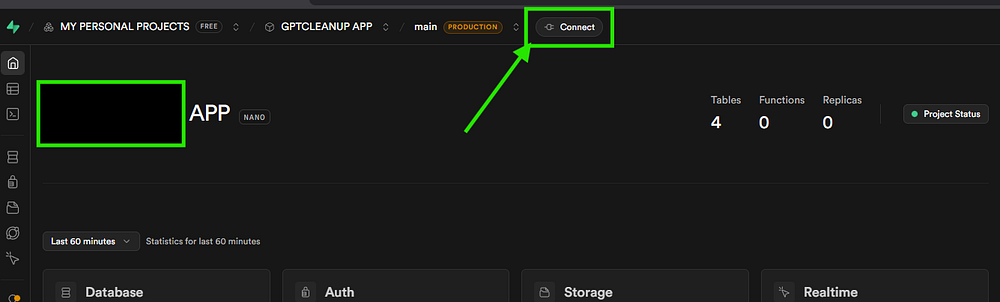
Now here’s the trap:
Use Session Pooler (not Direct)
If you are on the free plan, Supabase often shows:
-
Direct connection: Not IPv4 compatible
-
Session pooler: IPv4 compatible
n
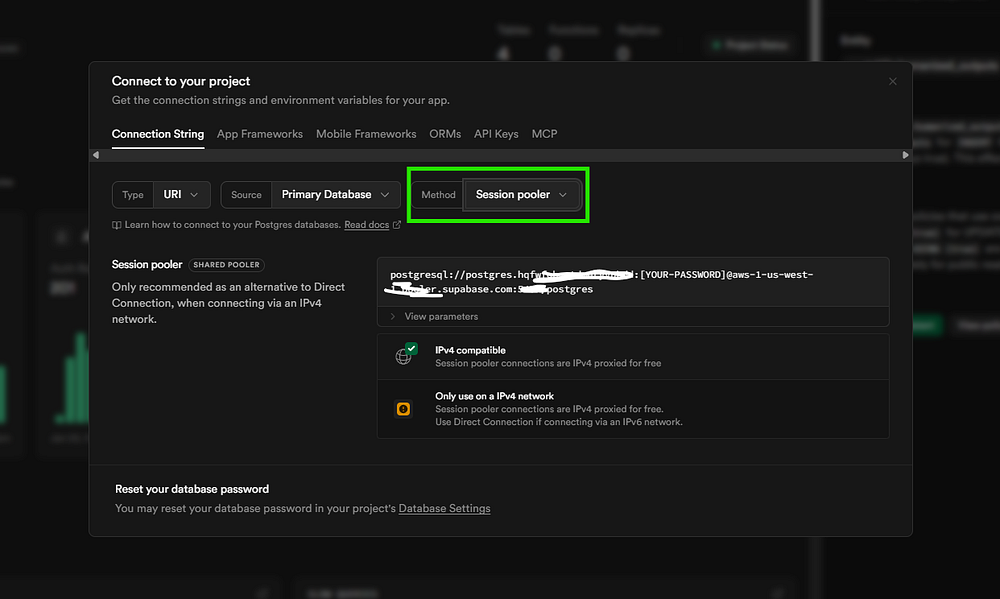
GitHub runners are typically IPv4. If you use Direct, your workflow will fail and you’ll think the universe hates you. It doesn’t. It just hates IPv6 sometimes.
Set:
- Method:
Session pooler - Type:
URI
You’ll get a connection string like:
postgresql://postgres.<your-project-ref>:YOUR_PASSWORD@aws-1-<region>.pooler.supabase.com:5432/postgres
Important:
- Replace the [YOUR-PASSWORD] placeholder with your Supabase password, if you don’t remember it, there’s a db password reset link on that connection popup.
Step 2: Add the connection string as a GitHub secret
In your GitHub repo:
Settings → Secrets and variables → Actions → New repository secret
Create a secret:
- Name:
SUPABASE_DB_URL - Value: paste the full Session Pooler connection string
Do not add extra spaces. Do not add a newline. Don’t get cute.
n 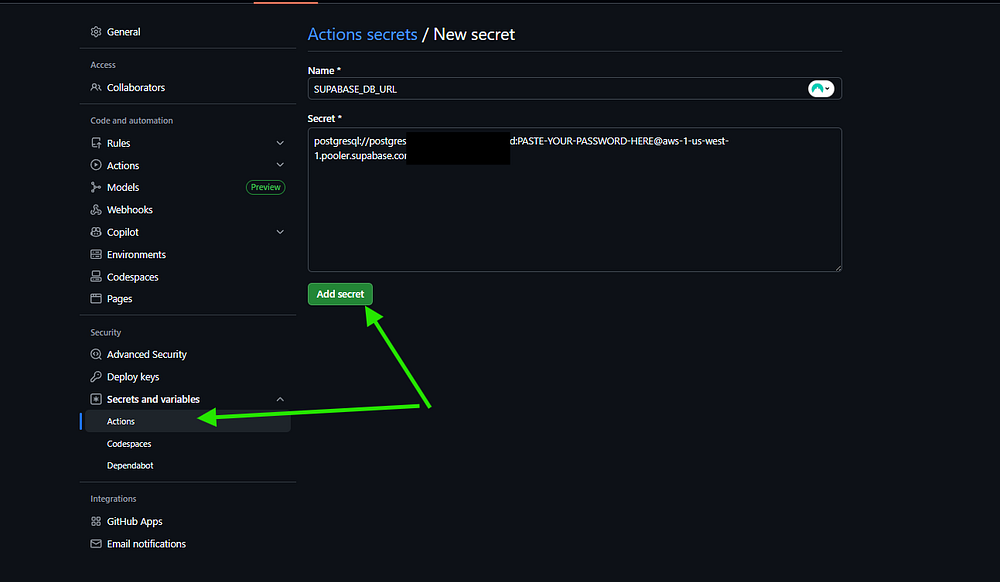
Add Your Secret
Step 3: Add the GitHub Actions workflow file
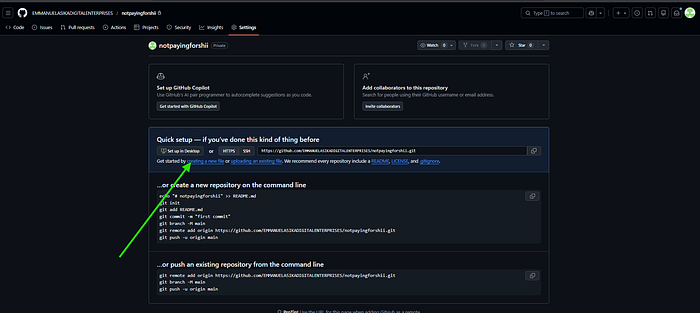
In your repo, create this file:
.github/workflows/backup.yml
Yes, including the dots. GitHub will create the folders automatically.
n 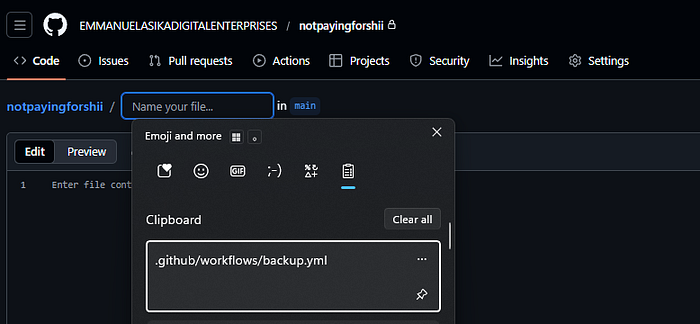
Now paste this full workflow:
name: Supabase Backupon:
  schedule:
    - cron: "0 */12 * * *"
  workflow_dispatch:jobs:
  backup:
    runs-on: ubuntu-latest    steps:
      - name: Checkout repo
        uses: actions/checkout@v4      - name: Install matching PostgreSQL client
        env:
          DATABASE_URL: ${{ secrets.SUPABASE_DB_URL }}
        run: |
          sudo apt-get update
          sudo apt-get install -y wget ca-certificates lsb-release postgresql-client          SERVER_VERSION=$(psql "$DATABASE_URL" -tAc "SHOW server_version_num;" | cut -c1-2)
          echo "SERVER_VERSION=$SERVER_VERSION" >> $GITHUB_ENV          wget -qO - https://www.postgresql.org/media/keys/ACCC4CF8.asc | sudo apt-key add -
          echo "deb http://apt.postgresql.org/pub/repos/apt/ $(lsb_release -cs)-pgdg main" | sudo tee /etc/apt/sources.list.d/pgdg.list
          sudo apt-get update
          sudo apt-get install -y postgresql-client-$SERVER_VERSION      - name: Run pg_dump
        env:
          DATABASE_URL: ${{ secrets.SUPABASE_DB_URL }}
        run: |
          mkdir -p backups
          /usr/lib/postgresql/$SERVER_VERSION/bin/pg_dump "$DATABASE_URL"
            --format=custom
            --file=backups/supabase_$(date +%F_%H-%M).dump      - name: Commit backup
        run: |
          git config user.name "supabase-backup-bot"
          git config user.email "backup@github.com"
          git add backups
          git commit -m "Automated Supabase backup" || echo "No changes"
          git pushWhat this does:
- Detects the Supabase DB Postgres version
- Installs the matching
pg_dump - Creates a
.dumpfile - Commits it into your repo
This version is future-proof: if Supabase upgrades Postgres later, the workflow adapts.
Step 4: Give GitHub Actions permission to push
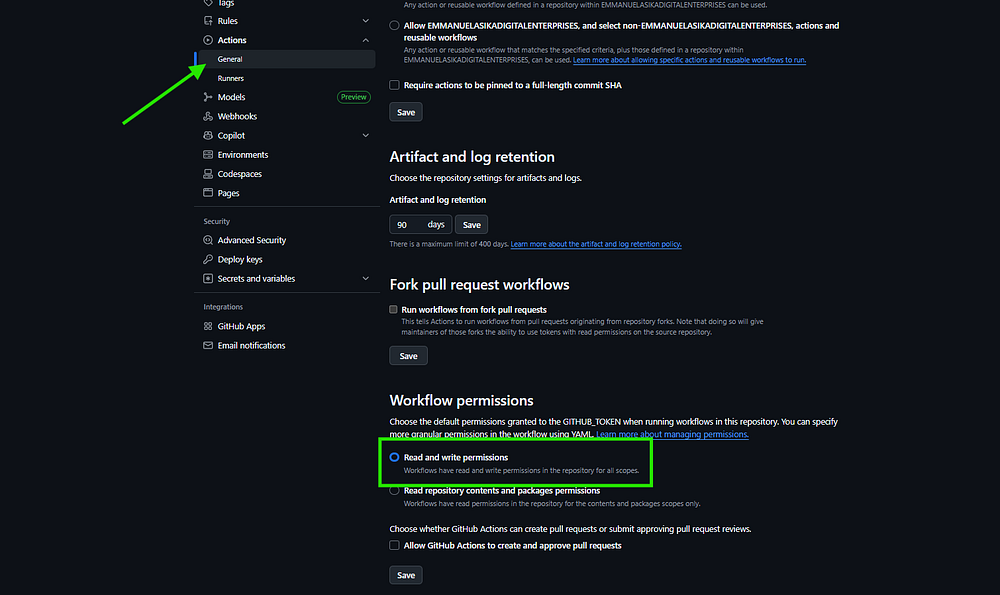
Do this before you run the workflow, because the backup will fail when it tries to save (commit + push) the database dump back into your repo.
Here’s how to enable it:
Repo → Settings → Actions → General → Workflow permissions
Select: ✅ Read and write permissions
Click Save.
Step 5: Run it manually once
Now, test it out to make sure it works before you rest easy.
Go to your repo:
Actions → Supabase Backup → Run workflow
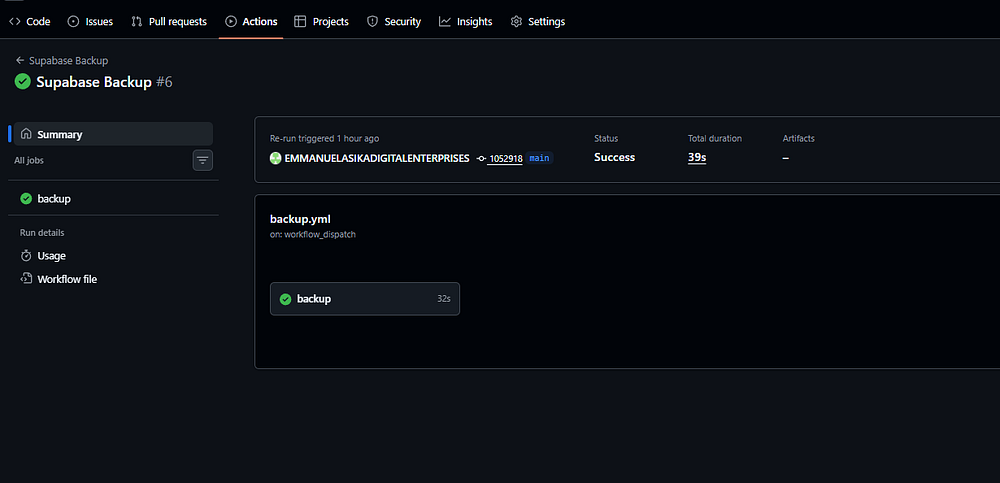
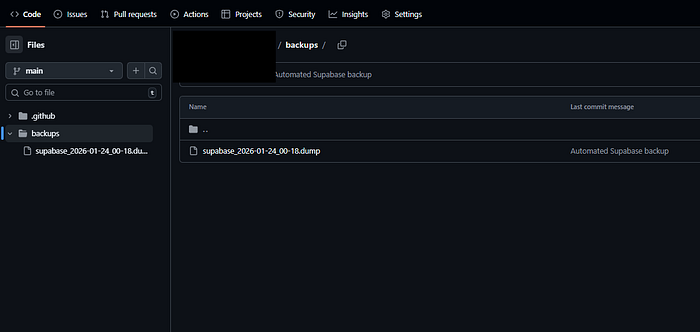
If it succeeds:
-
You’ll see a new folder:
backups/ -
A file like:
supabase_2026-01-24_00-15.dumpn
What about storage buckets?
This backup is for your Postgres database.
It does not include:
- Supabase Storage files (images, videos, uploads)
- Edge function code
- Logs
If you need Storage backups too, you’ll want a separate process (S3-compatible sync or a script — could extend this to do all this, but i only needed the database in my case).
Bonus: Keep your repo from growing forever (optional)
If you don’t want infinite backups piling up, you can delete older files automatically (keep last 30, for example). I’m not adding it here to keep the guide clean, but it’s easy to include.
Final thoughts
You don’t need a paid plan to have grown-up backups.
You just need:
- A GitHub repo
- One secret
- One workflow
- One permission toggle
And now your database has backups every 12 hours while you sleep, ship, and pretend you’re not responsible for production.
If you found this helpful, feel free to steal it. That’s the culture.

