Claude Code Section 1: The Foundations — 8 Concepts Every Developer Must Know

This is Section 1 of a 4-part series on mastering Claude Code. If you’re just getting started, this is exactly where to begin.
You’ve heard the buzz. Claude Code is the AI coding agent that lives in your terminal, writes code, runs commands, fixes bugs, and iterates — all on its own. But before you can unlock its real power, you need to understand the 8 foundational concepts that everything else is built on.
Think of this as your wiring diagram. Once you understand how these pieces connect, everything in Sections 2, 3, and 4 will click into place.
Let’s go.
Concept 1: What is Claude Code?
Claude Code is not a chatbot with coding knowledge. It’s an agentic CLI — a command-line agent that reads your codebase, executes shell commands, modifies files, manages git, and connects to external services, all through a loop of reasoning and action.
The key difference: a chatbot responds. Claude Code acts.
# Install it
npm install -g @anthropic-ai/claude-code

# Launch it
claude
Once running, you’re not typing into a chat window. You’re talking to an agent that has access to your entire filesystem, your terminal, and (if you configure it) your GitHub, database, and more.
The mental model to keep: Claude Code is a junior developer who never sleeps, reads every file in your project instantly, and executes exactly what you ask — but needs the right guardrails to do its best work.
Concept 2: The Terminal
Claude Code lives entirely in your terminal. There’s no GUI, no drag-and-drop, no visual editor. This is intentional — the terminal is where developers actually work, and Claude Code integrates directly into that workflow.
When you run claude, you enter an interactive REPL (Read-Eval-Print Loop) — a persistent session where you can have a back-and-forth conversation with Claude while it operates on your codebase in real time.
# Start a session
$ claude

# One-shot (no interactive session)
$ claude "add error handling to all API routes"

# Pipe content in as context
$ cat error.log | claude "what's causing this?"

# Print output to stdout (great for scripting)
$ claude -p "list all TODO comments in this project"
Key terminal behaviors to know:
- Shift+Enter — multi-line input (regular Enter sends the message)
- Ctrl+C — interrupt Claude mid-task
- Esc — cancel current action without exiting
- ↑ / ↓ — navigate command history
- Ctrl+R — fuzzy search your session history
The terminal is where Claude Code is most powerful. Get comfortable in it.
Concept 3: Prompts
How you prompt Claude Code is everything. This isn’t like asking ChatGPT a question — you’re giving instructions to an agent that will go execute them. Vague prompts produce vague results. Specific prompts with context produce exceptional results.
The anatomy of a great Claude Code prompt:
# Weak prompt
$ claude "fix the bug"

# Strong prompt
$ claude "There's a race condition in src/services/payment.js around line 87
  where two async calls update the same record simultaneously.
  Fix it using a mutex lock pattern. Don't change the function signature
  or any other files."
Referencing files directly:
# Use @ to reference specific files
> Review @./src/auth/middleware.js for security vulnerabilities

# Reference entire directories
> Analyze the architecture of @./src/ and suggest improvements

# Pipe diffs for instant review
$ git diff HEAD~1 | claude -p "summarize what changed and flag any risks"
Prompt patterns that work best:
- Be specific about what, where, and what not to touch
- Include the error message verbatim when debugging
- Tell Claude what success looks like (“the tests should pass after this”)
- Queue multiple prompts — Claude processes them in order when the current task finishes
Concept 4: Permissions
This is the concept most developers underestimate — and it’s the one that determines how safe and efficient your workflow is.
By default, Claude Code takes a conservative, ask-first approach. Before writing a file, running a bash command, or calling an MCP tool, it pauses and asks for your approval. This is the safety net.
The four permission types:
Permission What it controls Bash Shell commands — scripts, installs, git, linters Read / Edit Which files Claude can read and modify WebFetch External URLs Claude can access MCP Tools External tool integrations
The three permission modes:
# Default: asks before any risky action
$ claude

# Auto-approve everything (trusted local dev only)
$ claude --dangerously-skip-permissions

# Allowlist specific tools for a session
$ claude --allowedTools "Read,Write,Bash(npm run*)"

# Block specific tools
$ claude --disallowedTools "Bash(rm*)"
Configure persistent rules in settings.json:
{
  "permissions": {
    "allow": [
      "Bash(npm run test:*)",
      "Bash(git status)",
      "Bash(git diff*)"
    ],
    "deny": [
      "Bash(rm -rf*)"
    ]
  }
}
The golden rule: Allowlist the commands you run a hundred times a day. Keep everything else on Ask. Never use –dangerously-skip-permissions in a directory with production configs or API keys.
Concept 5: Tools — Read, Write, Bash
Claude Code doesn’t just respond with text — it uses tools to interact with your system. Understanding what each tool does helps you understand what Claude is actually doing when it works on your code.
The three core tools:
Read — Claude reads files, directories, and their contents. This is how it understands your codebase before making changes. Read is always the first step.
Write (Edit) — Claude creates or modifies files. You’ll see a diff preview before approval in default mode. This is the most consequential tool — what Claude writes to disk is real.
Bash — Claude executes shell commands: runs tests, installs packages, calls git, starts servers, runs linters. This is the most powerful and the one permissions guard most carefully.
# What Claude does when you ask it to "add a new API endpoint":
# 1. Read: scans routes/, controllers/, existing patterns
# 2. Read: checks package.json for framework version
# 3. Write: creates the new route file
# 4. Write: updates the router index
# 5. Bash: runs npm run test to verify nothing broke
# 6. Bash: runs npm run lint to clean up
Additional tools available:
- WebFetch — fetches URLs (docs, APIs)
- Task — spawns subagents for parallel work
- MCP tools — any external integrations you’ve configured
Understanding this tool loop is what helps you write better prompts — you’re essentially directing a sequence of tool calls.
Concept 6: Context Window
The context window is Claude’s working memory for a session. Everything in the conversation — your prompts, Claude’s responses, file contents read, tool call results — all accumulates in this window. When it fills up, Claude’s performance degrades.
Current context limits by model:
- Sonnet 4.6: up to 1M tokens (beta) — roughly 750,000 words
- Opus 4: 200K tokens — roughly 150,000 words
- Haiku: 200K tokens
In practice, a typical coding session with file reads and multi-step tasks will consume 50K–200K tokens. For longer sessions, managing your context window becomes a skill.
How to monitor your context:
# Check current context usage
> /context

# The status bar shows live context usage:
# Model: Sonnet | Ctx: 89.5k | Cost: $2.11 | Ctx(u): 56%
How to manage it:
- Use /compact to compress the history when usage exceeds ~50%
- Start a new session (/clear) for completely unrelated tasks
- Be specific in prompts — don’t ask Claude to read files it doesn’t need
- Reference only the files relevant to the current task
The insight: Think of the context window like RAM. You want to keep it clean and focused. A cluttered context produces worse outputs, just like a cluttered codebase produces worse code.
Concept 7: Conversation History & Resume
Unlike a web chat that disappears when you close the tab, every Claude Code session is automatically saved — full message history, tool calls, file states, everything. You can pick up exactly where you left off.
# Continue the most recent session
$ claude -c

# Continue and immediately add a new instruction
$ claude -c -p "now add error handling to what we just built"

# Resume a specific session by ID
$ claude -r "abc123def"

# Name your session for easy recall (v2.1+)
> /rename auth-refactor

# Resume by name
$ claude --resume auth-refactor

# Fork a session to try a different approach without losing the original
$ claude --resume auth-refactor --fork-session "try approach B"
Why this matters more than it sounds:
Complex features don’t get built in one sitting. With resume, you can:
- Start a feature on Monday, pick it up Tuesday with full context intact
- Fork sessions to safely explore risky refactoring approaches
- Build a library of named sessions for ongoing projects (“payments-v2”, “db-migration”)
- Link sessions to specific PRs with –from-pr 123
Pro tip: Before ending a long session, run /todos to see if Claude has noted any unfinished tasks. Then run /rename to give the session a meaningful name so you can find it later.
Concept 8: Token Usage & Cost Tracking
Token usage is the one concept developers most often ignore — until they get a surprise bill. Understanding how tokens work helps you get maximum output for minimum cost.
What consumes tokens:
- Every character in your prompts (input tokens)
- Every file Claude reads (input tokens)
- Every response and code Claude writes (output tokens)
- Tool call results (input tokens)
- Your conversation history (input tokens — this grows every turn)
Model pricing (approximate, per million tokens):
Model Input Output Best for Haiku ~$0.80 ~$4 Exploration, simple tasks, subagents Sonnet ~$3 ~$15 General coding work (default) Opus ~$15 ~$75 Complex reasoning, architecture
Typical session costs:
- Simple bug fix (50K tokens): ~$0.15–$0.75
- Feature build (200K tokens): ~$0.60–$3.00
- Large refactor (500K tokens): ~$1.50–$7.50
Cost-saving strategies:
# Use Haiku for fast, cheap exploration
$ claude --model claude-haiku-4-5-20251001 "map out all the files I need to change"

# Switch to Sonnet/Opus for actual implementation
$ claude --model claude-sonnet-4-6 "now implement the changes"

# Prompt caching (automatic) saves ~90% on repeated context
# Use /compact aggressively - it reduces context = reduces cost
# Be specific: reading 3 files costs less than reading 30
Monitor costs live: The status bar shows real-time cost: Cost: $2.11. Set a mental budget per session. If you’re approaching it, run /compact or start fresh.
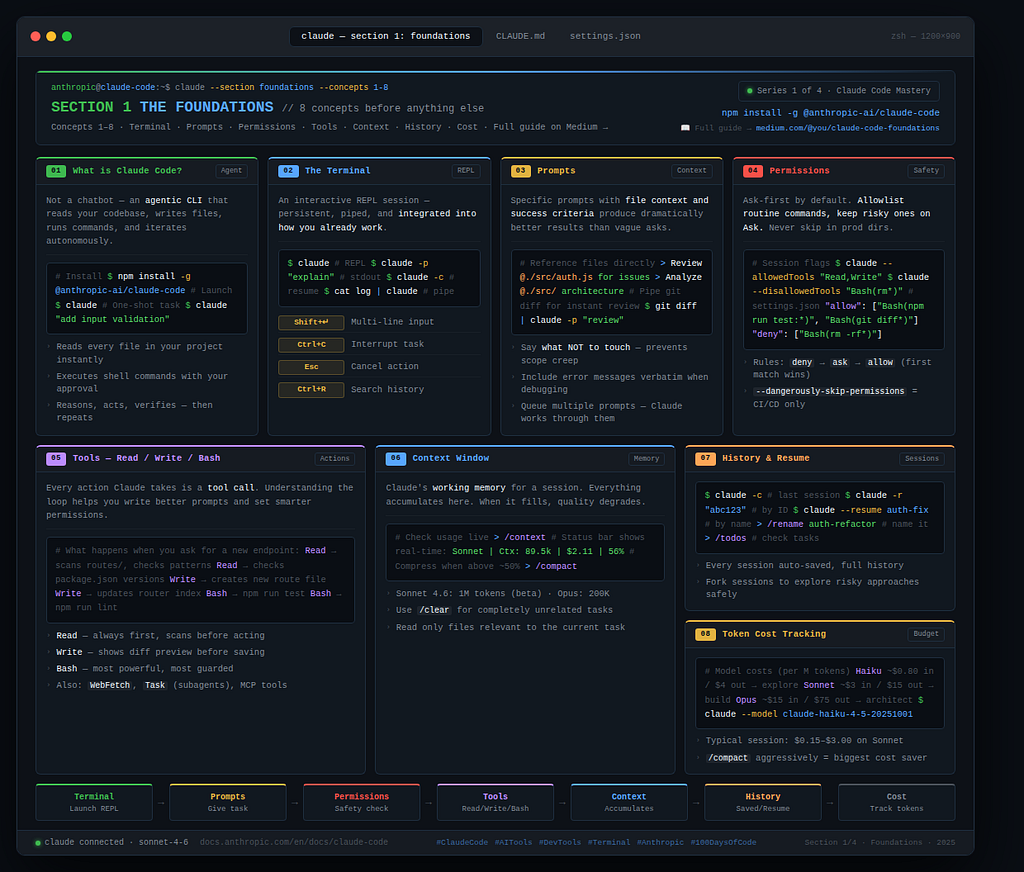
How These 8 Concepts Connect
Here’s the wiring diagram:
Terminal  →  You launch claude, enter the REPL
    ↓
Prompts   →  You give Claude a task with context
    ↓
Permissions  →  Claude checks what it's allowed to do
    ↓
Tools     →  Claude uses Read / Write / Bash to execute
    ↓
Context Window  →  Everything accumulates here
    ↓
History   →  Session is saved, resumable anytime
    ↓
Token Cost  →  You pay for what was processed
Every advanced feature in Sections 2, 3, and 4 — CLAUDE.md, Hooks, MCP Servers, Subagents — is built on top of this foundation. Get these 8 concepts solid and everything else becomes intuitive.
Your Action Plan
- Install Claude Code — npm install -g @anthropic-ai/claude-code
- Run your first session — claude in a project directory
- Set up your first permission rules — create settings.json with your safe allowlist
- Monitor your context — watch the status bar during sessions
- Save and resume — practice naming sessions with /rename
What’s Next
Section 2: Making Claude Personal covers CLAUDE.md, Memory, Compact Context, Model selection, File Access control, and Flags — the concepts that make Claude Code feel like it was built specifically for your project.
Drop a comment below — which of these 8 concepts do you want me to go deeper on? I’ll write a dedicated post on the top-requested ones. 👇
Follow me on LinkedIn for the cheat sheet version of this article and the rest of the series.
Resources:
- Install: npm install -g @anthropic-ai/claude-code
- Official docs: docs.anthropic.com/en/docs/claude-code
- Next: Section 2 — Making Claude Personal
Claude Code Section 1: The Foundations — 8 Concepts Every Developer Must Know was originally published in Towards AI on Medium, where people are continuing the conversation by highlighting and responding to this story.
