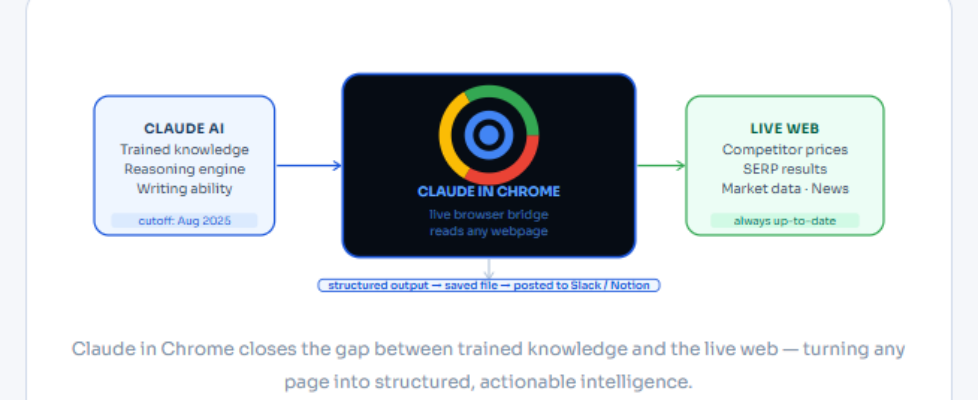
Claude in Chrome: How to Use AI for Live Web Research

Claude’s knowledge has a cutoff date. The web doesn’t. Here’s how to connect them — and turn any live webpage, competitor site, or search result into structured, actionable intelligence in seconds.
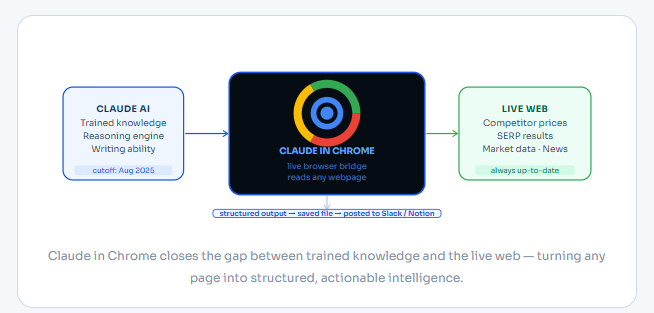
Claude is extraordinarily good at reasoning, writing, and synthesizing. But it knows nothing about what happened after August 2025. It cannot tell you a competitor’s current pricing. It cannot read the article published yesterday. It cannot navigate a live website, fill in a form, or pull data from a page that requires a browser to render.
Claude in Chrome changes that entirely. It’s a browser extension that connects Claude to your live Chrome session — allowing it to navigate to any URL, read what’s on the page, extract structured data, and feed it directly into your AI workflows. The result is a research engine that combines Claude’s analytical depth with the real-time freshness of the open web.
This tutorial walks you through everything: how to set it up in four steps, what it can actually do, the exact prompts that unlock its most powerful use cases, and how to chain it with other connectors to build research pipelines that run on a single instruction.
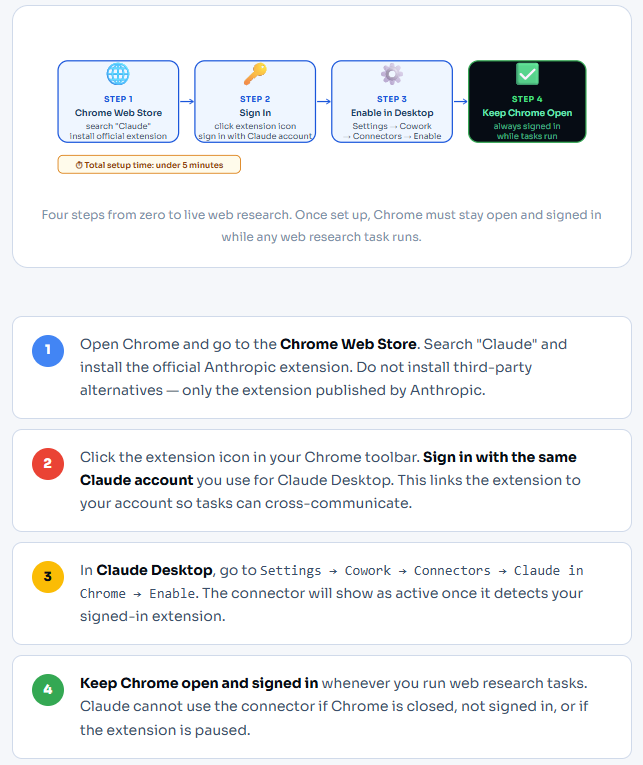
Setup in four steps
From zero to live research in under five minutes
Claude in Chrome requires two things: the browser extension installed in Chrome, and the connector enabled in Claude Desktop. Both take about two minutes each. Here’s the exact process.

What Claude in Chrome actually does
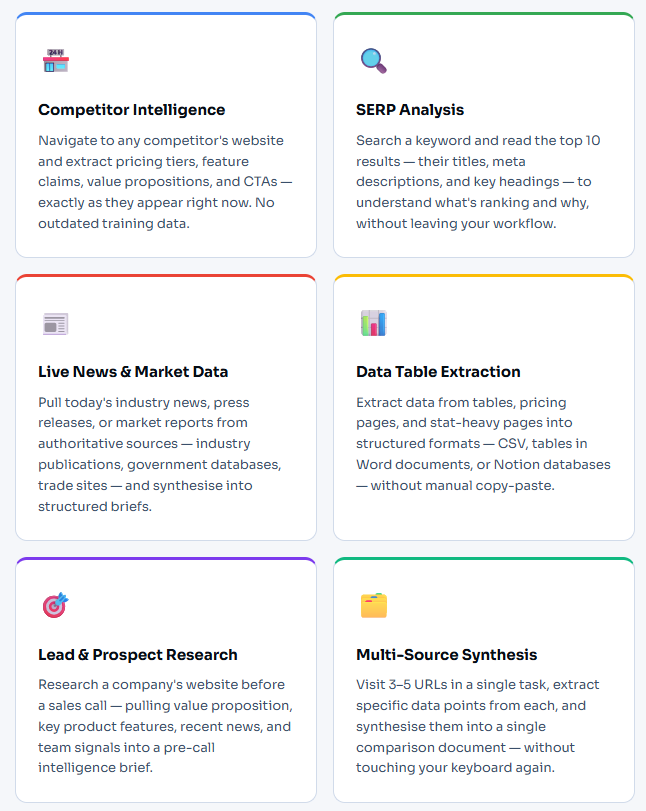
Six capabilities that change how you research
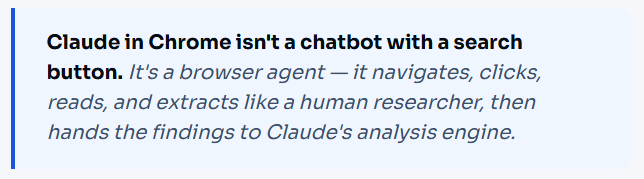
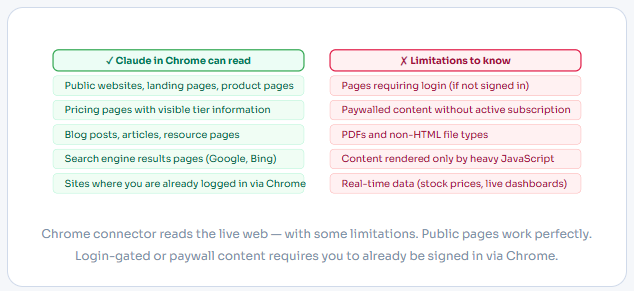
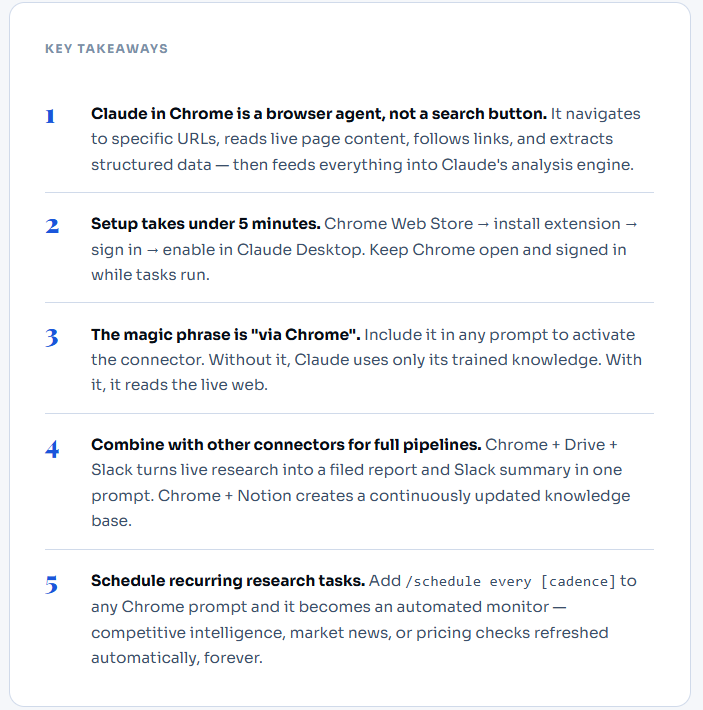
Claude in Chrome is not a search engine wrapper. It’s a browser agent — it can navigate to specific URLs, scroll through content, extract data from tables and lists, follow links, and synthesise what it finds into structured output. Here’s what that unlocks in practice.
Four copy-paste prompts ready to run
Real use cases with full prompt templates — just fill the brackets
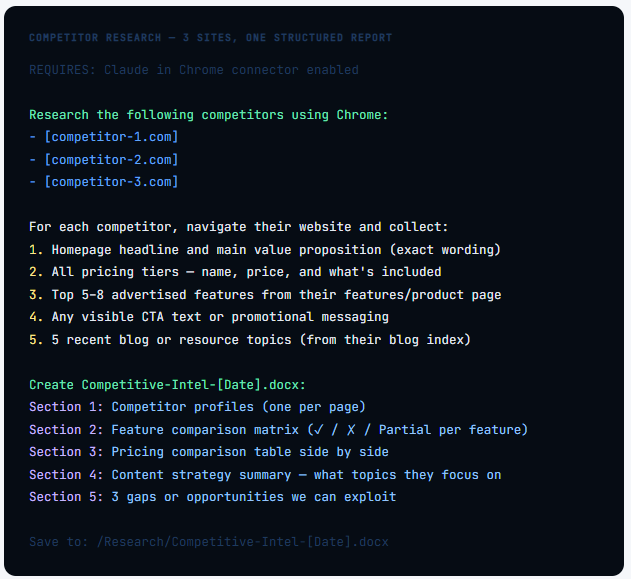
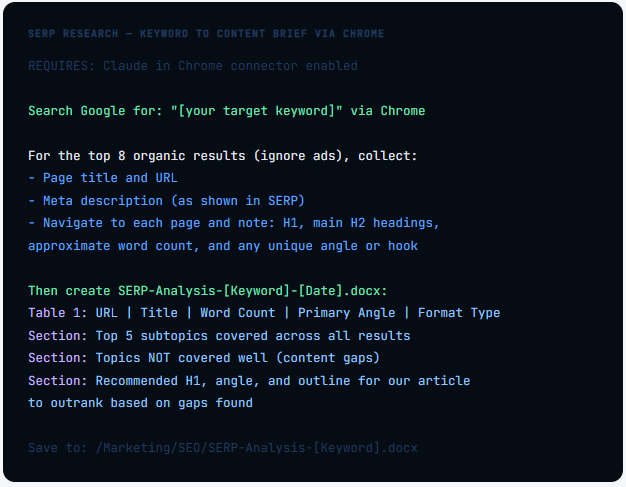
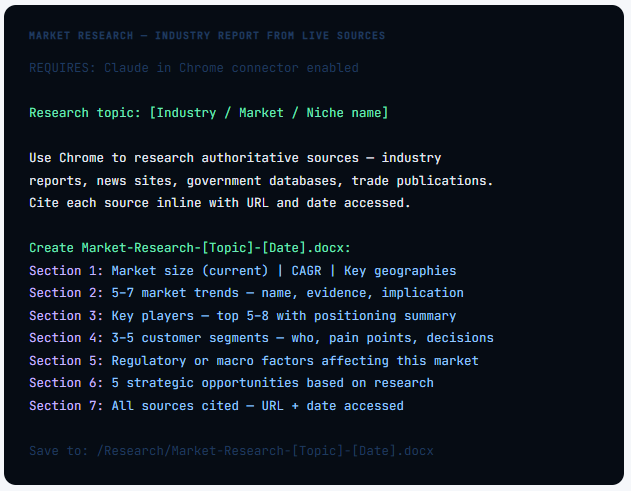
The following prompts are drawn directly from professional research workflows. Each one is complete — add your specifics inside the brackets, ensure Chrome is open and connected, and run.
Prompt 1 — Competitor intelligence sweep
Prompt 2 — SERP analysis for SEO
Prompt 3 — Pre-call prospect brief

Prompt 4 — Market research report
The power combos:
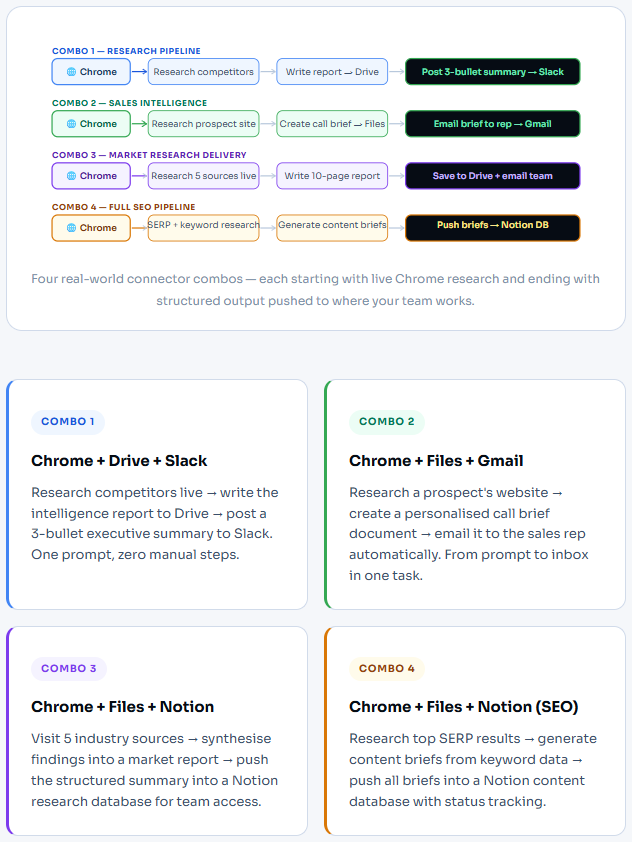
Chrome + other connectors
Where Claude in Chrome becomes a full research pipeline
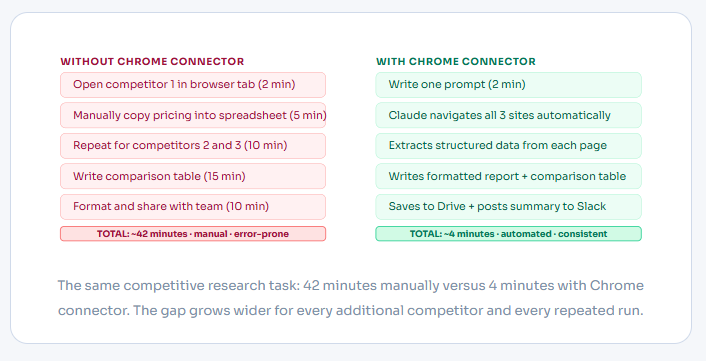
Claude in Chrome is powerful alone. But it becomes transformational when chained with other connectors. A single prompt can research live, write the output, save it to Drive, and post a summary to Slack — with zero manual steps between any of those actions.
The complete trigger phrase reference
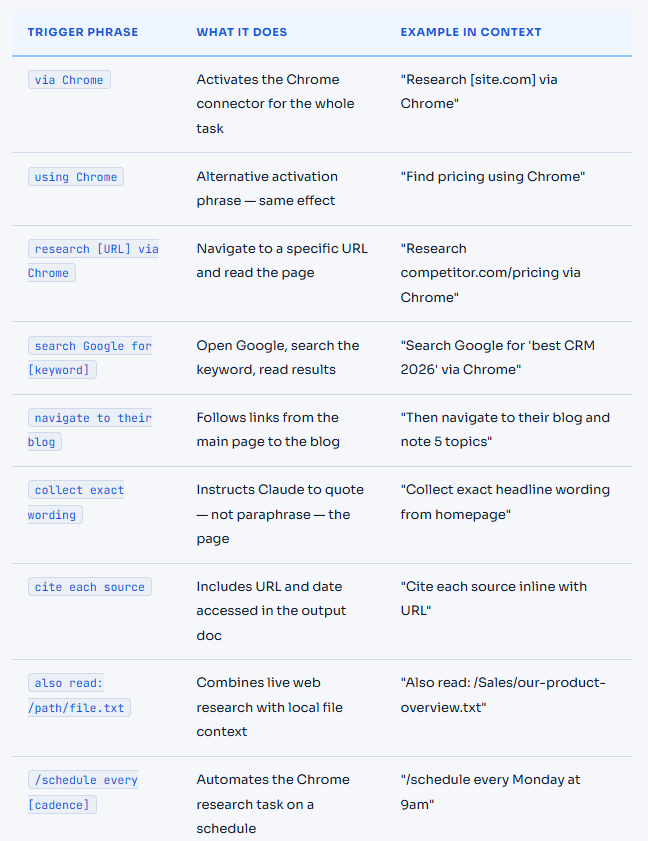
How to control Chrome connector behaviour from your prompt
The connector responds to specific phrases in your prompt. These phrases tell Claude how to use Chrome — what to navigate to, how to handle what it finds, and what to do with the output. Here’s the complete reference.
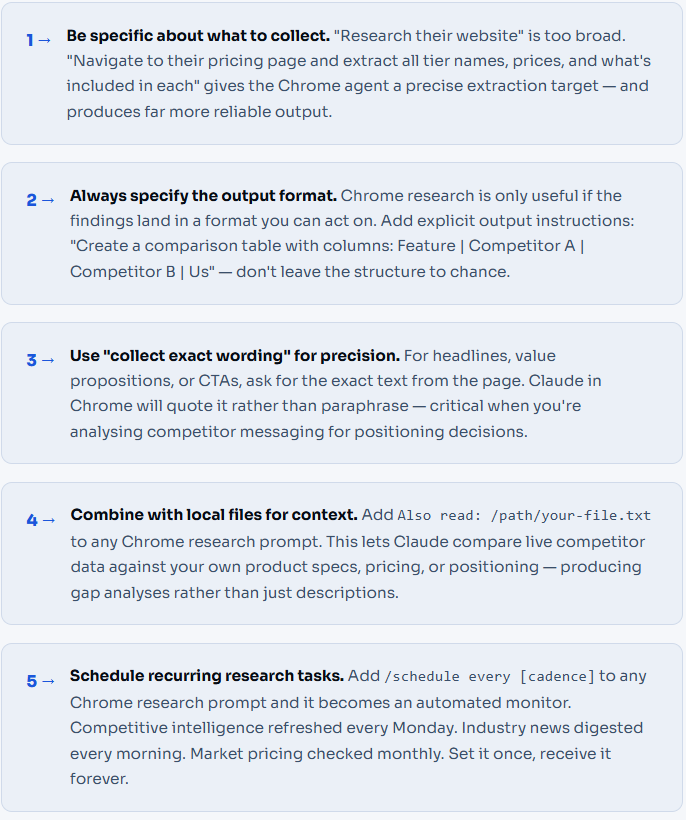
Seven tips for better Chrome research
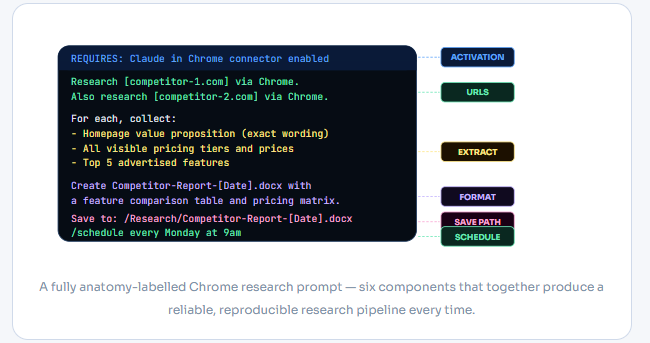
What separates a one-use prompt from a reusable research system

For more information on detailed setup,
Access the guide here → → Claude Cowork OS
Claude in Chrome: How to Use AI for
Live Web Research was originally published in Towards AI on Medium, where people are continuing the conversation by highlighting and responding to this story.
