Your Brain Is a Terrible Database. Here’s the Operating System I Built to Replace It

How I built an AI-native Second Brain for engineering management — with Obsidian, Claude Code, and zero subscriptions.
Seven unread Slack DMs. Three stacked 1:1s before lunch. A promotion packet review you can’t find. An incident follow-up thread someone archived. A decision from last quarter that lives in a Slack thread you can no longer search because it’s past the retention window.
This is the job now. Not the work — the scaffolding around the work.
Your brain is a terrible database. It drops rows under load, has no query language, and crashes every Friday at 4pm. If you ran a production system this unreliable, you’d get paged.
The thesis
AI compressed the task layer. Drafts, summaries, code — the things that used to eat your afternoons now take seconds. But compression didn’t remove the bottleneck. It moved it.
The bottleneck is now carrying context between decisions without losing it. Your 1:1 notes from Tuesday need to inform your roadmap conversation on Thursday. The incident retro you ran in January should surface when a similar pattern appears in April. The feedback you wrote for a promo packet three months ago shouldn’t require 20 minutes of Slack archaeology to relocate.
This is what a Second Brain solves — a persistent, searchable, linked knowledge layer that sits between your head and your tools. Not for archiving. For the decision layer — the place where engineering leaders actually create value.
The stack
I built mine in an afternoon. Three tools, zero paid subscriptions, fully local-first:
| Layer | Tool | Why |
|—-|—-|—-|
| Memory | Obsidian | Local markdown vault. Wikilinks between notes. Dataview for queries. No lock-in — it’s just files on disk. |
| Intelligence | Claude Code | Reads, writes, links, and files your notes. Generates the entire vault scaffold in one prompt. Runs your weekly digest. |
| Sync | rclone → Google Drive | Syncs every 15 minutes in the background. Offline-first. Mobile-ready via Obsidian Mobile. Free. |
The architecture is deliberately boring. If Google Drive goes down, the vault works locally. If you switch from Claude Code to another agent, the vault is still markdown. If Obsidian disappears tomorrow, you still have a folder of .md files on your disk.
No vendor lock-in. No paid tiers. No monthly invoices.
The structure: PARA
The vault follows Tiago Forte’s PARA method — four folders optimised for action, not archiving:
~/brain/
├── 0 - Inbox/          ← rough capture lands here
├── 1 - Projects/       ← named initiatives with deadlines
├── 2 - Areas/          ← ongoing responsibilities
├── 3 - Resources/      ← reference material
├── 4 - Archive/        ← done
└── .claude/
    └── skills/
        └── para-capture/   ← the skill that makes filing automatic
The sorting question that drives PARA: “What can I move on this week?” Projects have deliverables and deadlines. Areas are ongoing. Resources are reference. Archive is done. Inbox is everything else until Claude files it.
The skill that makes it work
This is the part where most Second Brain setups die — the filing. Nobody wants to sort notes at 5pm on a Friday.
So I didn’t. I taught Claude Code to sort them for me.
The para-capture skill is a Claude Code procedure that auto-invokes when you feed it rough text. It classifies the input, writes a properly-formatted markdown file into the correct PARA folder, scans the vault for related notes, and links them.
Here’s what it looks like in practice:
claude /para-capture "Had a 1:1 with Priya today about the platform
migration. She's blocked on API rate limit issue, wants to pair with
David. Deadline end of Q2. We agreed she'll draft RFC by Friday."
And Claude returns:
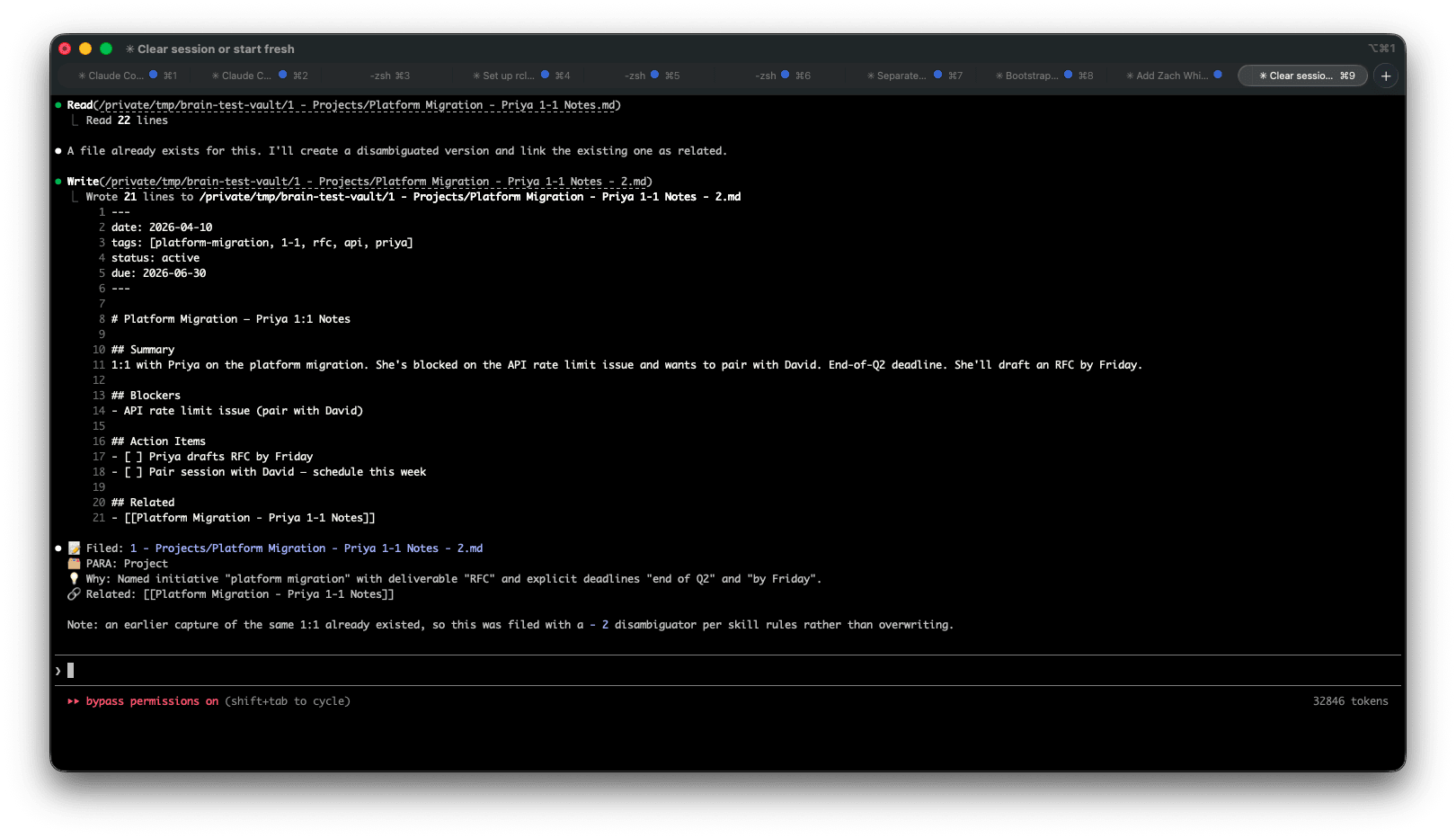
📝 Filed: 1 - Projects/Platform Migration - Priya 1-1 Notes.md
🗂  PARA: Project
💡 Why: Named initiative "platform migration" + specific
   deliverable "RFC" + deadline "end of Q2"
🔗 Related: [[Platform Migration - Q1 Planning]],
   [[Priya - 1-1 Log]]
Thirty seconds. Your 1:1 notes are filed, tagged, and linked to every related conversation you’ve had about that project — without you opening a browser, finding a folder, or writing a single wikilink.
The capture cost is now lower than the cost of forgetting. That’s the design principle underneath the whole system.
The daily ritual
Once the vault exists, the operating rhythm is four steps:
- Morning (30 seconds):
claude "create today's daily note with my calendar"— your meetings arrive as a pre-populated checklist before you’ve opened Slack. - During meetings: Cmd+N in Obsidian. Type freely. Notes land in Inbox by default. Don’t think about filing.
- After 1:1s (30 seconds): Paste your raw notes into
para-capture. Claude classifies, files, and links. - Friday (90 seconds):
claude "summarise this week's inbox, surface unresolved threads, and suggest what to file"— Claude returns a digest: 3 unresolved threads, 2 items ready to file, 1 item to discard.
The entire system costs you under three minutes a day. The decision context you’d otherwise lose is worth hours.
What you don’t need
A few things I tried and dropped:
- Obsidian Sync — rclone + Google Drive does the same thing for free, on a 15-minute cron.
- Full Notion migration — don’t move your existing Notion content. Start fresh. Keep Notion content in Notion.
- Complex Dataview queries — the default vault structure and Claude Code’s search are enough. Skip the Dataview-JS rabbit hole for at least three months.
- Omnisearch plugin — Dataview + Claude Code covers 95% of search cases without extra plugins.
The full walkthrough
Part 1: Install the Stack
We install four tools. Three one-liners and a directory. This is the only part of the article where you’ll type commands from memory — after this, you prompt.
Open Terminal (Spotlight, then type “terminal”) and keep it open for the rest of this section.
Step 1 — Install Obsidian
brew install --cask obsidian
Obsidian is a local markdown editor. Your notes stay on disk as plain .md text files you own forever, in a format that will still be readable on a laptop built in 2045. No database, no proprietary format, no lock-in. Verify: open it from Launchpad. It should launch without asking you to sign in or create an account — that’s the tell that your data lives on your machine, not theirs.
Step 2 — Install Claude Code
brew install --cask claude-code
Claude Code is the terminal-based AI assistant you’re about to hand the rest of the setup to. It can read any file in the directory you run it from, write new files, edit existing ones, and execute commands.
The first time you run claude from a terminal, it’ll walk you through signing in with your Anthropic account — one browser redirect and you’re done. You’ll need a paid Claude plan or API credits to run the full setup; the free tier will get you started but will hit limits before you finish.
Step 3 — Install rclone
brew install rclone
rclone is the sync bridge between your Mac and Google Drive. It’s a command-line file sync tool that supports 70+ storage backends, open source, no account required. We’ll configure it in Part 4; for now we just need the binary on your system.
Step 4 — Create the vault directory
mkdir ~/brain && cd ~/brain && git init
This is where your Second Brain lives. The name doesn’t matter — brain is short and fits in muscle memory. git init gives you version history of your own thinking. It’s optional, but recommended. You’ll eventually want to know why you deleted that note three weeks ago, or recover a version of a doc from before you rewrote it. Verify:
pwd && git status
You should see /Users/<you>/brain and a clean repo on the default branch.
Four tools, four minutes, zero decisions made so far. This is the last time you’ll type a command from memory. From here on, you prompt.
AI-native Engineering Leader is a reader-supported publication. To receive new posts and support my work, consider becoming a free or paid subscriber.
Part 2: Hand the Rest to Claude Code
You now have four installed tools and an empty folder. The next move is where most tutorials lose people.
The old way to continue would be: follow a 40-step Obsidian configuration tutorial, copy-paste YAML templates from a GitHub gist, read three blog posts arguing about what PARA really means, and figure out the folder conventions on your own. Two hours minimum, and you’d still end up with something that doesn’t quite match what you meant.
The AI-native way is shorter. Paste one prompt. Let Claude build the rest.
Copy this prompt. From inside ~/brain, run claude to start an interactive session, then paste:
Build me a Second Brain using the PARA method in this directory.

Create the five top-level folders:
- 0 - Inbox
- 1 - Projects
- 2 - Areas
- 3 - Resources
- 4 - Archive

Add a Templates subfolder under "3 - Resources" containing these templates, each with YAML frontmatter (date, tags):
- Daily Note
- Note
- Project
- Area
- Resource
- Meeting
- Person

Add a Daily Notes subfolder under "3 - Resources".

Create a Home.md dashboard at the repo root linking to each PARA folder with a one-line description of each.

Create a CLAUDE.md at the repo root that explains the vault structure and conventions (PARA folders, YAML frontmatter with date + tags, wikilinks for internal links, kebab-case tags, Title Case filenames, new unsorted notes go to 0 - Inbox) to any future Claude Code session working in this vault.
After about 30 seconds, Claude will have built this:
~/brain/
├── 0 - Inbox/
├── 1 - Projects/
├── 2 - Areas/
├── 3 - Resources/
│   ├── Daily Notes/
│   └── Templates/
│       ├── Area.md
│       ├── Daily Note.md
│       ├── Meeting.md
│       ├── Note.md
│       ├── Person.md
│       ├── Project.md
│       └── Resource.md
├── 4 - Archive/
├── CLAUDE.md
└── Home.md
Seven folders, nine files, thirty seconds of work. You now have a functional PARA vault.
It’s not yet wired to Obsidian, it doesn’t sync across your devices, and Claude Code doesn’t yet know how to sort new notes for you. Those three things are what separate a nice folder from an operating system — and they’re in the next half of this article.
AI-native Engineering Leader is a reader-supported publication. To receive new posts and support my work, consider becoming a free or paid subscriber.
Part 3: Wire Obsidian Without Clicking Through Settings
Open Obsidian. Click “Open folder as vault” and select ~/brain. You’ll see the PARA folders in the left sidebar — the file explorer, unconfigured, still on the default light theme. Before you touch a single settings panel, paste this prompt.
Copy this prompt.
Configure this vault for Obsidian. Create the .obsidian directory and generate the following config files:

1. app.json — set defaultViewMode to "preview", readableLineLength true, new files land in "0 - Inbox" (newFileLocation "folder", newFileFolderPath "0 - Inbox"), useMarkdownLinks false (we use wikilinks), attachmentFolderPath "3 - Resources/Attachments", foldHeading and foldIndent true, showFrontmatter true.

2. appearance.json — dark theme (theme "obsidian").

3. core-plugins.json — enable: file-explorer, global-search, switcher, graph, backlink, outgoing-link, tag-pane, page-preview, daily-notes, templates, note-composer, command-palette, outline, word-count, file-recovery.

4. daily-notes.json — folder "3 - Resources/Daily Notes", template "3 - Resources/Templates/Daily Note", format "YYYY-MM-DD".

5. templates.json — folder "3 - Resources/Templates", dateFormat "YYYY-MM-DD", timeFormat "HH:mm".

6. community-plugins.json — register the Dataview plugin (["dataview"]).

7. plugins/dataview/data.json — minimal Dataview config with sensible defaults.

Tell me at the end that I need to click "Enable" on Dataview in Obsidian's Community Plugins pane — this is the one manual step because plugin binary installation is safest done via Obsidian's own UI, which also handles future plugin updates.
Claude writes seven JSON files into .obsidian/. The theme flips to dark. The file explorer shows your PARA folders in the right order. New files auto-land in 0 - Inbox. Wikilinks are on, markdown links are off. Daily notes point at the template you made in Part 2. There’s exactly one manual step left: open Obsidian → Settings → Community Plugins → Enable Dataview. One click. We do it through the UI on purpose — Obsidian handles plugin updates there, and that’s cleaner than curl’ing plugin binaries from the terminal.
Verify it worked: press Cmd+P, type “Daily notes: Open today’s daily note”, hit Enter. A new file should land in 3 - Resources/Daily Notes/ with your Daily Note template pre-filled. If you see your template fire, the vault is wired. If you don’t — check that Dataview is enabled in Community Plugins; that’s usually the issue.
 Part 4: Sync Without Paying For Sync
Three options get ruled out before we start.
iCloud sometimes corrupts Obsidian plugins. The cause is concurrent writes to .obsidian/plugins/ across devices — iCloud tries to merge, gets it wrong, and you find out three days later when Dataview stops loading. This is documented in the Obsidian forums and it’s the kind of bug that eats a Sunday afternoon. Dropbox is cloud-only storage — your files technically leave your Mac, and the app wants you to work through its interface instead of yours. Obsidian Sync works fine and costs $4/month for what rclone does for free.
The real reason we pick rclone is architectural. With rclone, your files stay on your Mac. Google Drive is a sync bridge, not a host. The vault is just as fast and just as local as it was five minutes ago — you can work offline, lose Wi-Fi, or cancel your Google account tomorrow. None of it matters. Your brain lives on your laptop. Drive is just the wire.
Copy this prompt.
Set up rclone to sync this directory to my Google Drive.

1. Walk me through creating a new rclone remote called "gdrive" pointing at Google Drive using OAuth. When the browser opens, I'll approve access.

2. The target on Google Drive should be a top-level folder called "brain".

3. Write a shell script at the repo root called sync-brain.sh that:
   - Syncs this directory to gdrive:brain using `rclone sync`
   - Excludes .git, .obsidian/plugins (community plugins are big and device-specific), .obsidian/workspace*, and .DS_Store files
   - Logs to a .sync.log file in the vault root
   - Prints a "Sync complete" message on success
   Make the script executable.

4. After creating the script, run it once to perform the initial sync. Show me the output.

5. Tell me how to verify the sync worked by listing files in the gdrive:brain folder.
This is the one unavoidable manual moment in the article. When Claude runs rclone config, a browser tab opens. Google asks which account to use, then shows a consent screen: rclone is requesting read, write, and delete access to your Drive. That’s Google asking on rclone’s behalf — approve it. The browser says “Success!” — close the tab and come back to the terminal. If the browser doesn’t open automatically, rclone prints a URL you can paste manually. Config saves to ~/.config/rclone/rclone.conf. This is standard OAuth. You’re not breaking anything.
Syncing once is not a system. Schedule it to run every 15 minutes in the background using launchd, the macOS equivalent of cron.
Copy this prompt.
Schedule sync-brain.sh to run every 15 minutes using launchd.

Create a plist at ~/Library/LaunchAgents/com.<username>.brain-sync.plist that runs ~/brain/sync-brain.sh every 900 seconds. Set RunAtLoad true. Add an EnvironmentVariables block with PATH set to /opt/homebrew/bin:/usr/local/bin:/usr/bin:/bin so rclone is found. Redirect stdout to /tmp/brain-sync.stdout and stderr to /tmp/brain-sync.stderr.

Validate the plist with plutil -lint, then load it with launchctl load. Verify it appears in launchctl list. Tell me the command to unload it when I want to stop.
On your phone: Obsidian Mobile + the Google Drive app handle this in about two minutes, and the Obsidian team documents it better than I can here. Point Obsidian Mobile at your synced brain folder inside Drive, and you’re reading and writing the same vault from your pocket.
You now have a local-first vault that syncs to your phone and any other Mac automatically, every 15 minutes, without a subscription and without giving up control of your files. The infrastructure is done. Next, we make Claude Code smart about your conventions.
Part 5: The Skill That Makes This Actually Work
You already have a CLAUDE.md in the repo root from Part 2. That file is passive — a reference Claude reads at the start of every session so it knows the vault’s rules. Useful, but it doesn’t do anything on its own.
A skill is different. A skill is an invokable procedure. You trigger it on demand and it executes a defined piece of work against the vault. Think of CLAUDE.md as the map and a skill as the employee who uses the map to do real work. For PARA, the most useful employee is the one that takes a rough braindump and files it correctly — meeting notes, 1:1 summaries, half-formed Slack rants, whatever hits your head between meetings. We’ll call it para-capture. You need both: the map for context, the skill for action.
Copy this prompt.
Create a Claude Code skill called para-capture for this vault.

The skill takes a rough text dump as input and does the following:

1. Classifies the input by PARA (Project, Area, Resource, or Inbox). Default to Inbox if unsure.
   Heuristics:
   - Project = specific deadline, deliverable, or named initiative with an end state
   - Area = ongoing responsibility, "getting better at X", no end state
   - Resource = reference material, book/article summary, person note, concept
   - Inbox = anything ambiguous or short

2. Writes a new .md note in the correct folder:
   - Project → 1 - Projects/<Title>.md
   - Area → 2 - Areas/<Title>.md
   - Resource → 3 - Resources/<Title>.md (or People subfolder for people)
   - Inbox → 0 - Inbox/YYYY-MM-DD - <Title>.md

3. YAML frontmatter on every note: date (today), tags (inferred, kebab-case). Project also gets status and due if extractable.

4. Scans the vault for related notes (ripgrep by keywords + tags), adds wikilinks under a "## Related" section. Max 5 related notes, most recent first.

5. Reports back: full path, PARA classification, one-sentence reason citing the driving phrase, list of related notes found.

Save as .claude/skills/para-capture/SKILL.md with proper YAML frontmatter (name + description). Tell me how to invoke it.
Claude writes a single file at .claude/skills/para-capture/SKILL.md with YAML frontmatter — name: para-capture and a description field that reads something like “files a rough text dump into the correct PARA folder with tags and wikilinks.” The description is the trigger: whenever Claude sees input that looks like a rough braindump needing a home, the skill auto-invokes. Inside the file are the classification heuristics, the output path rules, and the report format. You can also invoke it explicitly from the CLI with claude /para-capture "...".
Here’s what that looks like in practice.
You’ve just finished a 1:1 with Priya. You ran long, your next meeting is in three minutes, and you dictate your notes:
claude /para-capture "Had a 1:1 with Priya today about the platform migration. She's blocked on the API rate limit issue and wants to pair with David. Deadline is end of Q2. We agreed she'll draft an RFC by Friday."
Claude responds in under ten seconds:
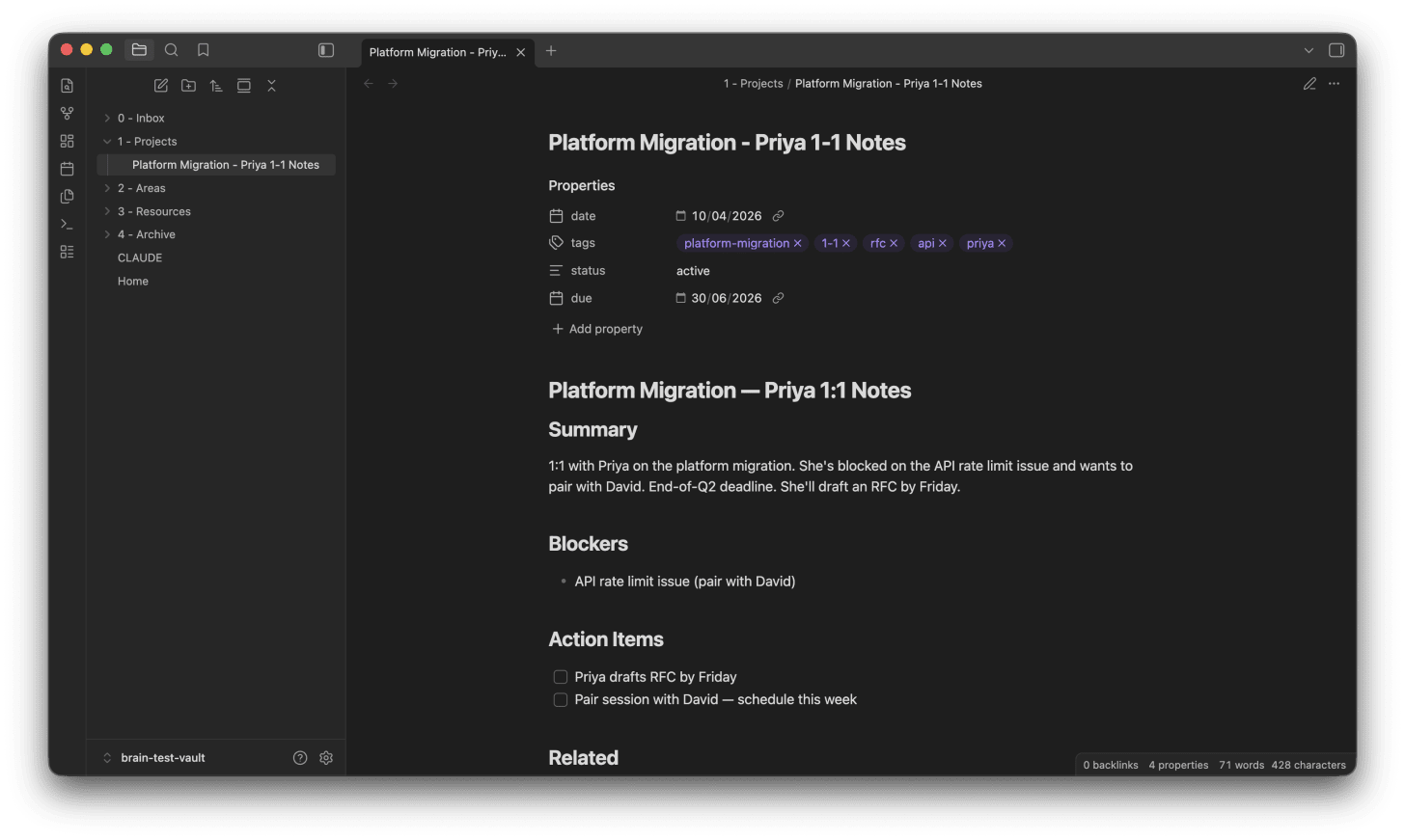
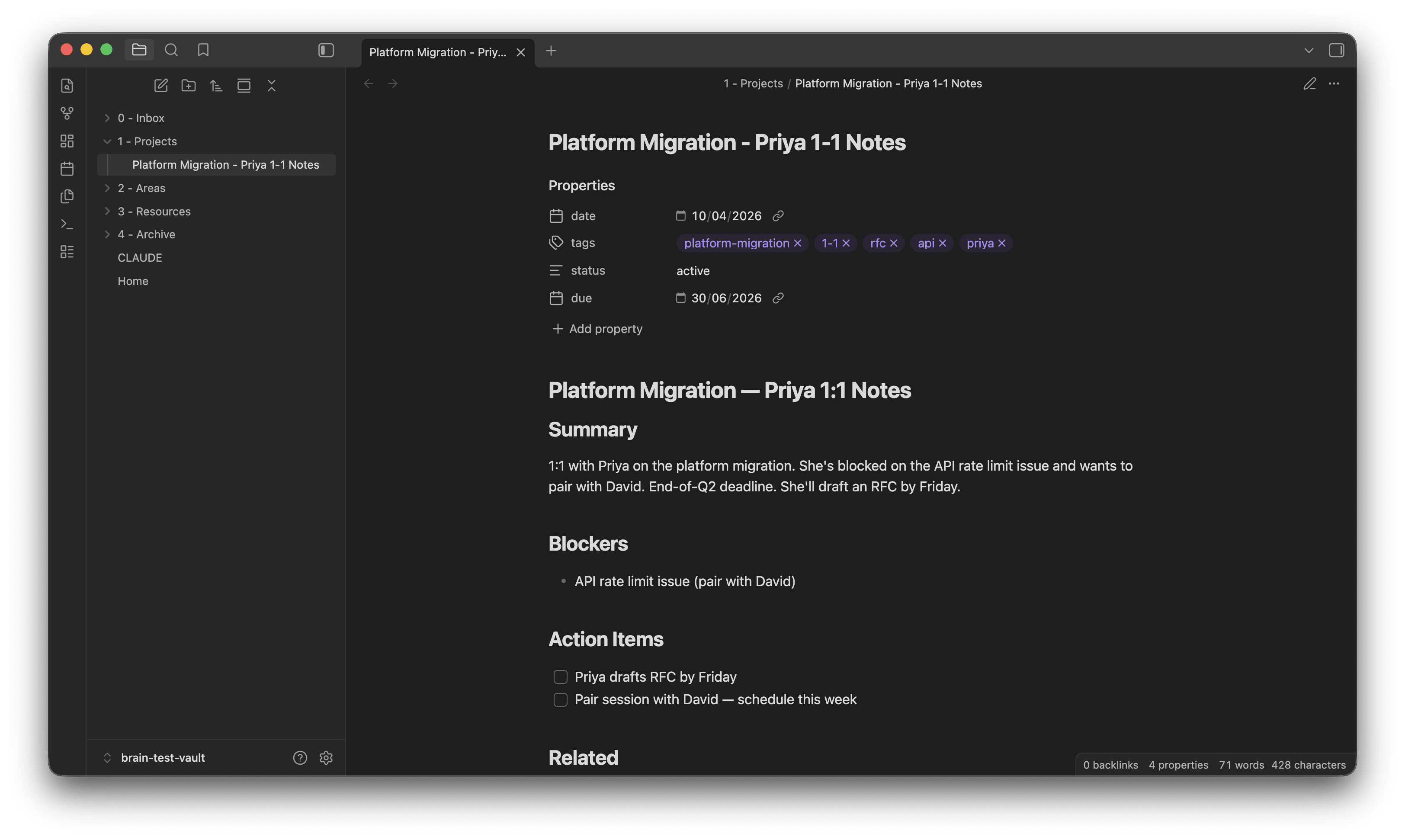
📝 Filed: 1 - Projects/Platform Migration - Priya 1-1 Notes.md
🗂  PARA: Project
💡 Why: Named initiative "platform migration" + specific deliverable "RFC" + deadline "end of Q2"
🔗 Related: [[Platform Migration - Q1 Planning]], [[Priya - 1-1 Log]]
You close the terminal and walk to your next meeting. The note is filed, tagged, linked, and in the right folder. You did nothing.
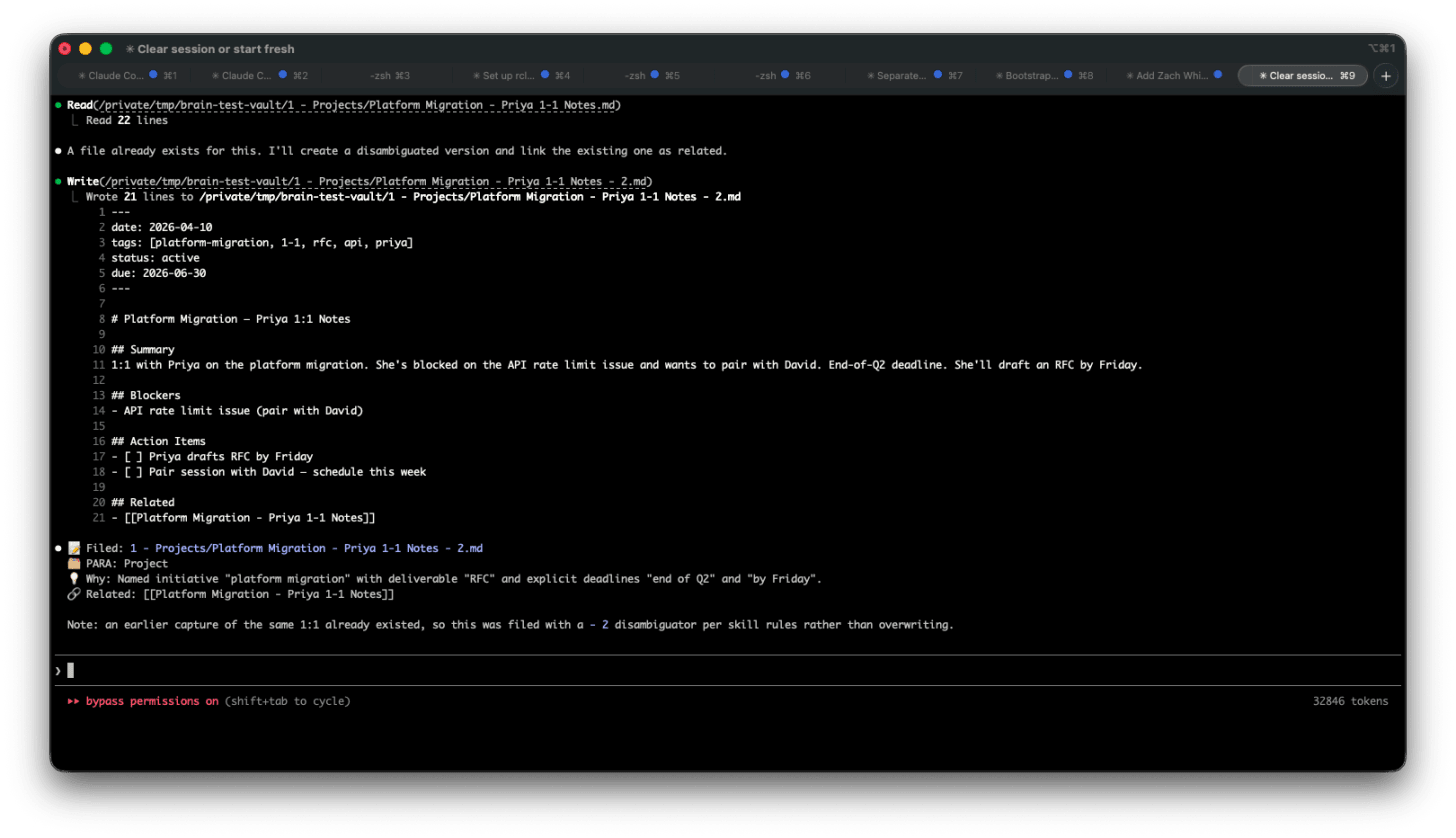
Up to now, you’ve built infrastructure. Folders, sync, config files — useful, but any organised person could do it without AI. This skill is the first thing in the stack you actively could not build without Claude Code. It’s the difference between a folder of markdown files and an operating system. From here on, every rough thought you dump — meeting notes, Slack summaries, half-formed ideas — gets classified, filed, and linked in seconds. Your job stops being “where do I put this?” and starts being “what do I do next?” That’s the decision layer. That’s why you built all of this.
AI-native Engineering Leader is a reader-supported publication. To receive new posts and support my work, consider becoming a free or paid subscriber.
Part 6: Your New Monday Morning
Here’s what the week actually looks like once the system is in place. Four rituals, none longer than five minutes, all running on the stack you just built. Notice what’s missing: there’s no “organise my notes” ritual, no “catch up on the inbox” ritual, no Sunday-night anxiety tax. The system does that work in the background.
1. Morning — 30 seconds, coffee still hot. From anywhere on your Mac, run claude "create today's daily note with my calendar". The note lands in 3 - Resources/Daily Notes/ with today’s meetings pre-populated as a checklist. You’ve pre-committed to the day before you’ve opened Slack.
2. In a meeting — Cmd+N in Obsidian. Scribble notes in real time. Don’t classify, don’t tag, don’t think about folders. The file auto-lands in 0 - Inbox/. This is the moment the system earns its keep: you get to be present in the meeting instead of managing your notes about the meeting.
3. After a 1:1 — 30 seconds. Paste your rough notes into claude /para-capture "...". The skill classifies, files, links. Done. The cost of capture is now lower than the cost of forgetting.
4. Friday — 90 seconds. Run claude "summarise this week's inbox, surface unresolved threads, and suggest what to file". You get a one-page digest that would have taken you 45 minutes manually.
Here’s what Claude returns on a real Friday:
This week's inbox review:

📌 3 unresolved threads:
  - Rate limit debugging with David (waiting on SRE)
  - Q2 planning feedback owed to Mei
  - Promo packet for Jordan — draft 40% complete

📂 2 items ready to file:
  - "Notes on org health workshop" → Resources
  - "Staff+ career framework draft" → Projects

🗑  1 item to discard:
  - "?? follow up on the thing ??" — zero context, suggest deleting
You didn’t write that digest. You didn’t even remember it was Friday until the summary reminded you.
What To Skip And What Comes Next
Skip these.
- Obsidian Sync subscription. You have rclone. $48/year saved.
- A full Notion migration. Don’t. Start fresh in Obsidian; leave Notion content in Notion. Migration is its own project and it steals the energy you should be spending on using the new system.
- The Omnisearch plugin. Dataview + Claude Code cover this better and faster.
- Dataview-JS queries. Tempting rabbit hole. Come back in three months, not today.
Add these later.
- Voice capture via Whisper. Pocket-to-PARA for ideas on a walk.
- Cross-vault search. If you end up running multiple vaults (work + personal).
- The publishing pipeline. How this very newsletter is assembled from the vault — meta enough to write itself.
- The AI-native weekly review. Replacing Friday’s scramble with a 10-minute ritual.
Subscribers get these next, in that order.
The Real Reason You Just Built This
AI compressed the task layer. Your job as an engineering manager lives in the decision layer. This stack is how you stop losing context between decisions.
You didn’t build scaffolding today. You built the thing that lets you stop maintaining scaffolding — and get back to the work.
The work is the decisions. Everything else is overhead.
What’s holding your EM brain together right now — and what breaks first when you’re under load? Reply to this email or drop it in the comments.
PS: Next week: the voice capture pipeline. Subscribe so you don’t miss it.