Your Mac as a Private AI Server: LM Studio + MCP in 30 Lines of Python

Running a local LLM and making it available to any device on your network — no cloud required.
Update (Feb 2026): The SSE transport has been deprecated in newer versions of the MCP SDK and replaced by streamable-http. The code in this article has been updated to reflect this. If you’re on an older version of the SDK, transport=”sse” still works but you may see a deprecation warning.
The Idea
What if your Mac could act as a private AI server — running a large language model locally — and any device on your home or office network could talk to it?
No API bills. No data leaving your network. Just your hardware, a local model, and a clean protocol connecting it all.
That’s exactly what I set up. Here’s the full story.
A note on scope: This is an academic and experimental setup — a hands-on way to learn how MCP works and how local LLMs can be served over a network. It is not intended to replace enterprise-grade AI platforms like Azure OpenAI Service, AWS Bedrock, or Google Vertex AI. Inference is slow, there is no authentication, no scalability, and no SLA. If you’re building production systems, use the right tools for the job. If you’re here to learn — read on.
The Stack
- LM Studio — a desktop app for downloading and running LLMs locally
- MCP (Model Context Protocol) — an open protocol by Anthropic for connecting AI models to tools and clients
- FastMCP — a Python library for building MCP servers quickly
- MCP Inspector — a browser-based tool to test MCP servers
- A Mac as the server and a Windows PC as the client, both on the same Wi-Fi
Before diving in, you’ll need your Mac’s local IP address — you’ll use it throughout. Run this in Terminal:
ipconfig getifaddr en0
Mine was 192.168.0.39. Keep it handy.
Hardware
I ran this on an Apple M4 Mac with 16GB of unified memory running macOS Tahoe.
Apple Silicon is particularly well-suited for local LLM inference. The reason is unified memory — the CPU and GPU share the same memory pool, which means a 16GB M4 Mac can load and run models that would require a dedicated GPU with equivalent VRAM on a Windows machine. There’s no memory bottleneck from transferring data between CPU and GPU.
As a rough guide for model sizing:
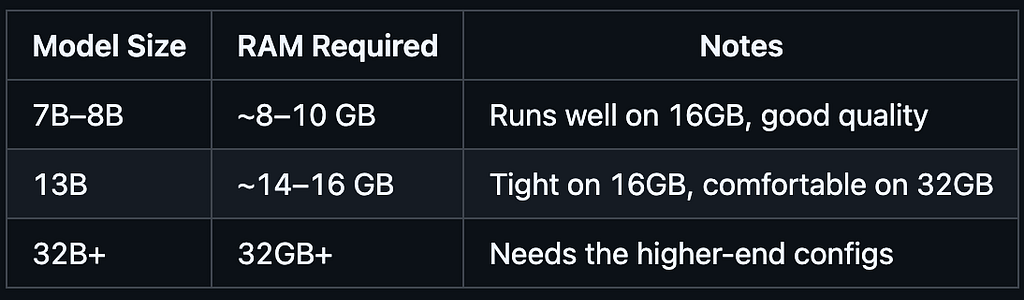
I used Meta Llama 3.1 8B Instruct, which fits comfortably in 16GB alongside the OS and other apps. That said, set your expectations on speed — inference on an 8B model took close to 2 minutes per response on my machine. This setup is better suited for async or batch use cases than real-time chat.
If you’re on an Intel Mac, it will work but noticeably slower since you’re relying on CPU-only inference. On Windows or Linux with a dedicated NVIDIA GPU, the same approach works with minor adjustments — and inference will be significantly faster.
What is MCP?
MCP (Model Context Protocol) is an open standard that defines how AI models communicate with tools, data sources, and clients. Think of it like USB-C — a universal connector, but for AI integrations.
An MCP server exposes tools (functions the AI can call), resources (data it can read), and prompts. A client connects to the server and can invoke these tools.
In our case, the “tool” is simply: send a prompt to the local LLM and get a response back.
Setting Up LM Studio
First, download LM Studio and install it on your Mac.
- Open LM Studio and download a model. I used Meta Llama 3.1 8B Instruct — a capable open-source model that runs well on Apple Silicon.
- Go to the Developer tab and start the Local Server. By default it runs on http://localhost:1234.
- Under the server settings, note your API key — LM Studio now requires authentication by default.
- Make sure the model is loaded (not just downloaded).
You can verify the server is working by visiting http://localhost:1234/v1/models in your browser (with the API key in the header, or temporarily disable auth in settings).
Writing the MCP Server
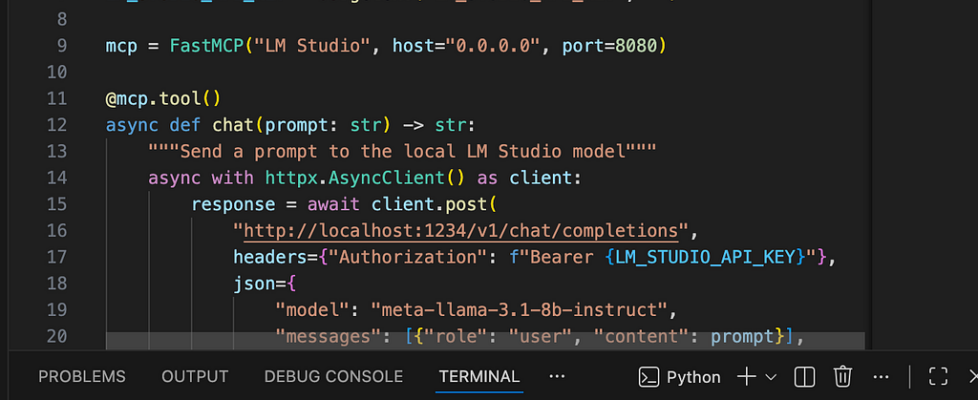
Create a file called lmstudio-mcp.py:
import os
import httpx
from mcp.server.fastmcp import FastMCP
from dotenv import load_dotenv

load_dotenv()
LM_STUDIO_API_KEY = os.getenv("LM_STUDIO_API_KEY", "")

mcp = FastMCP("LM Studio", host="0.0.0.0", port=8080)

@mcp.tool()
async def chat(prompt: str) -> str:
    """Send a prompt to the local LM Studio model"""
    async with httpx.AsyncClient() as client:
        response = await client.post(
            "http://localhost:1234/v1/chat/completions",
            headers={"Authorization": f"Bearer {LM_STUDIO_API_KEY}"},
            json={
                "model": "meta-llama-3.1-8b-instruct",
                "messages": [{"role": "user", "content": prompt}],
                "temperature": 0.7
            },
            timeout=300
        )
        data = response.json()
        if "choices" not in data:
            return f"LM Studio error: {data}"
        return data["choices"][0]["message"]["content"]

if __name__ == "__main__":
    mcp.run(transport="streamable-http")
A few things worth noting:
- host=”0.0.0.0″ makes the server listen on all network interfaces, not just localhost — this is what allows other devices to connect.
- transport=”streamable-http” uses the StreamableHttp transport, the current recommended standard for MCP servers. It replaces the older SSE transport which has been deprecated.
- timeout=300 is set to 5 minutes. Local LLM inference is slow — on my Mac, a response took nearly 2 minutes. The default 60 seconds wasn’t enough.
- The API key is loaded from a .env file, not hardcoded. More on that below.
Installing Dependencies
macOS with Homebrew Python is “externally managed” — you can’t pip install globally without breaking things. Use a virtual environment instead:
python3 -m venv .venv
.venv/bin/pip install httpx "mcp[cli]"
mcp[cli] installs the full MCP SDK including FastMCP, uvicorn (the ASGI server), and all supporting libraries.
Storing the API Key Safely
Never hardcode credentials in source files. Create a .env file next to your script:
LM_STUDIO_API_KEY=your-key-here
The python-dotenv package (already included with mcp[cli]) loads this automatically via load_dotenv().
Add .env to .gitignore if you’re using git.
Opening the Firewall
macOS has a firewall that blocks incoming connections by default. Since my firewall was enabled, I needed to allow the Python process through:
sudo /usr/libexec/ApplicationFirewall/socketfilterfw --add /path/to/.venv/bin/python3
sudo /usr/libexec/ApplicationFirewall/socketfilterfw --unblockapp /path/to/.venv/bin/python3
You can check your firewall state first:
/usr/libexec/ApplicationFirewall/socketfilterfw --getglobalstate
If it says disabled, you’re already open and can skip this step.
Running the Server
cd /path/to/your/project
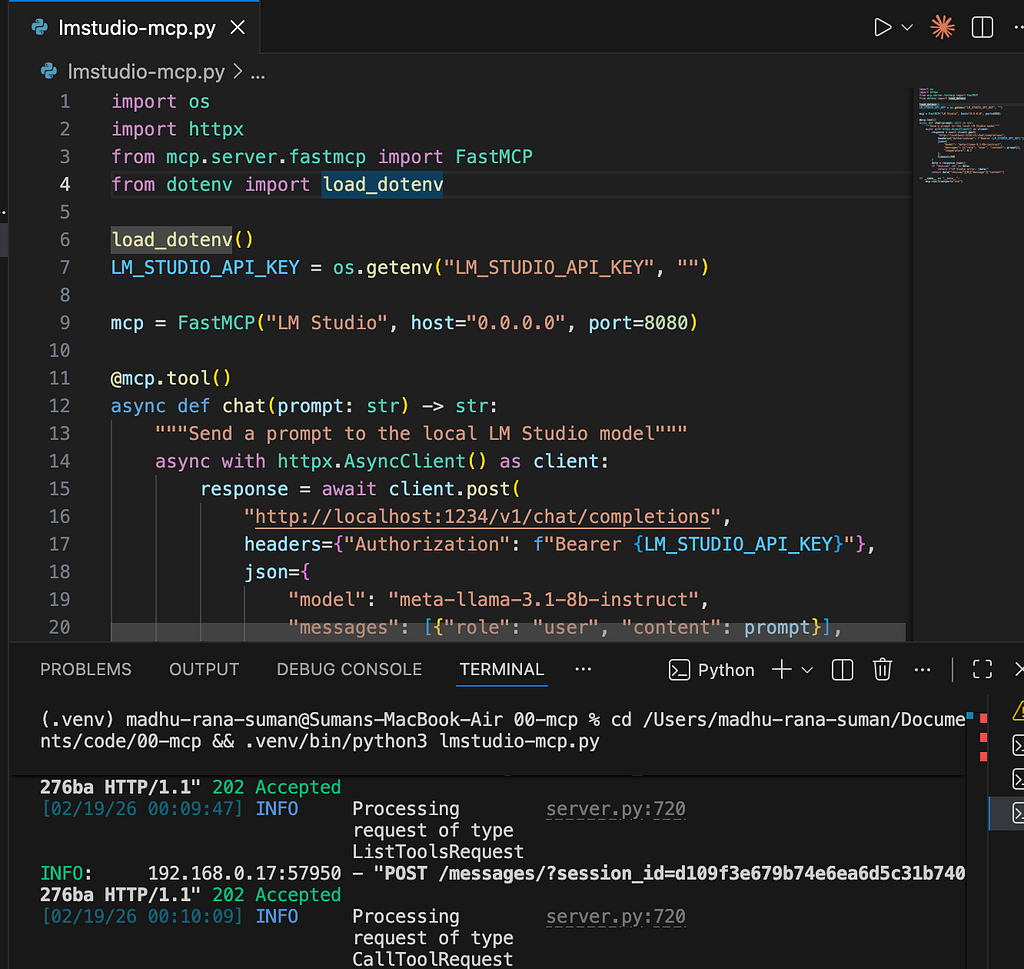
.venv/bin/python3 lmstudio-mcp.py
You should see:
INFO:     Started server process [XXXXX]
INFO:     Application startup complete.
INFO:     Uvicorn running on http://0.0.0.0:8080 (Press CTRL+C to quit)
The MCP server is now reachable at http://192.168.0.39:8080/mcp (replace with your Mac’s IP) from any device on the same network.
Testing with MCP Inspector
MCP Inspector is a browser-based tool for testing MCP servers. Run it with:
npx @modelcontextprotocol/inspector
When it opens, set:
- Transport type: Streamable HTTP
- URL: http://192.168.0.39:8080/mcp (from Windows) or http://localhost:8080/mcp (from Mac)
Click Connect. You should see the server info:
{
  "serverInfo": {
    "name": "LM Studio",
    "version": "1.26.0"
  }
}
Go to the Tools tab, select chat, enter a prompt, and run it. The Windows PC sends the request across the network to the Mac, the Mac forwards it to LM Studio, the model runs inference, and the response comes back through theStreamable HTTPstream.
It works.
What’s Actually Happening
Windows PC                    Mac (192.168.0.39)              Mac (localhost)
──────────                    ──────────────────              ───────────────
MCP Client
    │
    │  POST /messages/         FastMCP Server
    │ ─────────────────────►  (port 8080)
    │                              │
    │                              │  POST /v1/chat/completions
    │                              │ ──────────────────────────►  LM Studio
    │                              │                              (port 1234)
    │                              │          inference...             │
    │                              │ ◄─────────────────────────────────┘
    │  Treamable-Http response         │
    │ ◄─────────────────────────── │
    ▼
When the Windows PC calls the chat tool:
- It sends a POST /messages/ request to the Mac’s MCP server
- The Mac’s FastMCP server receives it and calls the chat() function
- chat() makes an HTTP request to LM Studio at localhost:1234
- LM Studio runs inference on the loaded model
- The response travels back through theStreamable HTTPconnection to the Windows PC
The whole thing is just HTTP — clean, debuggable, and network-transparent.
Gotchas I Hit Along the Way
1. FastMCP.run() doesn’t accept host and port
The host and port arguments go on the FastMCP() constructor, not on run(). This changed between versions.
2. Model name mattered
The script originally used “local-model” as the model identifier — a placeholder that doesn’t work. I fetched /v1/models to get the real ID (meta-llama-3.1-8b-instruct) and updated the script.
3. LM Studio requires an API key
Newer versions of LM Studio require authentication. Without the Authorization: Bearer … header, every request returns a 401 error with no choices field — causing a confusing KeyError rather than a clear auth failure. Adding the error fallback (if “choices” not in data) surfaced the real issue immediately.
This you can avoid by disabling authentication requirements from LM Studio settings. I kept in ON.
4. The timeout was too short
60 seconds sounds generous. But running an 8B parameter model on CPU/unified memory for a detailed prompt takes longer. I set it to 300 seconds and stopped worrying about it.
5. Port already in use
After a crash, the old server process still held port 8080. Quick fix:
lsof -ti :8080 | xargs kill -9
Why This Matters
This setup lets you:
- Keep data private — nothing leaves your network
- Avoid API costs — once the model is downloaded, inference is free
- Share a local model across devices — your phone, tablet, or any laptop on the same Wi-Fi can use it
- Build MCP-compatible tools — any MCP client (Claude Desktop, custom agents, etc.) can connect to this server
MCP is becoming the standard interface for AI tool integration. Building a local MCP server means your private model speaks the same language as the broader AI ecosystem.
note on MCP usage: In this article, we wrapped the local LLM itself as an MCP server — a pragmatic approach for learning and network accessibility. Strictly speaking, this is not the canonical use of MCP. The protocol was designed for connecting AI models to external tools and data sources (files, databases, APIs), where the model is the client and MCP servers provide the data. In an upcoming article, we’ll explore the intended pattern — using MCP to attach a private data source to a locally hosted model, building a fully offline, private RAG-style system where nothing leaves your network. Update — part 2 https://medium.com/@sumansaha15/building-a-private-knowledge-base-with-mcp-how-i-made-claude-search-my-own-articles-06c591bb300a covers the correct MCP pattern.
Final Thoughts
The whole setup took under an hour — most of it spent debugging small issues with API keys, model names, and timeouts. The core idea is simple: LM Studio runs the model, FastMCP wraps it in a standard protocol, andStreamable HTTP makes it available over the network.
To be clear about what this is and isn’t: this setup is for learning and experimentation, not production. It won’t replace enterprise-grade platforms like Azure OpenAI Service, AWS Bedrock, or Google Vertex AI — those exist for good reasons, offering reliability, scalability, security, and support that a local laptop server simply can’t match. If your organisation needs AI at scale, use the right tools.
But if you want to understand how MCP works, how local LLMs are served, or how to build a private AI environment for personal or academic use — this is a great starting point. The concepts you learn here translate directly to how production systems are architected, just without the guardrails.
And with MCP becoming the standard interface for AI tool integration, knowing how to build and connect MCP servers is a genuinely useful skill — regardless of whether the model is running locally or in the cloud.
The full source code is just 30 lines of Python. Sometimes the best way to understand a technology is to build the smallest possible version of it.
Your Mac as a Private AI Server: LM Studio + MCP in 30 Lines of Python was originally published in Towards AI on Medium, where people are continuing the conversation by highlighting and responding to this story.
