
From Notes to Knowledge: The Claude and Obsidian Second-Brain Setup

How to combine human insight with AI reasoning for next-level ideation

For years, I treated my notes like a museum of unfinished thoughts.
But over time, I realised I was mostly collecting, not connecting. My Obsidian vault grew into a digital labyrinth.
This week, I wanted to change this and made a simple experiment.
I provided Claude Desktop access to my local Obsidian Vault using the Obsidian MCP Tools to see what would happen and what usage pattern would emerge on my end.
At first, I expected the usual AI tricks: summaries, lists, maybe some rewritten notes.
But what I got was something else entirely.
Claude didn’t just read my notes, he thought with them. It found forgotten threads, created new connections, and even generated reflections that felt eerily familiar, as if my past self was writing back to me.
That was the moment I realised I’d built more than a digital notebook.
I’d built a second brain, one that could reason, not just remember.
So, Obsidian has stopped being a place where I store ideas. It’s become a place where ideas evolve.
In this post, I will show how I set up this second brain system and share my personal experience using it over the last few days.
Why Note-Taking Alone Isn’t Thinking
Most note-taking systems are built on a flawed assumption that storing more information leads to better thinking.
In reality, it often does the opposite. The more notes we take, the harder it becomes to see the patterns between them. Obsidian can link ideas, but you have to figure out these connections yourself over time, which, in my case, results in notes being left in isolation due to a shortage of time.
This is what I call the storage trap: mistaking information density for insight depth.
My notes sit there, perfectly formatted, tagged, and nested inside folders that I only rarely revisit. Obsidian, Notion, Evernote… they’re powerful tools, but they share the same flaw: they store what we once thought, not what we’re thinking now.
The real gap isn’t technical. It’s cognitive. Notes capture information. Thinking connects it.
And that’s where Claude comes into the picture. It helped me to rediscover and brainstorm with old notes by providing more advanced search capabilities. This is made possible by the AI model’s semantic reasoning abilities, which go beyond simple search by “understanding” that, for example, Sam Altman and OpenAI are closely related.
This makes Claude a more intelligent interface for your past thoughts. Think of Claude acting as the Pensieve from Harry Potter. All your thoughts are stored there, and now you’re searching for a way to find the correct past one.

The Setup: Connecting Claude with Obsidian
Setting up Claude to work with Obsidian sounds more technical than it really is. In practice, it takes less than half an hour.
I started by downloading Claude Desktop, the user interface for Antropics AI models, on my laptop. It is essential to note that the model inference still runs on Antropics Cloud, not on our computers.
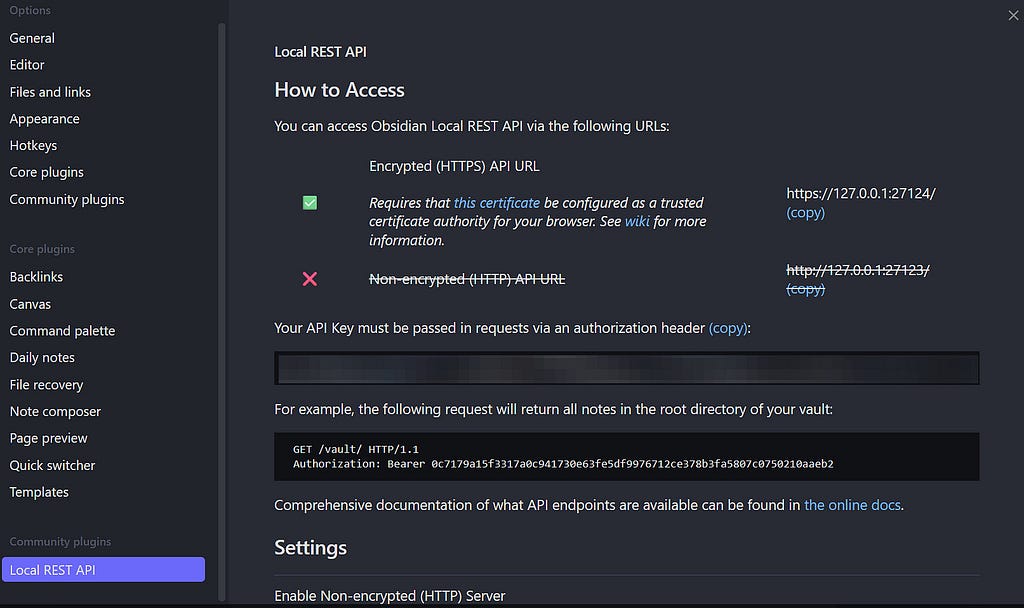
Then I opened Obsidian, my longtime note-taking home, and enabled the Community Plugins feature in settings. From there, I searched for the Local REST API plugin, which allows external applications (like Claude) to communicate with Obsidian.
After installing the plugin, it generated an API key, which is a kind of digital handshake that tells Claude, “You’re welcome to enter.”, if Claude has access to this key for identification.
The next step was to install Docker Desktop, which runs the Model Context Protocol (MCP) server.
Docker is like a shipping container for software. It includes an app and everything it needs, so it runs the same way everywhere, regardless of your operating system or computer.
Moreover, MCP is a protocol that provides a standardised way to equip AI models with tools that extend their capabilities. In this example, I provide Claude with the tools to edit and search my Obsidian vault.
After successfully installing Docker, the MCP Toolkit settings can be found on the right side. Inside these settings, there is the MCP catalogue, which lists the MCP server, supported by Docker. In this catalogue, I searched for the Obsidian MCP server.
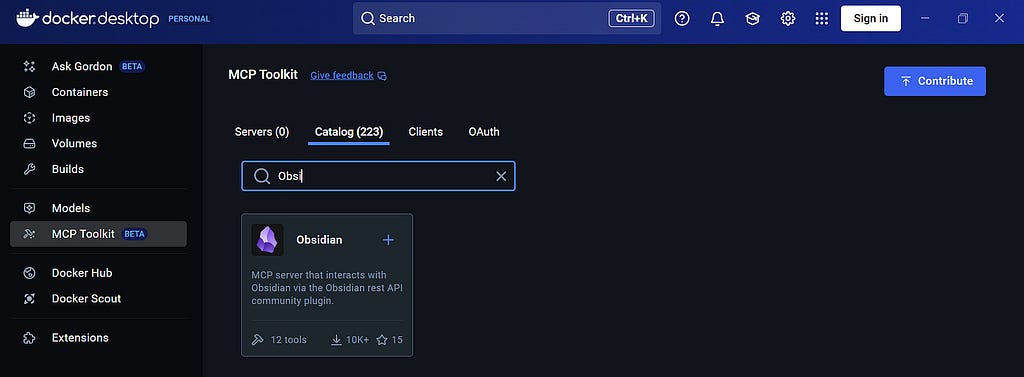
This MCP server can be added by clicking the plus sign in the top-right corner. Afterwards, the subsequent MCP server settings page opened, where I pasted my Obsidian API key into the secrets field, which I had previously created in Obsidian.

Finally, under Docker’s Clients section, I found Claude listed as a connection option. One click on “Connect,” and the bridge was complete.
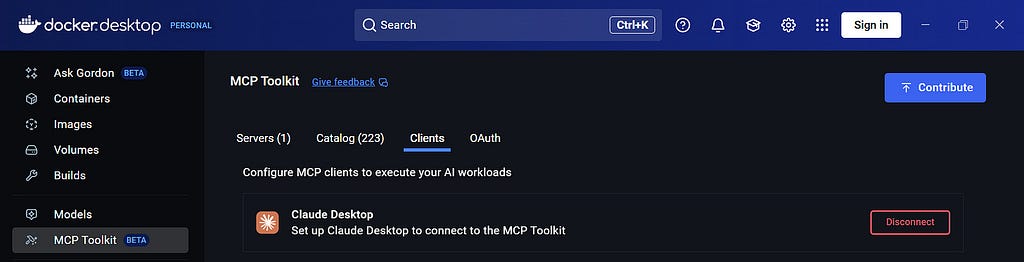
After restarting Claude Desktop, a new section appears in the Claude tool options. Under MCP_Docker, all MCP tools are listed, which are currently active and detected by Claude.

Now, let’s run a simple test. I asked Claude about a short introduction to prompting.
Thereafter, I instructed Claude to add the generated Introduction into a new node in my Obsidian vault.
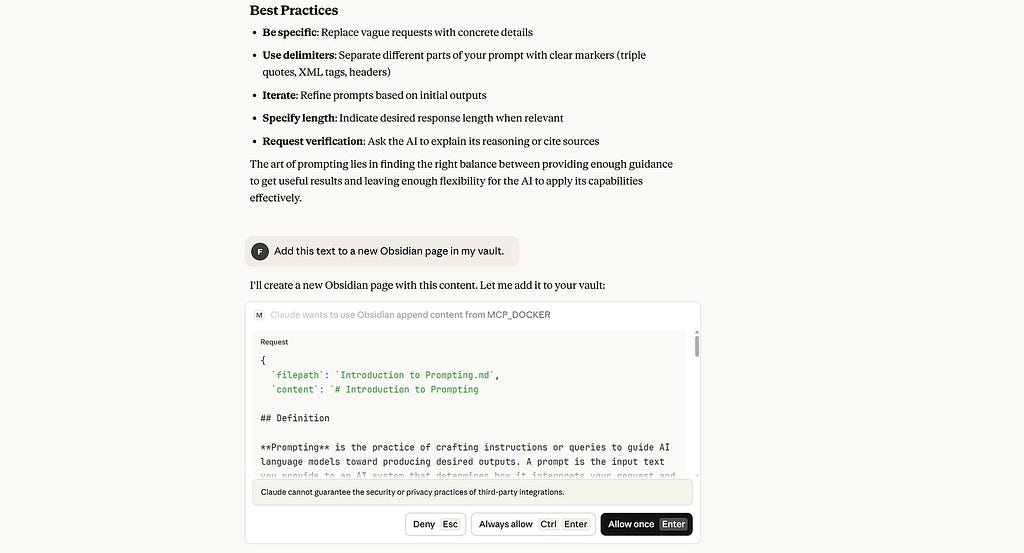
Claude always asks for permission before executing a specific tool, in this example, the tool for creating a new note and adding the generated text.
After clicking on allow, the text was added to my Obsidian notes, perfectly formatted, where I was able to lock them up.
How to Prompt Claude for Better Tool Calling
After a few experiments with the new Obsidian tools in Claude, I realised the importance of the right kind of prompting when using them.
For example, instead of asking: What did I write down in my Obsidian vault related to finance?
I start by asking: What notes have I stored in my Obsidian vault about finance? First, review the files in my vault and select the ones that appear relevant to the topic.
In the first version of the prompt, my instructions were too vague. Claude selected the simple search tool, which searches notes based on keywords. If there is no exact keyword match with a page’s title, the search will be unsuccessful.
In the second example, I instructed Claude to first review all page titles and then choose the one that appeared most relevant for further processing.

To get the most out of this setup, I reviewed the list of tools provided by the Obsidian server to understand their capabilities and limitations better. Additionally, this list allows me to enable or disable specific tools. For example, I can disable Claude’s ability to delete files.
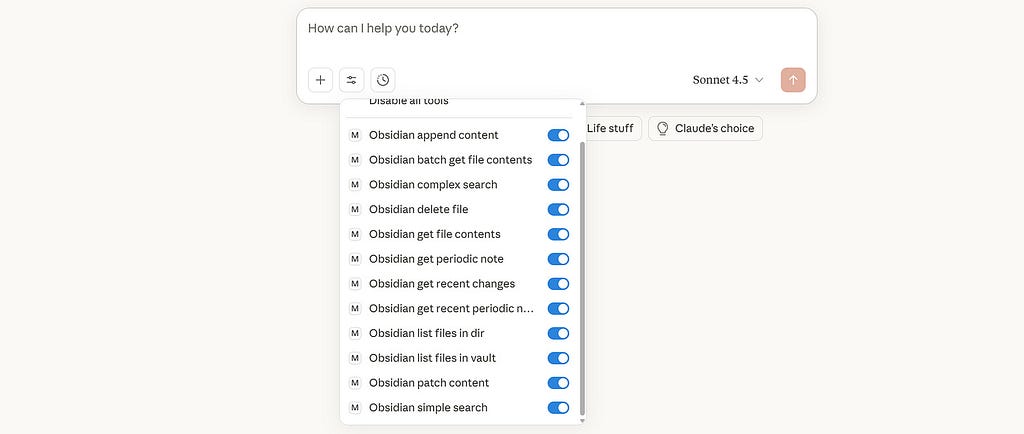
However, this is not really necessary, since Claude always asks for your permission to run the tool. But if you want to make 100% sure no incorrect tool is executed, switching off a tool that really harms your thought collection is recommended.
Personal Thoughts
Connecting Claude to Obsidian through the MCP server has proven surprisingly useful in my daily workflow. Over time, I’ve developed a simple routine:
- Capture freely in Claude: I start by dumping thoughts in plain, unstructured language, just my raw brain dump or findings.
- Sharpen the draft: I ask Claude to refine the mess by clarifying intent, tightening phrasing, and surfacing the core argument.
- Cross-link with my vault: I have Claude search for related notes in Obsidian, including previous ideas, sources, or frameworks that could deepen the piece.
- Synthesise and iterate: We merge new writing with old insights and keep looping until the logic, examples, and structure click.
- Commit the insight: When the idea feels solid, I ask Claude to add it as a new Node in my vault (or update an existing one), preserving links to the relevant notes.
The whole flow feels less like “using an assistant” and more like thinking in dialogue with Claude and with my own past reasoning.
That said, the setup still comes with limitations. The Obsidian MCP server currently supports two primary search methods: keyword-based and filename-based.
The first one works well for exact matches, but it struggles if the term doesn’t appear literally in a note.
The second approach, listing all filenames in the vault and letting Claude infer which might be relevant, works better semantically but quickly becomes inefficient as the vault grows. If hundreds of filenames are passed into the model’s context window, both performance and accuracy degrade.
This shows clear room for improvement. A natural next step would be to integrate a Retrieval-Augmented Generation (RAG) component, where each note is stored as a vector embedding for faster, more precise retrieval.
That way, Claude could find connections based on meaning rather than surface-level text similarity.
It’s also worth noting that this workflow depends on three applications running simultaneously: Claude Desktop, Obsidian, and Docker Desktop.
After a few days of use, I found it a bit inconvenient to open all three every morning. My next step is to automate this, either through a startup script or a system shortcut, so the environment launches together without friction.
Overall, combining Claude and Obsidian via the MCP bridge has meaningfully improved how I interact with my notes. It doesn’t replace thinking. It structures it. The setup still has rough edges, but it already transforms Obsidian from a passive archive into a living space for evolving ideas.
And I believe that’s the real value here, not automation, but augmentation, a way to think with your notes, not just about them.
What do you think about combining Claude with Obsidian? Have you tried connecting your notes to an AI or experimented with MCP tools yourself?
I’d love to hear your experience and reflections in the comments below.
Best regards,
Felix
Follow & Connect
felix-pappe.medium.com/subscribe 🔔
www.linkedin.com/in/felix-pappe 🔗
https://felixpappe.de🌐
P.S.: If you’ve read this far, I hope you’ve gained some value from this article. If you would like to learn more about AI, I would greatly appreciate your support of this project by subscribing or providing feedback to generate more valuable posts about AI for people interested in this recent technological advancement.
From Notes to Knowledge: The Claude and Obsidian Second-Brain Setup was originally published in Towards AI on Medium, where people are continuing the conversation by highlighting and responding to this story.
