AI-Chat with Strava — Developing an LLM-Integration with MCP

Ask your favorite AI to analyze your training data and give you suggestions for improvement! No problem! Here I’ll show you how to make that happen.
>> Fast forward to my Github Repo.
In my efforts to eliminate my perceived AI backwardness, I asked Google Gemini which AI is the best. After Gemini recommended Anthropic’s Claude — supposedly because it delivers the best results for coding — I treated myself to the Pro version of Claude. To be fair, I also signed up for a Plus subscription to Gemini to get more credits for Gemini Code Assist and Antigravity.
What Should I Have the AI Code for Me?
Now I had all this AI power at my fingertips and felt practically omnipotent. All I needed was a use case to have the AI build something for me. With the MCP protocol, you can create integrations with third-party systems fairly easily — for example, to pull and analyze data. It occurred to me that my Garmin sports watch tracks a ton of data about me and forwards it to various platforms like Strava. Strava is a popular running and multisport app with various integrations, and naturally it has a Developer API. I thought: this is the perfect use case! I’ll chat with Strava and have the AI analyze my training data. Someone had probably already had the same idea before me, but since I wanted to try it myself, I didn’t bother researching that.
Have Claude Code Program an MCP Server for You
Let’s start with the setup:
First, we need the Claude Desktop App, because for now this only runs locally. For coding I use Visual Studio Code with the Claude Extension.

Once the Claude extension is installed and activated in VS Code, we’re ready to go. To start, I created an empty Git repository and cloned it from Github.
I used the following prompt to kick off the project in Claude Code:
I want to create a new app in this empty repository. My goal is to build an MCP server for an integration between Strava and Claude. I want to be able to make requests through the Claude chat and pull my training data from the Strava API. The data is about my activities, my routes and my athlete stats.
And off it goes. Claude Code recognized that this was a more complex task with multiple steps and started researching first. You can watch as Claude searches the internet and pulls the necessary information from various sources like the Strava developer documentation or example MCP implementations.

Before Claude Code starts the implementation, it first suggests an implementation plan. After a quick review, I accepted it as-is.
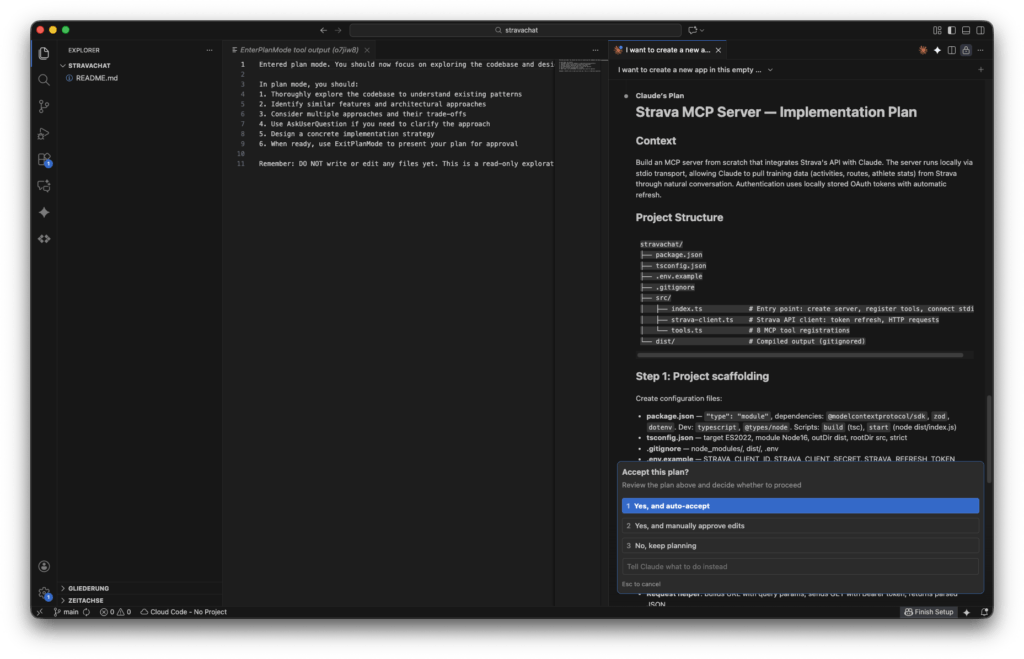
Claude Code then creates the project structure, generates the necessary files, writes the code, and runs various terminal commands. I didn’t specify a programming language — Claude independently chose TypeScript.
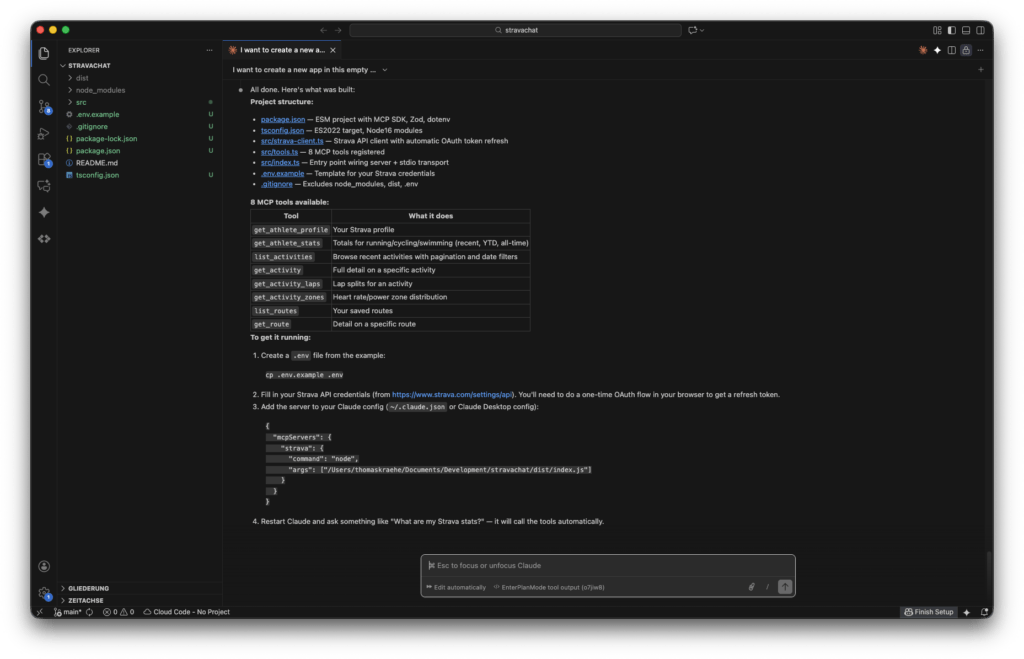
Once Claude finishes programming, we receive a project overview along with instructions on how to get everything running.
Creating a Strava Developer App
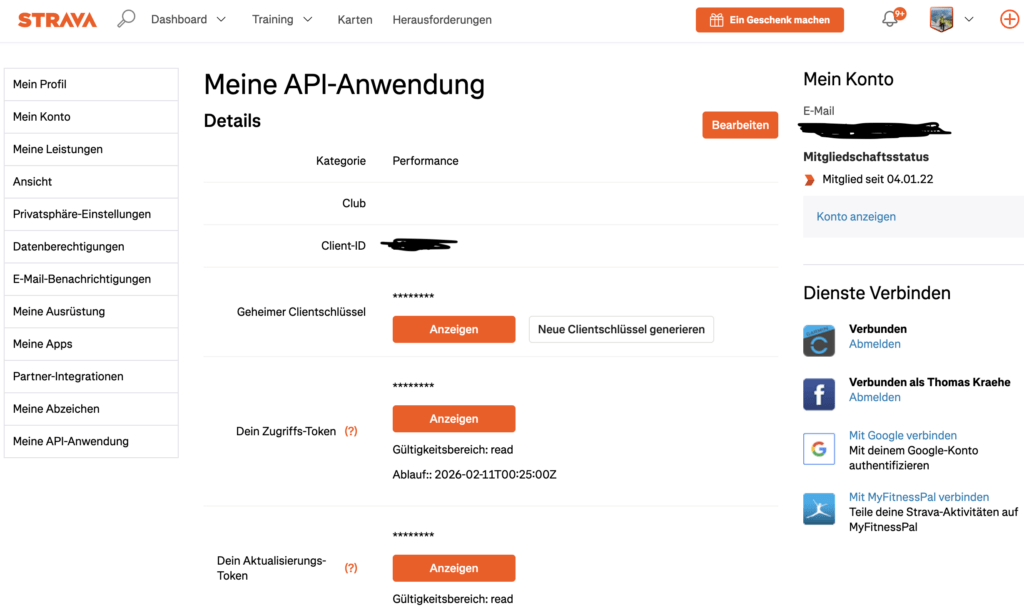
To connect to Strava and tap into the data via its web service API, we need to create a Strava developer app. This is done quickly. You just need to log into Strava and create a new app under Settings > My API Apps. Once the app is created, you receive a Client ID, a Client Secret, and an Access Token. These three pieces of information are needed for authentication and authorization. As the callback domain, we simply enter “localhost,” since we’re running the MCP server locally.
The Strava app also needs an icon. Since I didn’t feel like spending a lot of time on icon design, I asked my smart assistant Claude to generate an icon for this particular use case for a Strava Developer App:
Generate a Strava App icon for me that I can use for API development and upload to Strava. The app I want to develop is an MCP server for integration with Claude. The goal of the app is to retrieve data from Strava via chat in Claude, analyze it, and if applicable perform a performance analysis and make training suggestions.
Interestingly, Claude created the icon as a vector graphic embedded in an HTML document. Well, it is a Large Language Model after all ;-). I’d say the result is okay — not a design masterpiece, but sufficient for my use case.

Now we can establish the connection between our MCP server and the Strava API. We just need to save the credentials in an environment variable. Claude Code has already created a file called .env.example for this purpose. We can replace the placeholders for Client ID, Client Secret, and Refresh Token with the real data, then rename the file to .env.
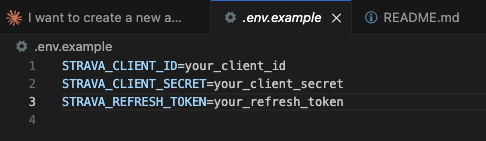
I had a few authentication issues at first — it seemed the credentials weren’t being read correctly. Claude ran some tests and made changes to the code. Then I had issues with the Refresh Token, so Claude created a small helper script to get a new Refresh Token:
npx tsx scripts/get-token.ts
Connecting the MCP Server to Claude
Before we can start testing the application, we need to connect the Claude Desktop App to the newly programmed MCP server. To do this, open the settings and go to the “Developer” menu item. Click the “Edit Config” button and open the configuration file in a text editor.
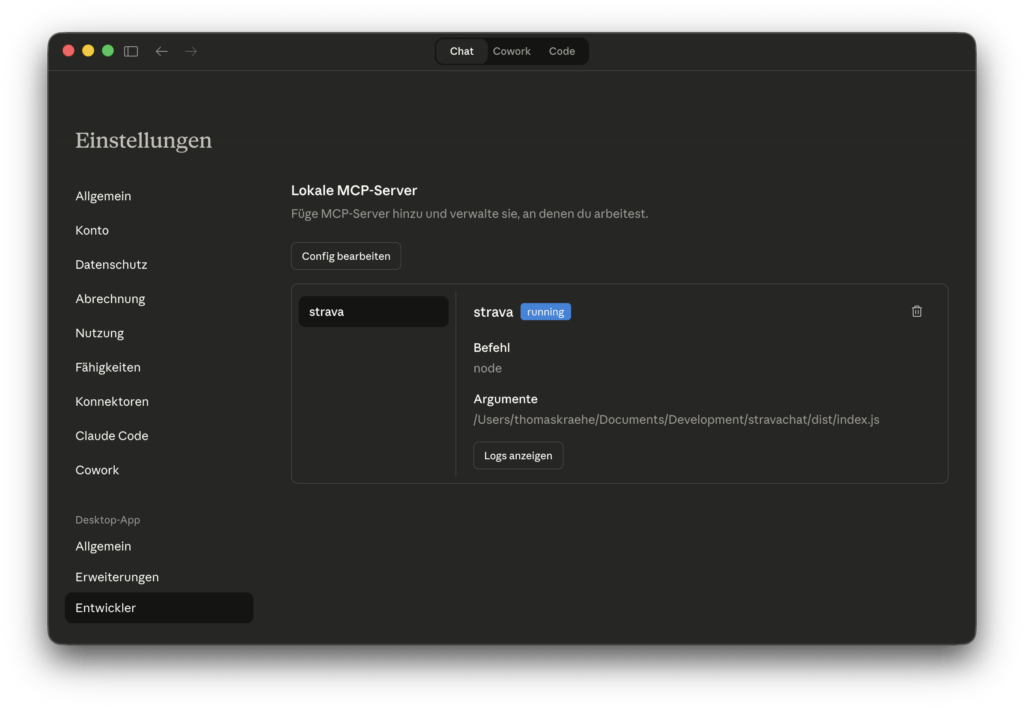
We then paste in the small JSON code snippet that we received from Claude. It tells Claude where to find the MCP server:
{ "mcpServers": { "strava": { "command": "node", "args": ["/Users/thomaskraehe/Documents/Development/stravachat/dist/index.js"] } } }
Retrieving Strava Data via Claude Chat
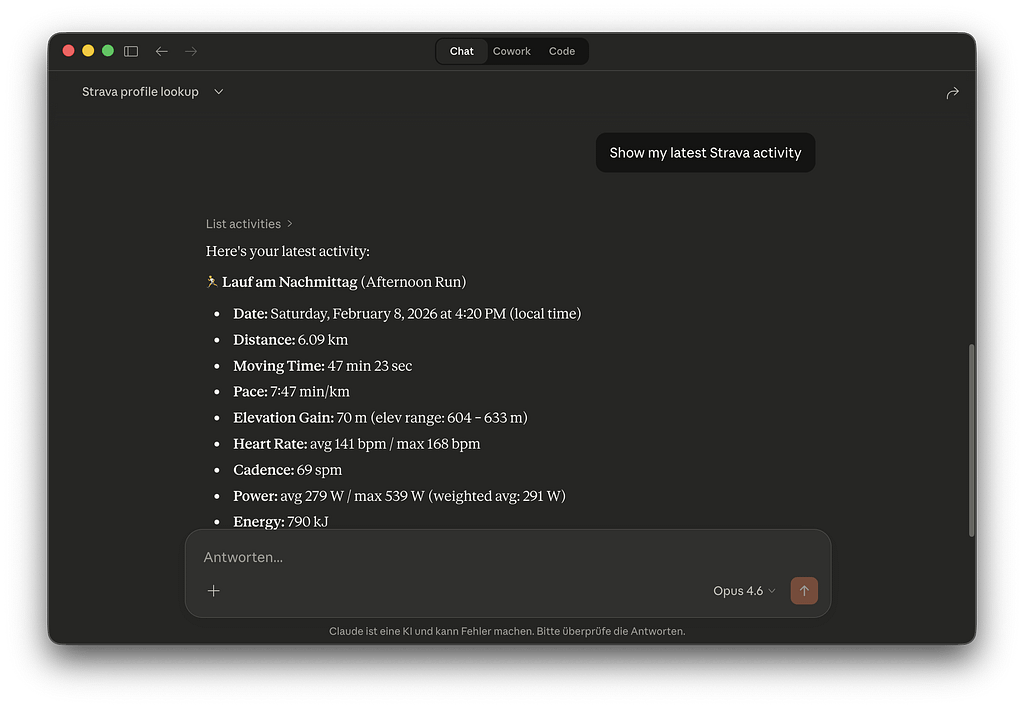
Now we can finally try out our new application. I enter the following prompt to display my latest Strava activity:
Show my latest Strava activity
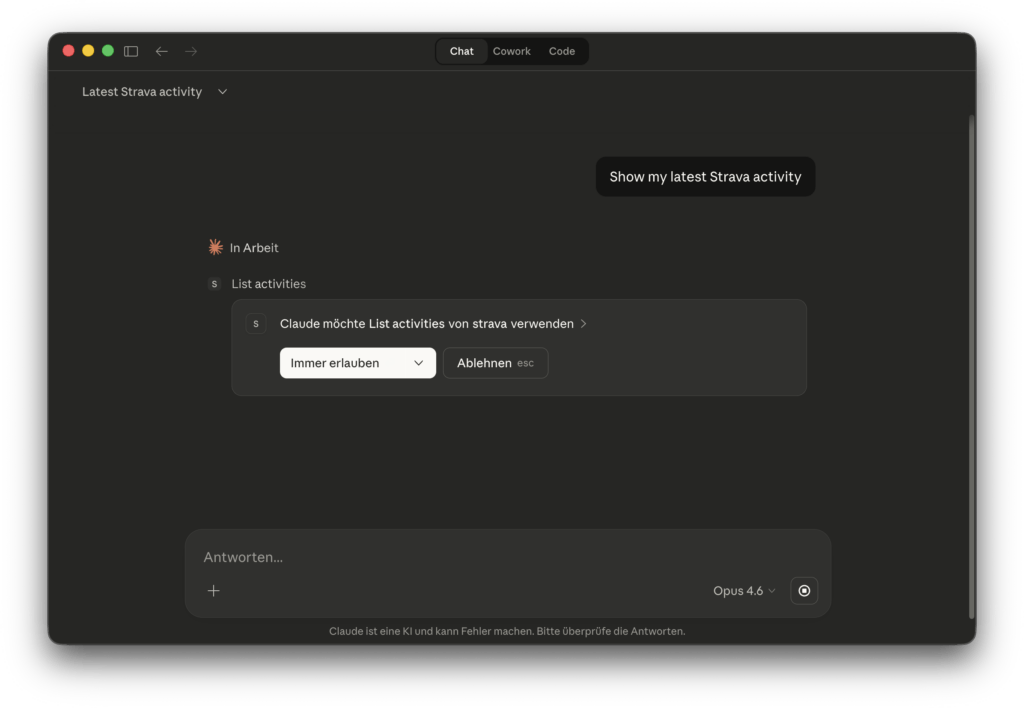
On first launch, Claude asks whether we want to allow this action. I click “Always allow.”
Claude perfectly understood my intent and displays the data from my last run.

Claude then directly asks whether I’d like to see more details. In response, I receive a detailed table with all the relevant data, plus a short analysis of my training.

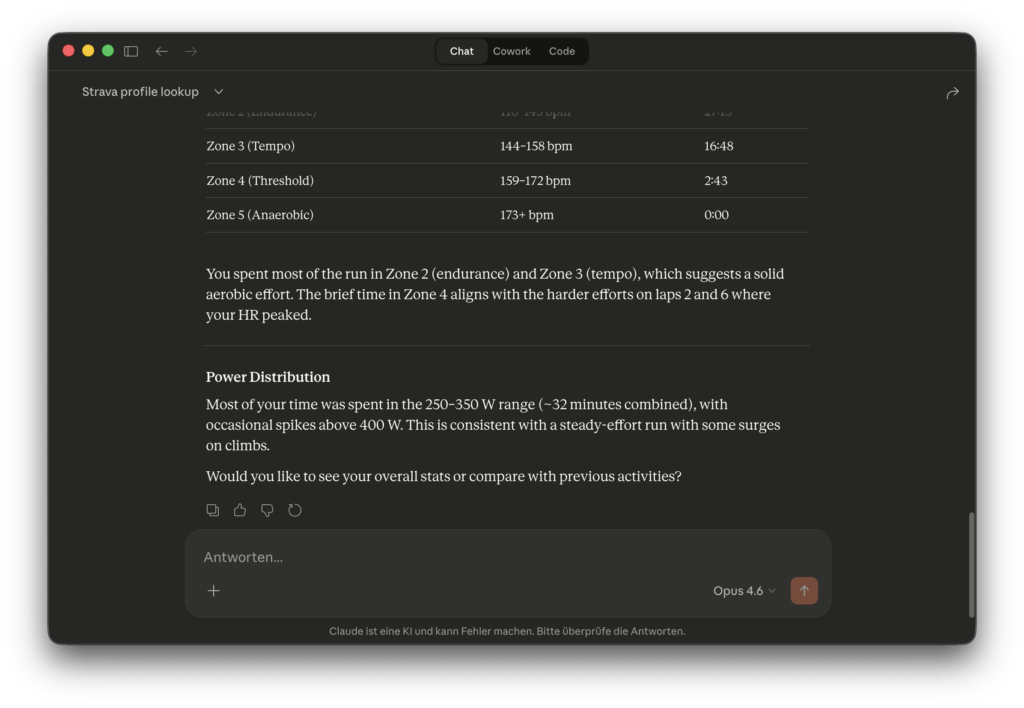
AI Training Analysis in Claude Chat
Now, let’s get to the really exciting features. Let’s try a more complex prompt and get training recommendations based on long-term stats:
From my longterm Strava stats, what do you recommend me to improve my running performance?
Claude understood and pulls my training data from the past 5 months via the Strava API.
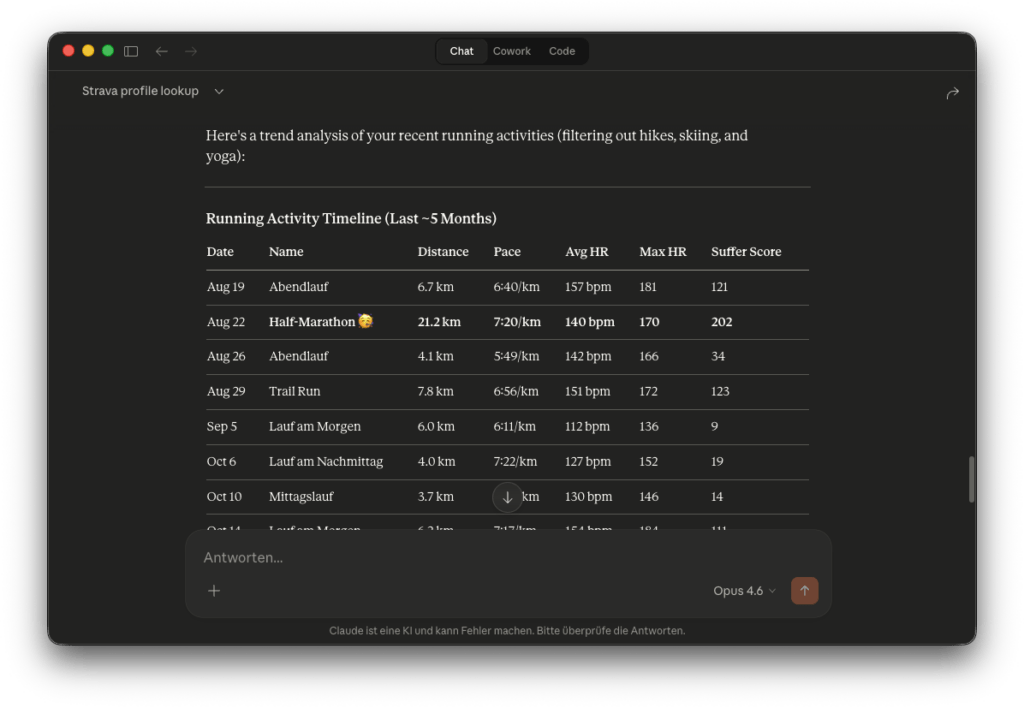
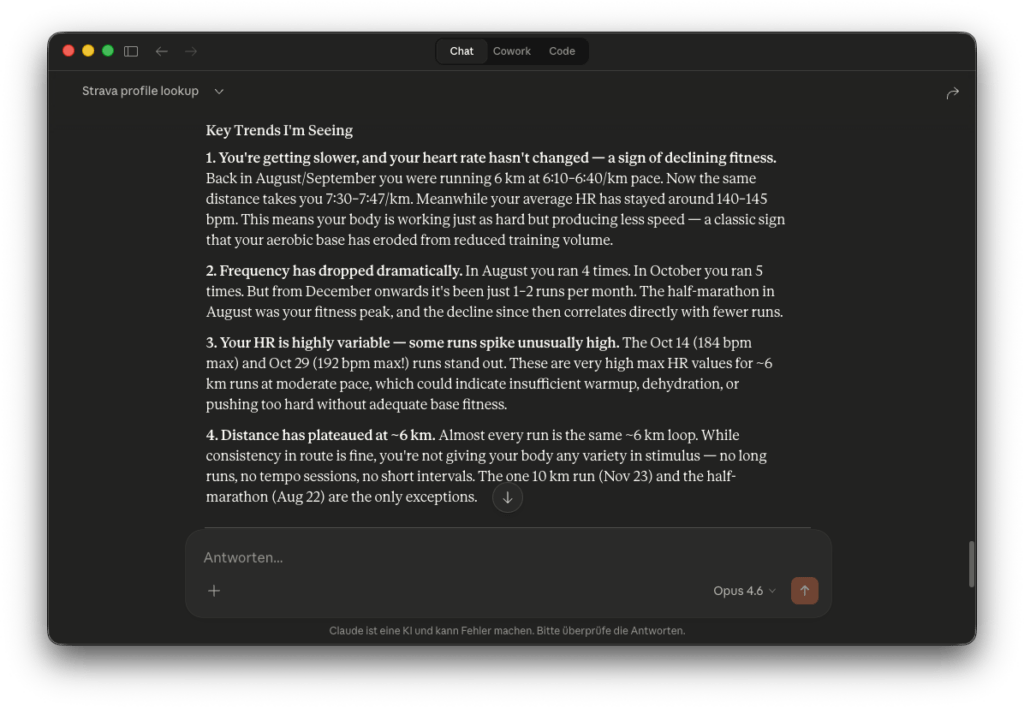
Next, Claude creates a training analysis from the data and identifies 4 trends:
- I’ve been getting slower
- I’m training less frequently
- Anomalies in heart rate — this is noteworthy. The unusually high values were caused by a broken smartwatch that I subsequently replaced.
- I almost always run the same route.
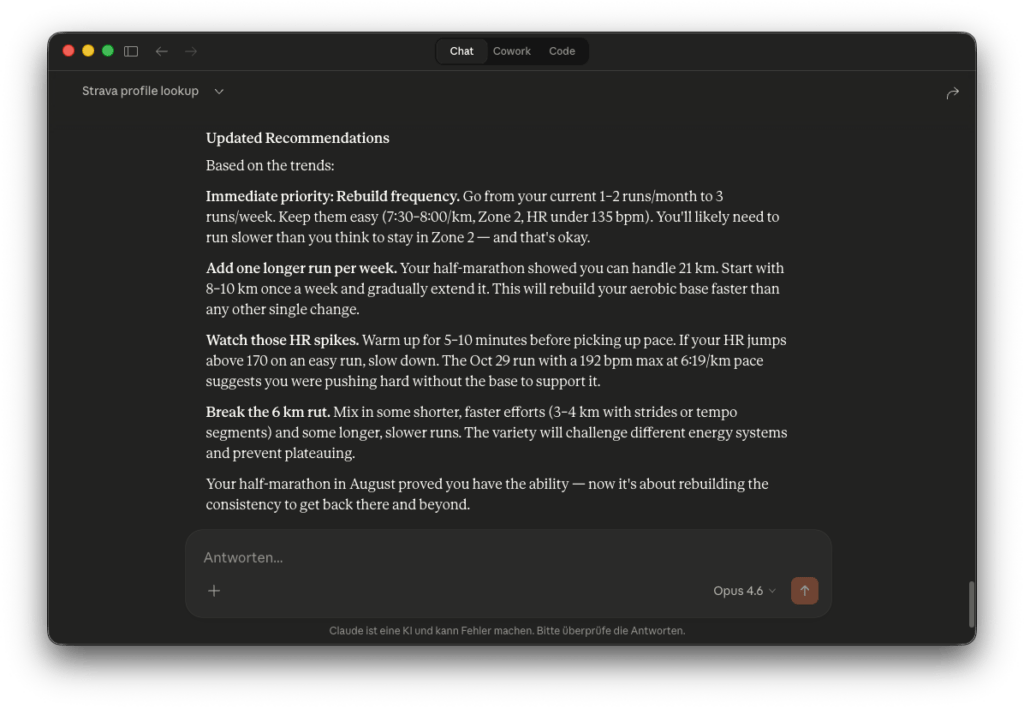
Claude then gives me detailed recommendations on how to improve my fitness again:
- I should run more often and more regularly
- I should add one longer run per week
- I should keep an eye on my heart rate — not necessary, since my heart is doing fine 😉
- I should vary the length of my runs: short, fast runs and long, slow runs
Conclusion and Last Steps
I find it truly remarkable how well Claude handled this complex task. The AI analyzed my training data from the past months, interpreted it correctly, and gave me sensible recommendations for getting back in shape.
Next, I had Claude create a nice, clear README document with setup instructions. Finally, I had Claude commit all the code in Git and push it to the repository.
The entire development, including testing, took about 2 hours.
You can find the code and detailed setup instructions in my repo on GitHub.
AI-Chat with Strava — Developing an LLM-Integration with MCP was originally published in Towards AI on Medium, where people are continuing the conversation by highlighting and responding to this story.
