
The Terminal: First Steps and Useful Commands for Python Developers

The terminal provides Python developers with direct control over their operating system through text commands. Instead of clicking through menus, you type commands to navigate folders, run scripts, install packages, and manage version control. This command-line approach is faster and more flexible than graphical interfaces for many development tasks.
By the end of this tutorial, you’ll understand that:
- Terminal commands like
cd,ls, andmkdirlet you navigate and organize your file system efficiently - Virtual environments isolate project dependencies, keeping your Python installations clean and manageable
pipinstalls, updates, and removes Python packages directly from the command line- Git commands track changes to your code and create snapshots called commits
- The command prompt displays your current directory and indicates when the terminal is ready for input
This tutorial walks through the fundamentals of terminal usage on Windows, Linux, and macOS. The examples cover file system navigation, creating files and folders, managing packages with pip, and tracking code changes with Git.
Free Download: Click here to get a free cheat sheet of useful commands to get you started working with the terminal.
Install and Open the Terminal
Back in the day, the term terminal referred to some clunky hardware that you used to enter data into a computer.
Nowadays, people are usually talking about a terminal emulator when they say terminal, and they mean some kind of terminal software that you can find on most modern computers.
Note: There are two other terms that you might hear now and then in combination with the terminal:
- A shell is the program that you interact with when running commands in a terminal.
- A command-line interface (CLI) is a program designed to run in a shell inside the terminal.
In other words, the shell provides the commands that you use in a command-line interface, and the terminal is the application that you run to access the shell.
If you’re using a Linux or macOS machine, then the terminal is already built in.
You can start using it right away.
On Windows, you also have access to command-line applications like the Command Prompt.
However, for this tutorial and terminal work in general, you should use the Windows terminal application instead.
Read on to learn how to install and open the terminal on Windows and how to find the terminal on Linux and macOS.
Windows
The Windows terminal is a modern and feature-rich application that gives you access to the command line, multiple shells, and advanced customization options.
If you have Windows 11 or above, chances are that the Windows terminal is already present on your machine.
Otherwise, you can download the application from the Microsoft Store or from the official GitHub repository.
Before continuing with this tutorial, you need to get the terminal working on your Windows computer.
You can follow the Your Python Coding Environment on Windows: Setup Guide to learn how to install the Windows terminal.
After you install the Windows terminal, you can find it in the Start menu under Terminal.
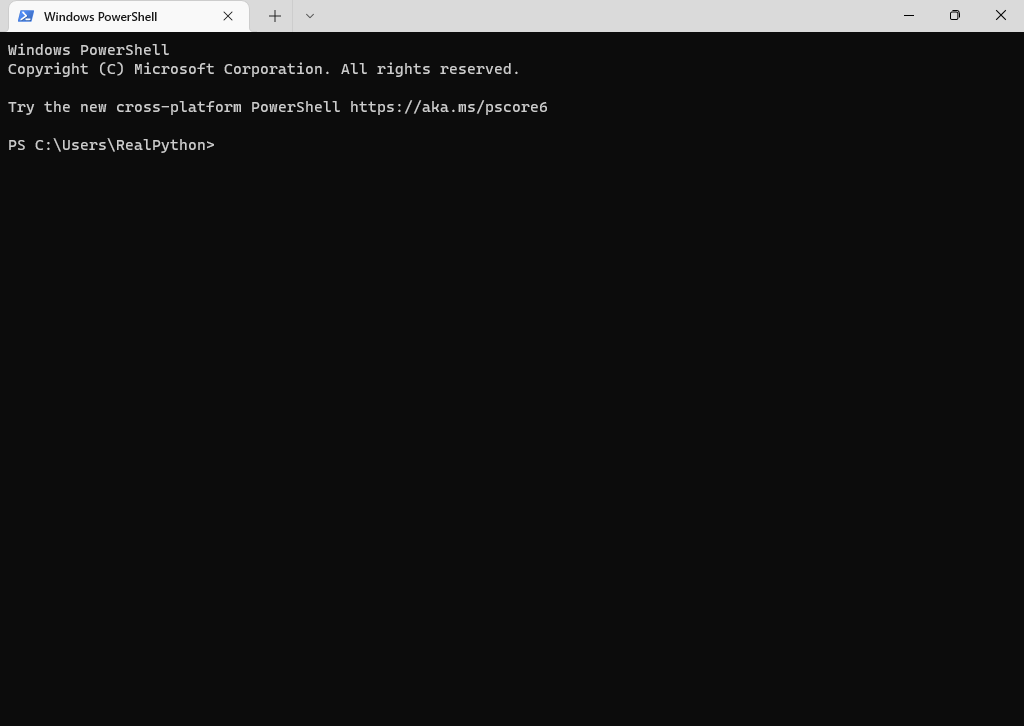
When you start the application, you should see a window that looks like this:
It can be handy to create a desktop shortcut for the terminal or pin the application to your task bar for easier access.
Linux
You can find the terminal application in the application menu of your Linux distribution.
Alternatively, you can press Ctrl+Alt+T on your keyboard or use the application launcher and search for the word Terminal.
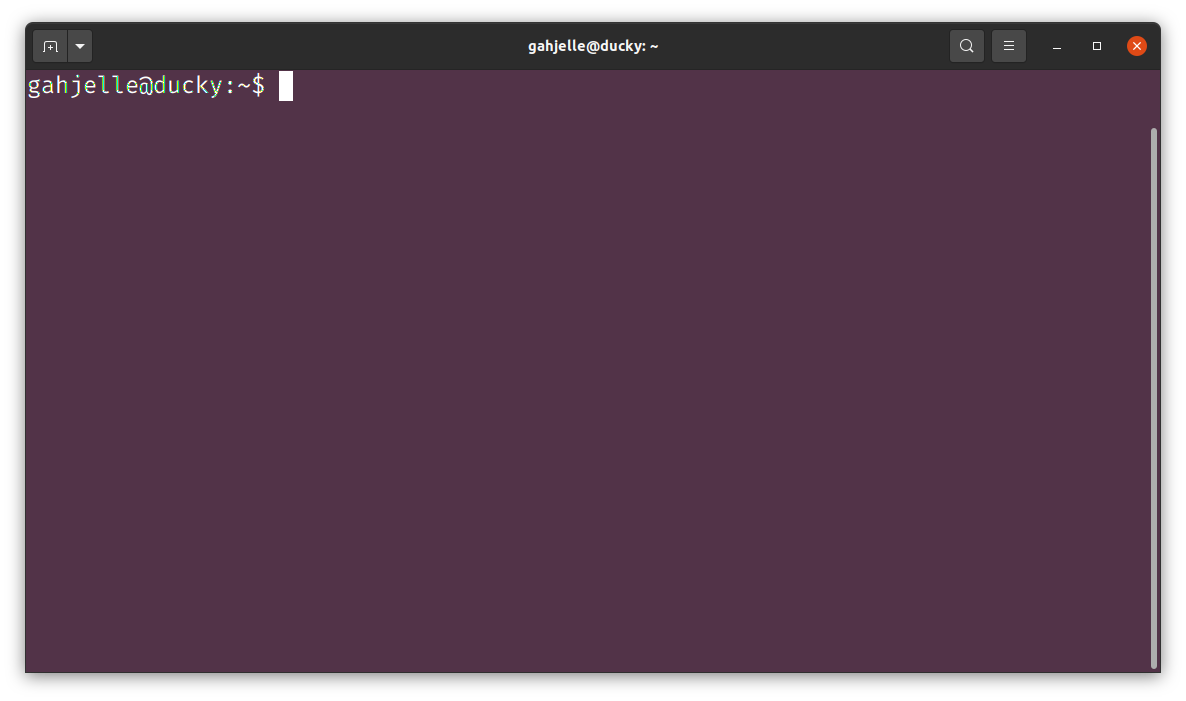
After opening the terminal, you should see a window similar to the screenshot below:
How you open the terminal may also depend on which Linux distribution you’re using. Each one has a different way of doing it.
If you have trouble opening the terminal on Linux, then the Real Python community will help you out in the comments below.
macOS
A common way to open the terminal application on macOS is by opening the Spotlight Search and searching for Terminal.
You can also find the terminal app in the application folder inside Finder.
When you open the terminal, you see a window that looks similar to the image below:
Read the full article at https://realpython.com/terminal-commands/ »
[ Improve Your Python With 🐍 Python Tricks 💌 – Get a short & sweet Python Trick delivered to your inbox every couple of days. >> Click here to learn more and see examples ]
