Grounded SAM 2: From Open-Set Detection to Segmentation and Tracking

Table of Contents
- Grounded SAM 2: From Open-Set Detection to Segmentation and Tracking
- Why Segmentation Matters (Beyond Bounding Boxes)
- Introducing Grounded SAM 2
- Where SAM Fits in the Pipeline
- Why SAM 2 (and not SAM)
- How Grounded SAM 2 Works Internally
- How Grounded SAM 2 Differs from the Original Grounded SAM
- Benefits and Use Cases
- Configuring Your Development Environment
- Setup and Imports
- Download Model Checkpoints
- Detect, Segment, and Track Function
- Building a Gradio Interface
- Output
- Summary
Grounded SAM 2: From Open-Set Detection to Segmentation and Tracking
In the previous tutorial, we learned how Grounding DINO enables open-set object detection using language prompts. By fusing vision and language through multi-stage attention, the model localizes any object we describe — even ones it has never seen during training. We integrated it into a video pipeline with Gradio, demonstrating how objects can be tracked frame by frame using only natural language.
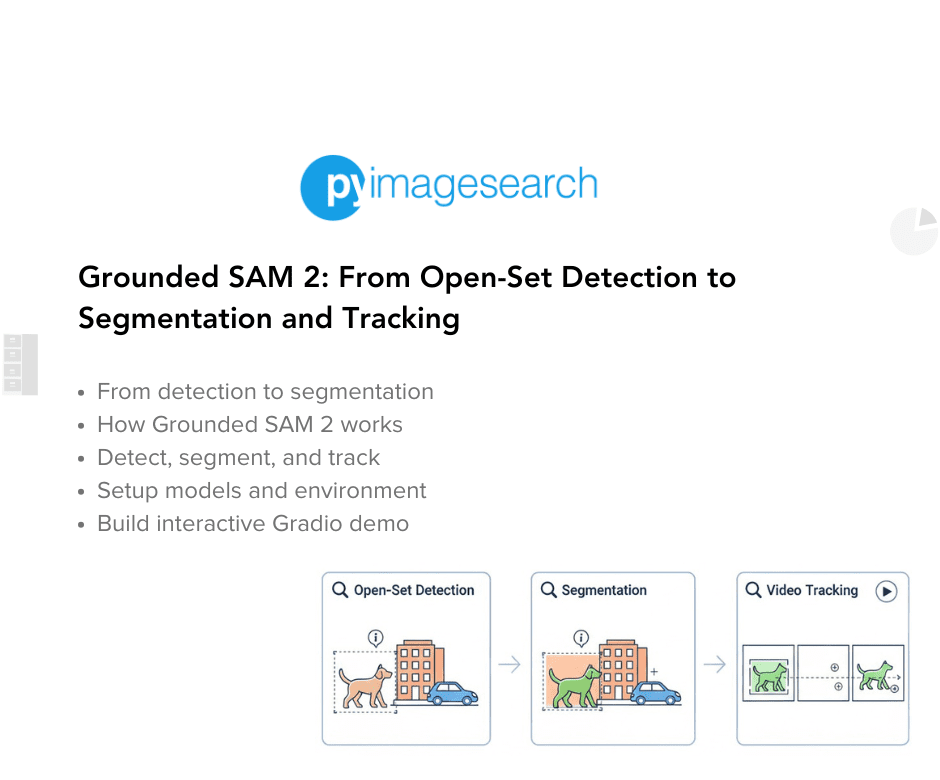
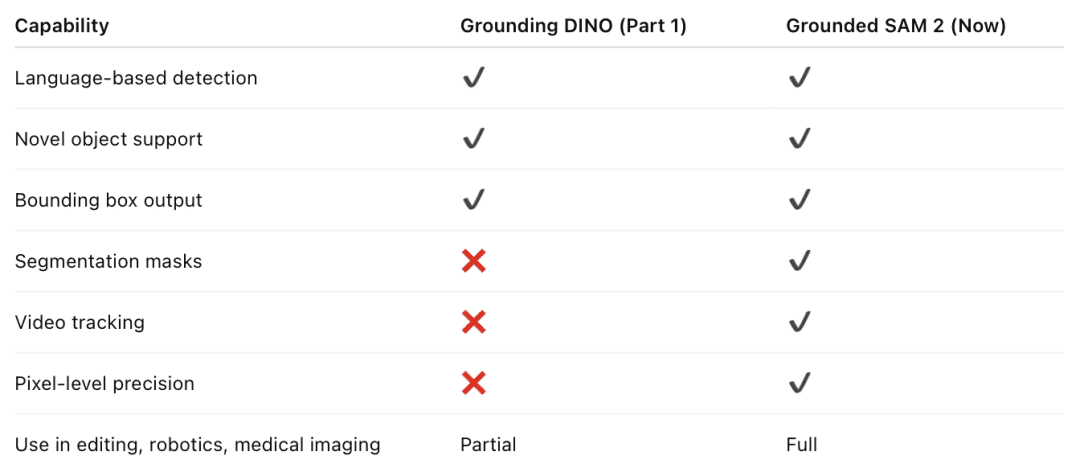
However, as noted in our discussion on challenges, Grounding DINO outputs only bounding boxes. While bounding boxes identify where objects are, they lack spatial precision. They capture the surrounding background, struggle with overlapping objects, and cannot isolate the exact shapes of objects. For many real-world tasks — especially in robotics, medical imaging, precision editing, and video analytics — bounding boxes are insufficient. This limitation naturally leads to the next step: segmentation and persistent tracking, powered by Grounded SAM 2.
Grounded SAM 2 becomes a natural evolution of the Grounding DINO pipeline. It combines language-driven detection with pixel-level segmentation and adds video-aware object tracking.
In simple terms, Grounding DINO finds what and where an object is. SAM 2 shows which exact pixels belong to it — and continues tracking it across frames in the video.
This blog explains how Grounded SAM 2 leverages the strengths of Grounding DINO for detection, then passes the information to the SAM 2 model for high-precision segmentation, enabling a complete vision-language pipeline that can detect, segment, and track anything from a natural-language prompt.
This lesson is the 1st in a 2-part series on Vision-Language Models — Grounded Vision Models (Grounding DINO and SAM):
- Grounding DINO: Open Vocabulary Object Detection on Videos
- Grounded SAM 2: From Open-Set Detection to Segmentation and Tracking (this tutorial)
To learn how to perform open-vocabulary detection, segmentation, and tracking with Grounded SAM 2, just keep reading.

Why Segmentation Matters (Beyond Bounding Boxes)
Bounding box detection works well for coarse localization. However, it captures both foreground and background. For example, when detecting a “helmet”, the bounding box includes part of the rider’s head. When segmenting a leaf on a plant, the bounding box also covers branches and background.
Segmentation resolves this by predicting pixel-level object masks. Instead of drawing a rectangle, the model outlines the object’s actual shape. This gives far higher spatial precision, which is essential when:
- Extracting objects for editing or compositing
- Measuring object size or structure
- Performing targeted robotic manipulation
- Identifying visual anomalies (e.g., tumor boundaries in medical scans)
Segmentation models traditionally require large annotated mask datasets and operate on limited class sets. They cannot generalize to new concepts without retraining.
Grounded SAM 2 addresses this by combining language-driven detection with foundation model-based segmentation. This creates a system that understands which object is requested, where it is located, and which exact pixels belong to it, even if the object is unseen during training.
Introducing Grounded SAM 2
In Part 1, Grounding DINO demonstrated that a model can:
- Detect arbitrary objects via natural language
- Localize those objects using bounding boxes
- Generalize to unseen categories
- Process images and videos using the same language-driven approach
This established a foundation for language-guided visual understanding. But segmentation remained outside the pipeline. That gap is now filled by Grounded SAM 2.
Grounded SAM 2 is a vision-language pipeline that performs detection, segmentation, and tracking using natural language prompts.
In simple terms, Grounding DINO finds what and where the object is. SAM 2 determines the exact pixels that belong to the object. The system then tracks it consistently across video frames.
The pipeline extends the philosophy of “detect anything we can describe” into
“detect, isolate, and follow anything we can describe.”
Where SAM Fits in the Pipeline
First, Grounding DINO detects regions of interest using a text prompt.
Next, each detected region (bounding box) becomes a prompt for SAM 2.
Then, SAM 2 generates a precise segmentation mask around the detected object.
Finally, in videos, SAM 2 maintains temporal consistency using memory-based tracking, allowing seamless object persistence across frames.
Why SAM 2 (and not SAM)
Segmentation is fundamentally different from detection. Detection indicates an object’s location using bounding boxes. Segmentation goes further — it outlines the exact pixels belonging to an object. This enables precise measurement, clean object isolation, context-aware editing, and better downstream inference.
The Segment Anything Model (SAM) introduced a breakthrough idea: promptable segmentation. Instead of training a model for fixed categories, SAM learns to generate segmentation masks from simple prompts such as points, bounding boxes, or coarse regions. The model was trained on 11 million images and 1.1 billion masks, resulting in exceptional zero-shot generalization. In practice, we provide an image and a hint, and SAM completes the mask. This makes it ideal for human-in-the-loop annotation, automated mask creation, and visual editing workflows.
SAM was originally designed for static images. It does not maintain temporal consistency, so mask quality may fluctuate between video frames. This is where SAM 2 brings a major improvement. SAM 2 treats a single image as a one-frame video and extends segmentation to full video using a streaming-memory transformer. This mechanism maintains compact temporal information across frames, allowing the model to refine object masks continuously while preserving consistency.
SAM 2 operates reliably even under motion, partial occlusion, or subtle appearance changes. Meta reports higher segmentation accuracy compared to the original SAM, both on images and videos. SAM 2 supports box-based or point-based prompting just like SAM, but adds the ability to track the same object across time, making it far more suitable for dynamic tasks such as video analytics, robotics, and video editing.
How Grounded SAM 2 Works Internally
Grounded SAM 2 is a pipeline (not a single monolithic model): it composes an open-vocabulary grounding model (Grounding DINO, Florence-2, DINO-X, or similar) with SAM 2 as the promptable segmenter, then layers on tracking and heuristics for video. The official repo and community implementations show this cascade approach.
Let’s break the pipeline into concrete steps:
- Prompt and Detection: The user provides an image (or video frame) and a text prompt (e.g., “red car”, “chair on left”). A grounding model (Grounding DINO, Florence-2, or DINO-X) processes the input and outputs bounding boxes around all matching objects.
- Segmentation: Each detected box is passed to SAM 2 (or SAM) as a prompt. SAM then generates a precise mask for each object, turning rough boxes into tight outlines.
- Tracking (for video): In videos, Grounded SAM 2 links these segmented objects across frames. It can assign consistent IDs to objects and follow new objects as they enter the scene. The pipeline can even handle custom video inputs and “new object” discovery across the video.
Thus, the architecture is a cascade of models: a vision-language detector followed by a promptable segmenter, with optional tracking on top. The Grounded SAM 2 repo calls this a “foundation model pipeline” that can ground and track anything in videos. The approach is highly modular (e.g., one can swap in Florence-2 for detection, or use DINO-X for even better open-world performance). However, the core idea is the same: language-guided detection plus SAM-based segmentation.
How Grounded SAM 2 Differs from the Original Grounded SAM
The essential change is swapping SAM → SAM 2 and expanding grounding options. Grounded SAM 2 uses SAM 2 (image+video promptable segmentation), which directly brings video consistency and improved mask quality when compared to using the original SAM. This reduces the need for ad-hoc temporal smoothing for many use cases.
Grounded SAM 2 commonly pairs SAM 2 with stronger or multiple grounding backbones (e.g., Florence-2, DINO-X, or Grounding DINO 1.5). This modularity improves open-world detection performance because different grounding models have different strengths in zero-shot semantics and localization.
The tracking and streaming design is emphasized. The Grounded SAM 2 repository includes tooling for streaming, real-time demo frameworks, and memory-efficient processing for long videos — practical concerns that go beyond static-image pipelines.
Benefits and Use Cases
Grounded SAM 2 offers several advantages over traditional systems:
- Open-Vocabulary Detection and Segmentation: By combining Grounding DINO (or DINO-X, Florence-2) with SAM, Grounded SAM 2 can find and mask objects of any category described by a prompt. This removes the need for a fixed class list and huge labeled datasets.
- High-Quality Masks: SAM provides pixel-accurate segmentation masks by default. For example, in medical imaging or precision agriculture, exact object boundaries are critical; Grounded SAM 2 can deliver these masks without additional training.
- Simplified Data Annotation: The pipeline can automatically label images with boxes and masks. Grounding DINO can greatly speed up annotation tasks, replacing many hand-designed steps. By chaining it with SAM, one can auto-generate both boxes and masks for new datasets.
- Video Understanding: Grounded SAM 2 naturally extends to video. It can track and segment objects across frames, enabling applications (e.g., video surveillance, sports analytics, and robotics), where knowing what the object is and where it moves over time is crucial.
- Versatility: Segmentation is useful across domains such as medical imaging (tumor outlining), photo editing (isolating objects), and autonomous driving (road scene parsing). Grounded SAM 2 democratizes these tasks by open-sourcing the models and pipeline.
Would you like immediate access to 3,457 images curated and labeled with hand gestures to train, explore, and experiment with … for free? Head over to Roboflow and get a free account to grab these hand gesture images.
Configuring Your Development Environment
To follow this guide, you need to have the following libraries installed on your system.
!pip install -q gradio supervision transformers pillow
!pip install -q sam2
First, we install all necessary Python packages using pip. The -q flag keeps the installation logs quiet, making the notebook output cleaner.
Let’s quickly understand the role of each library:
gradio: helps us build an interactive web interface, as we did earlier for Grounding DINO.supervision: provides annotation utilities to draw masks and boxes efficiently.transformers: allows us to load pretrained vision-language models using the Hugging Face API.pillow: supports image conversion, drawing, and visualization.
We also install sam2, the segmentation foundation model used in Grounded SAM 2. This package gives access to the SAM 2 implementation, including prompt-driven mask prediction and video tracking capabilities.
!git clone -q https://github.com/IDEA-Research/Grounded-SAM-2.git
%cd Grounded-SAM-2
Then we clone the Grounded SAM 2 official implementation from GitHub. This repository contains utility scripts, model configuration files, and example pipelines used by the Grounded SAM 2 authors.
Finally, we change the working directory to the cloned folder using the %cd command. This allows us to access model weights, configuration files, and inference utilities directly from the repository.
Setup and Imports
Once installed, we import all the essential libraries and helper modules.
import os
import cv2
import torch
import shutil
import numpy as np
import gradio as gr
import supervision as sv

from PIL import Image
from pathlib import Path
from huggingface_hub import hf_hub_download

from sam2.sam2_image_predictor import SAM2ImagePredictor
from sam2.build_sam import build_sam2_video_predictor, build_sam2
from transformers import AutoProcessor, AutoModelForZeroShotObjectDetection
from utils.track_utils import sample_points_from_masks
from utils.video_utils import create_video_from_images
First, we import os for file path handling and directory operations, cv2 (OpenCV) helps read video frames and handle image transformations, torch is used for model inference with GPU acceleration, shutil for file copying and directory cleanup when generating temporary results, numpy provides efficient numerical and array operations, gradio to build the interactive web interface, and supervision offers utilities to visualize results such as drawing masks, tracking IDs, and overlaying labels.
Then, we import PIL.Image, which converts frames to PIL images that some models (e.g., SAM) expect as input. We also import Path (from pathlib), which provides a cleaner way to manage file system paths, and hf_hub_download, which allows us to download model weights directly from the Hugging Face Hub.
After that, we import the SAM 2 predictor classes.
SAM2ImagePredictorallows pixel-level segmentation on static images.build_sam2_video_predictorprepares a video segmentation pipeline that maintains memory across frames.build_sam2helps load the SAM 2 foundation model before initializing its inference mode.
These components enable us to move beyond bounding box detection and perform segmentation and video-based tracking.
We also import AutoProcessor and AutoModelForZeroShotObjectDetection from Hugging Face to load the Grounding DINO processor and model. This gives us language-driven open-set detection — the first phase of the Grounded SAM 2 pipeline.
Finally, we import utility functions from the repository:
sample_points_from_masks: helps extract representative points from segmentation masks, which improves tracking stability across time.create_video_from_images: takes a sequence of processed image frames and stitches them back into an output video.
These utilities help convert segmentation results into a complete and trackable video pipeline.
Need Help Configuring Your Development Environment?

All that said, are you:
- Short on time?
- Learning on your employer’s administratively locked system?
- Wanting to skip the hassle of fighting with the command line, package managers, and virtual environments?
- Ready to run the code immediately on your Windows, macOS, or Linux system?
Then join PyImageSearch University today!
Gain access to Jupyter Notebooks for this tutorial and other PyImageSearch guides pre-configured to run on Google Colab’s ecosystem right in your web browser! No installation required.
And best of all, these Jupyter Notebooks will run on Windows, macOS, and Linux!
Download Model Checkpoints
To run Grounded SAM 2, we first download the official model weights and configuration files.
sam2_ckpt_path = hf_hub_download(
   repo_id="facebook/sam2-hiera-large",
   filename="sam2_hiera_large.pt"
)

sam2_config_path = hf_hub_download(
   repo_id="facebook/sam2-hiera-large",
   filename="sam2_hiera_l.yaml"
)

print("✅ SAM2 checkpoint downloaded:", sam2_ckpt_path)
print("✅ SAM2 config path:", sam2_config_path)

shutil.copy(sam2_ckpt_path, "/content/sam2_hiera_large.pt")
shutil.copy(sam2_config_path, "/content/sam2_hiera_l.yaml")

print("✅ Copied to /content")
First, we use hf_hub_download() to download the SAM 2 model checkpoint from the Hugging Face Hub. The repo_id points to the official model repository, and filename specifies the exact checkpoint file. This .pt file contains the pre-trained weights used by SAM 2 when predicting segmentation masks.
Next, we download the model configuration file. This .yaml file defines model settings such as architecture parameters, scaling strategies, and prompt handling. SAM 2 uses it during initialization to ensure the weights are loaded correctly.
Then, we display the download paths to confirm that both files were retrieved successfully. This ensures correct model retrieval before moving forward.
After that, we copy the downloaded files to the /content/ directory. This step centralizes the checkpoint and configuration file, making them easier to access when building the model. It is particularly useful in environments like Google Colab, where code execution often expects resources in the root working directory.
Finally, we confirm the copy operation. At this point, both the SAM 2 checkpoint and its configuration file are available at the root directory and ready to be loaded.
Detect, Segment, and Track Function
Now, we define the main function, which takes a video and a text prompt, then:
- Uses Grounding DINO to detect the object from language,
- Uses SAM 2 to segment it,
- Uses the video predictor to track masks across frames,
- Renders an annotated output video.
def run_tracking(video_file, text_prompt, prompt_type, progress=gr.Progress()):
   if video_file is None:
       raise gr.Error("Please upload a video file.")
We define a function run_tracking that Gradio will call (Line 1). It accepts:
video_file: the uploaded videotext_prompt: the language query (e.g., “red car”)prompt_type: how we seed SAM 2 (“point”, “box”, or “mask”)progress: a Gradio helper to report status updates in the UI
First, we check if a video was provided. If not, we raise a Gradio error (Please upload a video file.). This appears as a useful message in the web UI instead of a raw Python traceback (Lines 2 and 3).
      progress(0, "Initializing models...")

      device = "cuda" if torch.cuda.is_available() else "cpu"

      MODEL_ID = "IDEA-Research/grounding-dino-base"
   SAVE_TRACKING_RESULTS_DIR = "./tracking_results"
   SOURCE_VIDEO_FRAME_DIR = "./custom_video_frames"
   OUTPUT_VIDEO_PATH = "./output_tracking.mp4"

   torch.autocast(device_type=device, dtype=torch.bfloat16).__enter__()
   if device == "cuda" and torch.cuda.get_device_properties(0).major >= 8:
       torch.backends.cuda.matmul.allow_tf32 = True
       torch.backends.cudnn.allow_tf32 = True

   video_predictor = build_sam2_video_predictor(
       "sam2_hiera_l.yaml",
       ckpt_path=sam2_ckpt_path,
       device=device
   )
   sam2_image_model = build_sam2("sam2_hiera_l.yaml", ckpt_path=sam2_ckpt_path)
   image_predictor = SAM2ImagePredictor(sam2_image_model)

   processor = AutoProcessor.from_pretrained(MODEL_ID)
   grounding_model = AutoModelForZeroShotObjectDetection.from_pretrained(MODEL_ID).to(device)
Next, we initialize the progress bar at 0% with a status message (Initializing Models…). This gives immediate feedback that something has started (Line 5). We detect whether a GPU is available. If yes, we use "cuda"; otherwise, we fall back to "cpu". This decides where models and tensors will live (Line 7).
We define a few constants (Lines 9-12):
MODEL_ID: which Grounding DINO checkpoint to load (here we usegrounding-dino-basemodel released byIDEA-Research)SAVE_TRACKING_RESULTS_DIR: where we will save annotated framesSOURCE_VIDEO_FRAME_DIR: where raw frames extracted from the input video will be storedOUTPUT_VIDEO_PATH: final video file path
We enable automatic mixed precision with bfloat16. This reduces memory usage and speeds up inference, especially on modern GPUs (Line 14). If we are on a recent NVIDIA GPU (compute capability ≥ 8), we also enable TF32 for matmul operations and cuDNN. This gives an extra performance boost with minimal quality trade-off (Lines 15-17).
We load two variants of the SAM 2 model:
video_predictor: specialized for video tracking. It maintains memory and propagates masks across frames (Lines 19-23).sam2_image_modelandSAM2ImagePredictor: used for single-image segmentation on the initial annotated frame (Lines 24 and 25).
This mirrors our conceptual pipeline:
- Use image-level SAM 2 to obtain a clean starting mask
- Use video-level SAM 2 to propagate it throughout the entire video
We then load (Lines 27 and 28):
processor: handles all preprocessing (image + text → tensors),grounding_model: the Grounding DINO model checkpoint for zero-shot object detection. We also move the model to the selected device for efficient inference.
   progress(0.2, "Extracting video frames...")

   video_path = video_file
   frame_generator = sv.get_video_frames_generator(video_path, stride=1)

   source_frames = Path(SOURCE_VIDEO_FRAME_DIR)
   source_frames.mkdir(parents=True, exist_ok=True)

   with sv.ImageSink(target_dir_path=source_frames, overwrite=True, image_name_pattern="{:05d}.jpg") as sink:
       for frame in frame_generator:
           sink.save_image(frame)

   frame_names = [p for p in os.listdir(SOURCE_VIDEO_FRAME_DIR) if p.lower().endswith((".jpg", ".jpeg"))]
   frame_names.sort(key=lambda p: int(os.path.splitext(p)[0]))
We update progress to 20%, indicating that video frame extraction has started (Line 30). We treat the uploaded video file path as video_path (Line 32). Then, we ask supervision to create a frame generator, yielding every frame (stride=1) (Line 33). We create the SOURCE_VIDEO_FRAME_DIR if it does not exist which will store all extracted frames as images (Lines 35 and 36).
Inside this context (Lines 38-40), we:
- Use
ImageSinkto write each frame to disk, - Name frames as
00000.jpg,00001.jpg, etc. (zero-padded 5-digit indices). This gives a clean directory of ordered frames.
We list all JPEG frames in the directory and sort them numerically based on their file name index. This ensures frame 0, 1, 2, … order is preserved for later steps (Lines 42 and 43).
   progress(0.35, "Running object grounding...")

   inference_state = video_predictor.init_state(video_path=SOURCE_VIDEO_FRAME_DIR)
   ann_frame_idx = 0

   img_path = os.path.join(SOURCE_VIDEO_FRAME_DIR, frame_names[ann_frame_idx])
   image = Image.open(img_path)

   inputs = processor(images=image, text=text_prompt, return_tensors="pt").to(device)
   with torch.no_grad():
       outputs = grounding_model(**inputs)

   results = processor.post_process_grounded_object_detection(outputs, inputs.input_ids, threshold=0.3, text_threshold=0.3, target_sizes=[image.size[::-1]])
   input_boxes = results[0]["boxes"].cpu().numpy()
   class_names = results[0]["labels"]

   image_predictor.set_image(np.array(image.convert("RGB")))
   # handle multiple detections safely
   if len(input_boxes) == 0:
       raise gr.Error("No objects detected. Try increasing threshold or changing prompt.")

   first_box = input_boxes[0].tolist()

   masks, _, _ = image_predictor.predict(
       point_coords=None,
       point_labels=None,
       box=first_box,
       multimask_output=False,
   )
   if masks.ndim == 4:
       masks = masks.squeeze(1)
   OBJECTS = class_names
We bump progress to 35% and signal that object grounding (detection) is about to start (Line 45). We initialize the SAM 2 video inference state using the directory of frames (Line 47). This prepares internal memory and indexing. We also decide that frame 0 is the annotation frame (ann_frame_idx = 0), where we will give SAM 2 our prompts (points/box/mask) (Line 48).
We load the first frame as a PIL image. This will be fed to Grounding DINO and SAM 2 for initial grounding and mask generation. We preprocess both the image and the text_prompt using the processor. We convert everything into PyTorch tensors and move them to the device (Lines 50-53).
Then, we run the Grounding DINO model inside torch.no_grad() (no gradient tracking needed for inference). The model predicts raw detection outputs (logits, box coordinates, etc.) (Lines 54 and 55).
Next, we post-process detections (Line 57):
- Map predictions back to the original image size (
target_sizes), - Apply box and text thresholds (
0.3here), - Extract
boxesandlabels. We convert boxes to a NumPy array, and keep the text labels asclass_names.
We provide the first frame to the SAM 2 image predictor in RGB format. This lets the predictor run segmentation on this frame. We handle the case where Grounding DINO finds no objects. In that situation, we raise a user-friendly error suggesting a different threshold or prompt. We choose the first detected box as the region of interest. In a more advanced version, we could loop over all boxes; here we keep it simple for the demo (Lines 58-66).
We call SAM 2 image predictor with (Lines 68-73):
- No point prompts (
point_coords=None) - A box prompt (
box=first_box) multimask_output=Falseto get a single best mask
SAM 2 returns masks corresponding to the object inside the bounding box.
Sometimes masks come with an extra singleton dimension; we remove it to simplify the shape. We also store OBJECTS as the list of detected class labels from Grounding DINO (Lines 74-76).
progress(0.5, "Registering prompts...")

   if prompt_type == "point":
       all_sample_points = sample_points_from_masks(masks=masks, num_points=10)
       for object_id, (label, points) in enumerate(zip(OBJECTS, all_sample_points), start=1):
           labels = np.ones(points.shape[0], dtype=np.int32)
           video_predictor.add_new_points_or_box(inference_state, ann_frame_idx, object_id, points=points, labels=labels)

   elif prompt_type == "box":
       for object_id, (label, box) in enumerate(zip(OBJECTS, input_boxes), start=1):
           video_predictor.add_new_points_or_box(inference_state, ann_frame_idx, object_id, box=box)

   else:  # mask
       for object_id, (label, mask) in enumerate(zip(OBJECTS, masks), start=1):
           video_predictor.add_new_mask(inference_state, ann_frame_idx, object_id, mask=mask)
We move the progress to 50%. Now we send our prompts (points/boxes/masks) to the video predictor (Line 78).
First, if prompt_type is "point" (Lines 80-84):
- We sample 10 points from each mask using
sample_points_from_masks. - For each object, we treat all sampled points as foreground (
labels = 1). - We call
add_new_points_or_boxto register those points as prompts at frameann_frame_idx.
This mimics a user clicking on the object region.
If prompt_type is "box" (Lines 86-88):
- We loop over all detected boxes and labels,
- We register each bounding box directly as a box prompt.
SAM 2 uses these boxes to initialize segmentation and tracking.
Otherwise (default case, "mask") (Lines 90-92):
- We register full binary masks as prompts with
add_new_mask, - This is the strongest form of supervision, giving SAM 2 a full understanding of the object shape on the first frame.
   progress(0.65, "Propagating masks through the video...")

   video_segments = {}
   for out_frame_idx, out_obj_ids, out_mask_logits in video_predictor.propagate_in_video(inference_state):
       video_segments[out_frame_idx] = {out_obj_id: (out_mask_logits[i] > 0).cpu().numpy() for i, out_obj_id in enumerate(out_obj_ids)}
We move progress to 65%. Now SAM 2’s video predictor will take over and perform tracking (Line 94).
We create an empty dictionary video_segments (Line 96).
Then, for each frame produced by propagate_in_video (Line 97):
out_frame_idx: index of the frame,out_obj_ids: IDs of objects present in that frame,out_mask_logits: raw mask logits for those objects.
We convert logits to binary masks (logits > 0) and store them in video_segments[out_frame_idx]. This gives a complete mapping from frame → object → mask (Line 98).
   progress(0.8, "Rendering annotated frames...")

   if not os.path.exists(SAVE_TRACKING_RESULTS_DIR): os.makedirs(SAVE_TRACKING_RESULTS_DIR)
   ID_TO_OBJECTS = {i: obj for i, obj in enumerate(OBJECTS, start=1)}

   for frame_idx, segments in video_segments.items():
       img = cv2.imread(os.path.join(SOURCE_VIDEO_FRAME_DIR, frame_names[frame_idx]))
       object_ids = list(segments.keys())
       masks = np.concatenate(list(segments.values()), axis=0)

       detections = sv.Detections(xyxy=sv.mask_to_xyxy(masks), mask=masks, class_id=np.array(object_ids))
       box_annotator = sv.BoxAnnotator()
       label_annotator = sv.LabelAnnotator()
       mask_annotator = sv.MaskAnnotator()

       annotated = box_annotator.annotate(img.copy(), detections)
       annotated = label_annotator.annotate(annotated, detections, labels=[ID_TO_OBJECTS[i] for i in object_ids])
       annotated = mask_annotator.annotate(annotated, detections)

       cv2.imwrite(os.path.join(SAVE_TRACKING_RESULTS_DIR, f"annotated_{frame_idx:05d}.jpg"), annotated)
We increase progress to 80%. We ensure the output directory for annotated frames exists. We also build a mapping from object ID → class label string (Lines 100-103).
For each frame (Lines 105-108):
- We read the original frame using OpenCV.
- We collect all object IDs present in this frame.
- We concatenate their masks into a single array (one mask per object).
Next, we build a Detections object for supervision (Line 110):
xyxy: bounding boxes derived from masks viamask_to_xyxymask: the segmentation masksclass_id: integer object IDs
We also create annotators for: Boxes, Labels, and Masks (Lines 111-113).
We then (Lines 115-117):
- Draw bounding boxes on the frame
- Draw text labels using
ID_TO_OBJECTS - Overlay colored masks for each object
This produces a nicely visualized frame with box + label + mask all together.
Finally, we save each annotated frame as an image in TRACKING_RESULTS, again with zero-padded index in the filename (Line 119).
progress(0.95, "Creating output video...")

   create_video_from_images(SAVE_TRACKING_RESULTS_DIR, OUTPUT_VIDEO_PATH)

   progress(1, "Done.")
   return OUTPUT_VIDEO_PATH
We move progress to 95%, signalling the last step (Line 121).
We call create_video_from_images to stitch the annotated frames into a single video file.
The function uses frame order and FPS (Frames Per Second) configuration to match the original video playback (Line 123).
Finally, we set the progress to 100% and return the path to the output video. Gradio will display this video in the UI (Lines 125 and 126).
This single function:
- Uses Grounding DINO to find objects from a text prompt
- Uses SAM 2 to obtain an initial high-quality mask on the first frame
- Registers prompts (points/box/mask) into the SAM 2 video predictor
- Propagates masks across all frames, creating temporally consistent segmentation
- Renders and exports a fully annotated video
Building a Gradio Interface
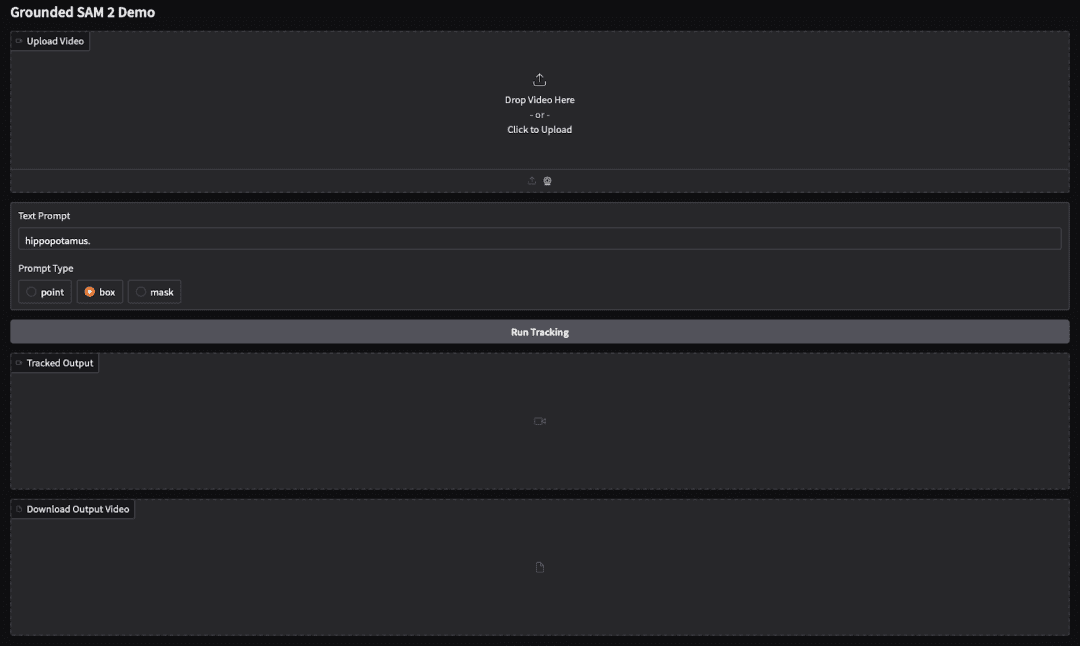
We now create a simple Gradio web interface that allows users to upload a video, write a text prompt, choose the prompt type, and visualize the segmentation tracking result directly.
with gr.Blocks() as demo:
   gr.Markdown("# Grounded SAM 2 Demo")

   video_input = gr.Video(label="Upload Video")
   text_prompt = gr.Textbox(label="Text Prompt", value="hippopotamus.")
   prompt_type = gr.Radio(["point", "box", "mask"], value="box", label="Prompt Type")

   run_btn = gr.Button("Run Tracking")
   output_video = gr.Video(label="Tracked Output")
   download_btn = gr.File(label="Download Output Video")

   def wrap(video_file, text, ptype):
       out = run_tracking(video_file, text, ptype)
       return out, out

   run_btn.click(fn=wrap, inputs=[video_input, text_prompt, prompt_type], outputs=[output_video, download_btn])


demo.launch(debug=True)
First, we open a Gradio Blocks container, which gives us full control over layout. Then, we display a Markdown title. This helps indicate that the interface supports tracking using Grounding DINO and SAM 2, optimized for Colab execution (Lines 1 and 2).
Next, we define all input components (Lines 4-6):
video_input: accepts the input videotext_prompt: takes the language query. Here we initialize it with"hippopotamus."as a default exampleprompt_type: allows selecting how we supply the initial guidance to SAM 2 (either via point, box, or mask-based prompting). We setboxas the default since it works reliably in most cases.
Then, we create (Lines 8-10):
- A button to start tracking
- A video widget to display the final segmented and tracked output
- A file component to allow downloading the same output video
This keeps the interaction simple: upload → run → view → download.
After that, we define a wrapper function. It calls run_tracking() using the inputs from the interface, then returns the same output path twice — one for preview and one for download (Lines 12-14).
Here, we link the button click to the tracking execution. When the user presses Run Tracking, Gradio passes the uploaded video, the text prompt, and the selected prompt type to our function, then displays the result (Line 16).
Finally, we launch the interface (Figure 1). Setting debug=True enables better error reporting, especially useful during development in Colab (Line 19).
Output
In the Gradio interface, we uploaded a short animated clip and entered the text prompt “a cartoon bunny.” After clicking Run Tracking, the pipeline began processing the video frame by frame.
First, Grounding DINO analyzed each frame and detected regions matching the text description. Next, SAM 2 generated precise segmentation masks around the detected object. The system then propagated these masks across all frames using video memory-based tracking.
As the video was processed, the interface displayed the annotated results in the Tracked Output section. Each frame showed the object with bounding boxes, segmentation masks, and text labels overlaid. In our example, the bunny remained consistently tracked across the clip.
This visual output confirms both spatial accuracy (via segmentation) and temporal consistency (via tracking), demonstrating where and when the described object appears throughout the video.
What’s next? We recommend PyImageSearch University.
86+ total classes • 115+ hours hours of on-demand code walkthrough videos • Last updated: January 2026
★★★★★ 4.84 (128 Ratings) • 16,000+ Students Enrolled
I strongly believe that if you had the right teacher you could master computer vision and deep learning.
Do you think learning computer vision and deep learning has to be time-consuming, overwhelming, and complicated? Or has to involve complex mathematics and equations? Or requires a degree in computer science?
That’s not the case.
All you need to master computer vision and deep learning is for someone to explain things to you in simple, intuitive terms. And that’s exactly what I do. My mission is to change education and how complex Artificial Intelligence topics are taught.
If you’re serious about learning computer vision, your next stop should be PyImageSearch University, the most comprehensive computer vision, deep learning, and OpenCV course online today. Here you’ll learn how to successfully and confidently apply computer vision to your work, research, and projects. Join me in computer vision mastery.
Inside PyImageSearch University you’ll find:
- ✓ 86+ courses on essential computer vision, deep learning, and OpenCV topics
- ✓ 86 Certificates of Completion
- ✓ 115+ hours hours of on-demand video
- ✓ Brand new courses released regularly, ensuring you can keep up with state-of-the-art techniques
- ✓ Pre-configured Jupyter Notebooks in Google Colab
- ✓ Run all code examples in your web browser — works on Windows, macOS, and Linux (no dev environment configuration required!)
- ✓ Access to centralized code repos for all 540+ tutorials on PyImageSearch
- ✓ Easy one-click downloads for code, datasets, pre-trained models, etc.
- ✓ Access on mobile, laptop, desktop, etc.
Summary
In this tutorial, we explored how Grounded SAM 2 extends the capabilities of Grounding DINO by moving from bounding box detection to full segmentation and video tracking. In the previous blog, we saw how Grounding DINO performs open-set object detection using natural language prompts. It understands what to look for and localizes objects using bounding boxes, but lacks pixel-level precision.
Here, we addressed that limitation using SAM 2. First, we introduced segmentation as a more accurate way of identifying object boundaries. We then discussed how SAM and SAM 2 perform promptable segmentation, in which simple hints (e.g., boxes or points) are sufficient to generate high-quality masks. SAM 2 improves this further with a streaming-memory transformer that maintains mask consistency across video frames.
Next, we built a complete pipeline that combines Grounding DINO for detection and SAM 2 for segmentation and tracking. We implemented a step-by-step workflow to detect objects from language, generate masks in the first frame, and propagate them throughout the video. Finally, we wrapped the entire pipeline inside an interactive Gradio interface, enabling video upload, text prompting, and real-time visualization with an option to download results.
This transforms the system from “detect objects by description” to “detect, segment, and track anything described in words”. Grounded SAM 2 enables precise visual understanding using language, making it ideal for robotics, video analysis, medical imaging, editing, and automated annotation.
Citation Information
Thakur, P. “Grounded SAM 2: From Open-Set Detection to Segmentation and Tracking,” PyImageSearch, P. Chugh, S. Huot, G. Kudriavtsev, and Aditya Sharma, eds., 2026, https://pyimg.co/flutd
@incollection{Thakur_2026_grounded-sam-2-open-set-segmentation-and-tracking,
  author = {Piyush Thakur},
  title = {{Grounded SAM 2: From Open-Set Detection to Segmentation and Tracking}},
  booktitle = {PyImageSearch},
  editor = {Puneet Chugh and Susan Huot and Georgii Kudriavtsev and Aditya Sharma},
  year = {2026},
  url = {https://pyimg.co/flutd},
}
To download the source code to this post (and be notified when future tutorials are published here on PyImageSearch), simply enter your email address in the form below!
Download the Source Code and FREE 17-page Resource Guide
Enter your email address below to get a .zip of the code and a FREE 17-page Resource Guide on Computer Vision, OpenCV, and Deep Learning. Inside you’ll find my hand-picked tutorials, books, courses, and libraries to help you master CV and DL!
The post Grounded SAM 2: From Open-Set Detection to Segmentation and Tracking appeared first on PyImageSearch.
